Tutorial - Connect using Microsoft Entra ID
Published 17 April 2026
These tutorials shows you how to connect Flyway to Azure SQL or SQL Server using Microsoft Entra ID (formerly Azure Active Directory) authentication.
Prerequisites:
- An Azure SQL Database or SQL Server instance configured for Microsoft Entra authentication
- A Microsoft Entra tenant with appropriate users, groups, or service principals configured
Connecting with a Service Principal
Setting up the Service Principal
- Register an application in Microsoft Entra ID ([Azure portal guide](https://learn.microsoft.com/en-us/entra/identity-platform/quickstart-register-app))
- Create a client secret for the application
- In Azure SQL, create a user for the service principal:
CREATE USER [your-app-name] FROM EXTERNAL PROVIDER;
   ALTER ROLE db_ddladmin ADD MEMBER [your-app-name];
Connecting using the Service Principal
Either configure then environment in your TOML configuration
[environments.production]
url = "jdbc:sqlserver://my-server.database.windows.net:1433;databaseName=mydb;authentication=ActiveDirectoryServicePrincipal"
user = "<client-id>"
password = "${vault.entra-client-secret}"
Or specify directly on the command-line
flyway info \
  -url="jdbc:sqlserver://prod-server.database.windows.net:1433;databaseName=mydb;authentication=ActiveDirectoryServicePrincipal" \
  -user="<client-id>" \
  -password="<client-secret>"
Connecting with Managed Identity (MSI)
Either configure then environment in your TOML configuration
[environments.production]
url = "jdbc:sqlserver://prod-server.database.windows.net:1433;databaseName=mydb;authentication=ActiveDirectoryMSI"
Or specify directly on the command-line
[environments.production]
url = "jdbc:sqlserver://prod-server.database.windows.net:1433;databaseName=mydb;authentication=ActiveDirectoryMSI;msiClientId=<client-id>"
For a user-assigned managed identity, specify its client ID
Grant the managed identity access in the target database:
CREATE USER [your-managed-identity-name] FROM EXTERNAL PROVIDER;
ALTER ROLE db_ddladmin ADD MEMBER [your-managed-identity-name];
Connecting with Interactive Authentication
Requirements
- To use Azure Active Directory with an Azure SQL Database server, the server needs to be assigned to an Azure Active Directory admin.
- To register an app with Azure Active Directory, you need to be either an Azure AD admin or a user assigned the Azure AD Application Developer role.
Registering Flyway Desktop and setting permissions
To use interactive authentication to connect to Azure, Flyway Desktop needs to register as an Azure Active Directory app. Registering Flyway Desktop will generate an application (client) ID that Flyway Desktop will need to know to connect.
In the Azure portal, select Azure Active Directory > App registrations > New registration. Enter Flyway Desktop (or some other recognizable name) for the application name and then click on the Register button.
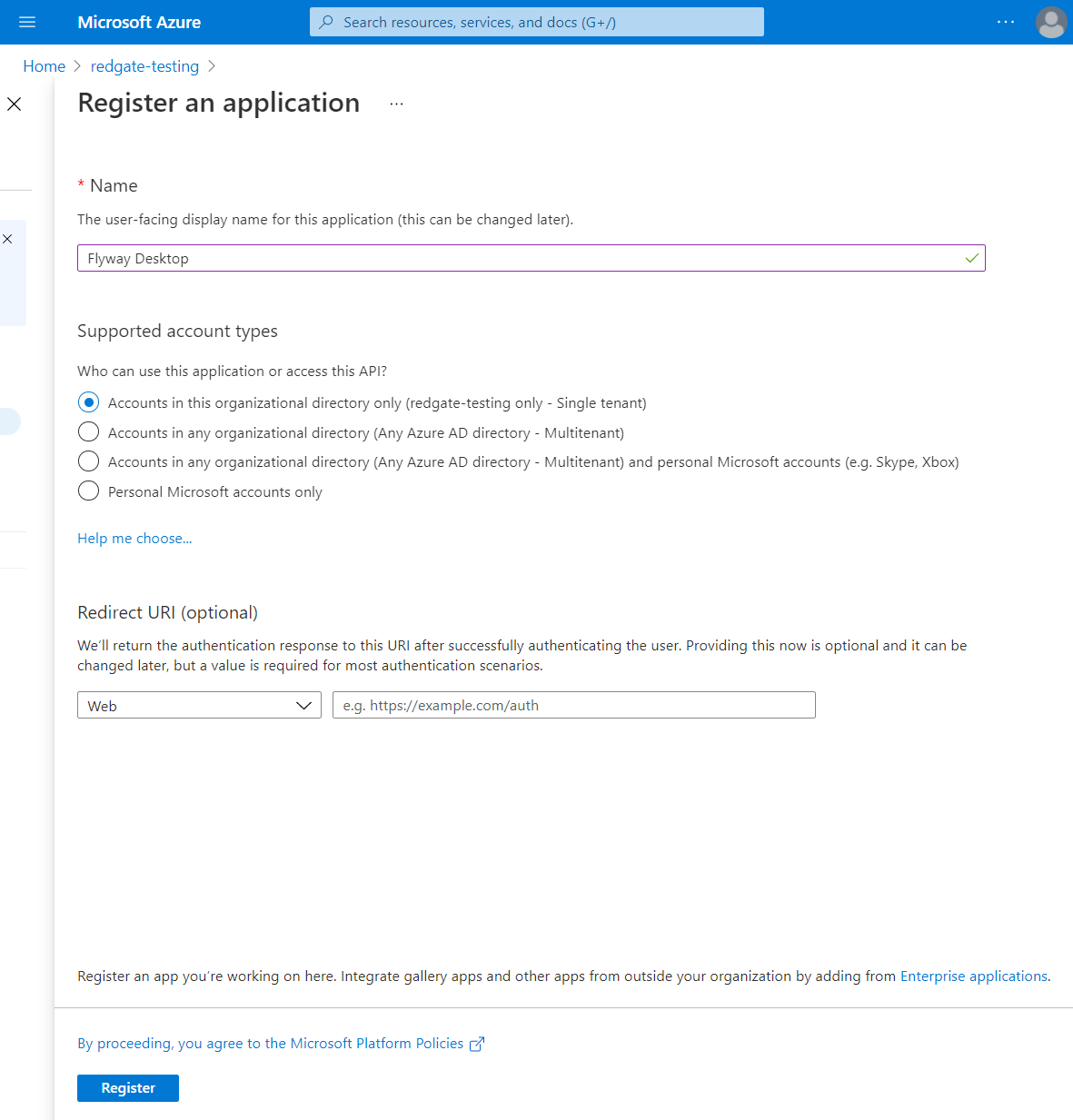
Make a note of the Application (client) ID, and the Directory (tenant) ID as these will be required later. Then click on Add a Redirect URI.
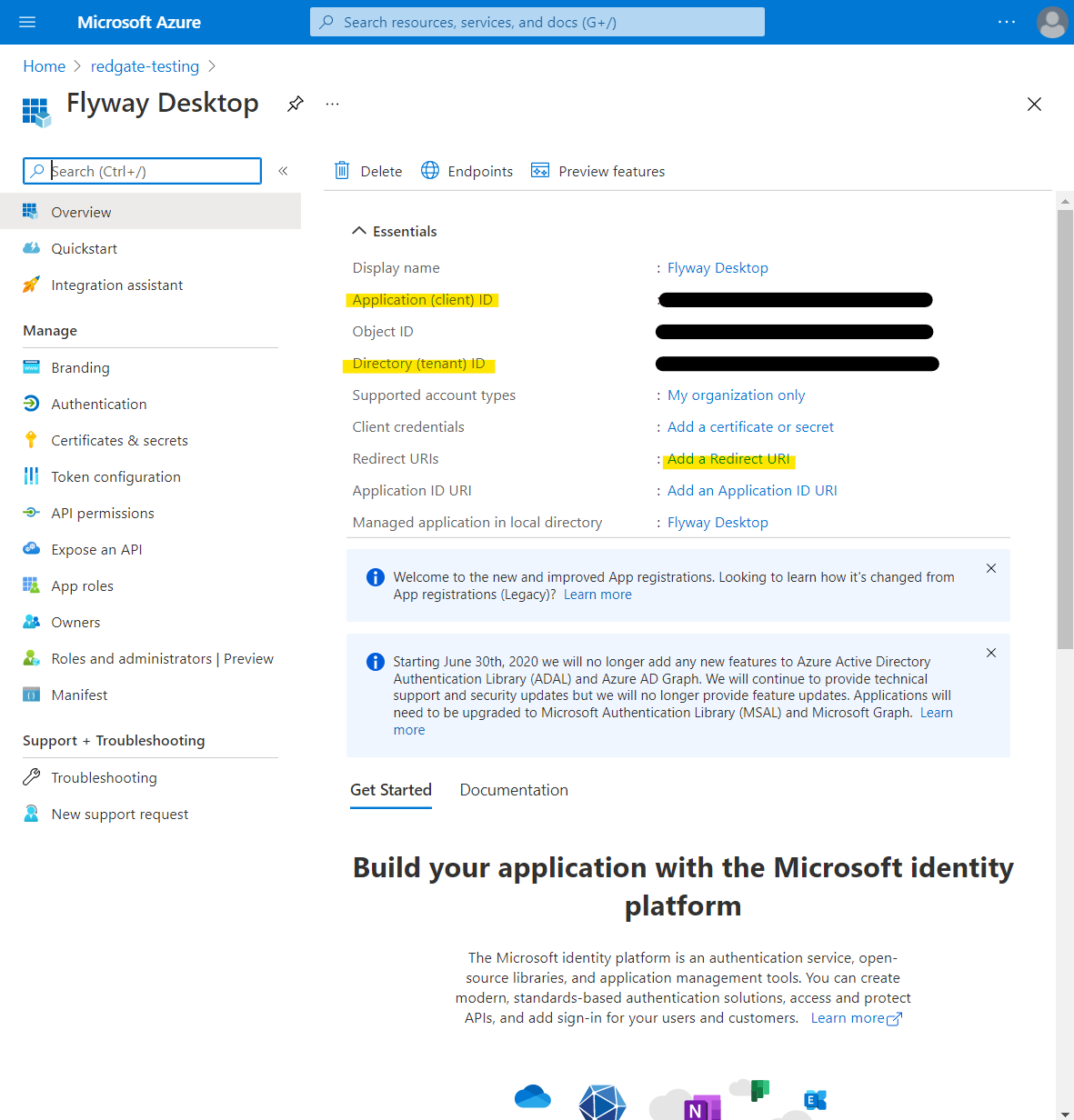
Go to Add a platform > Mobile and desktop applications and then ensure https://login.microsoftonline.com/common/oauth2/nativeclient is selected.
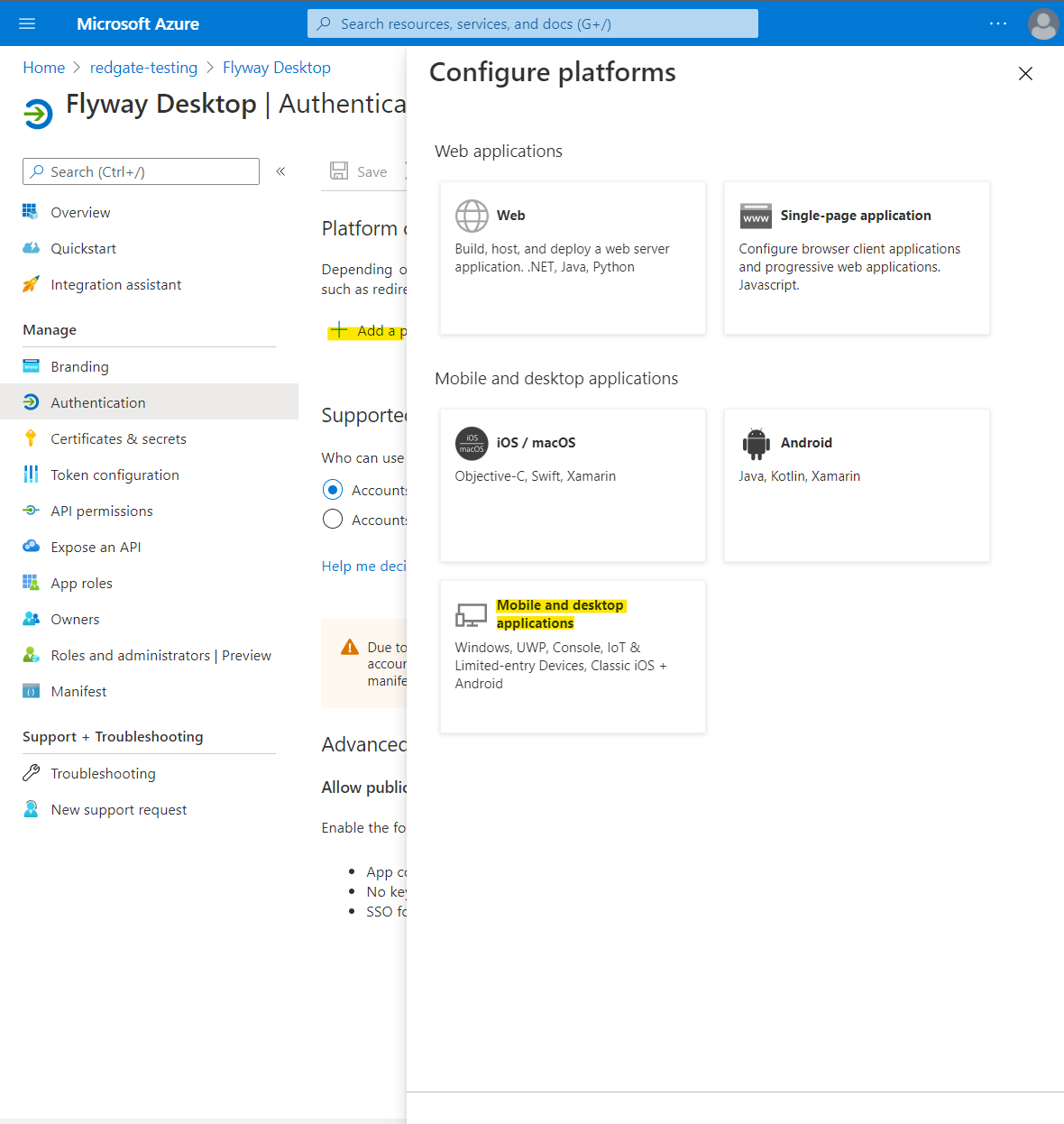
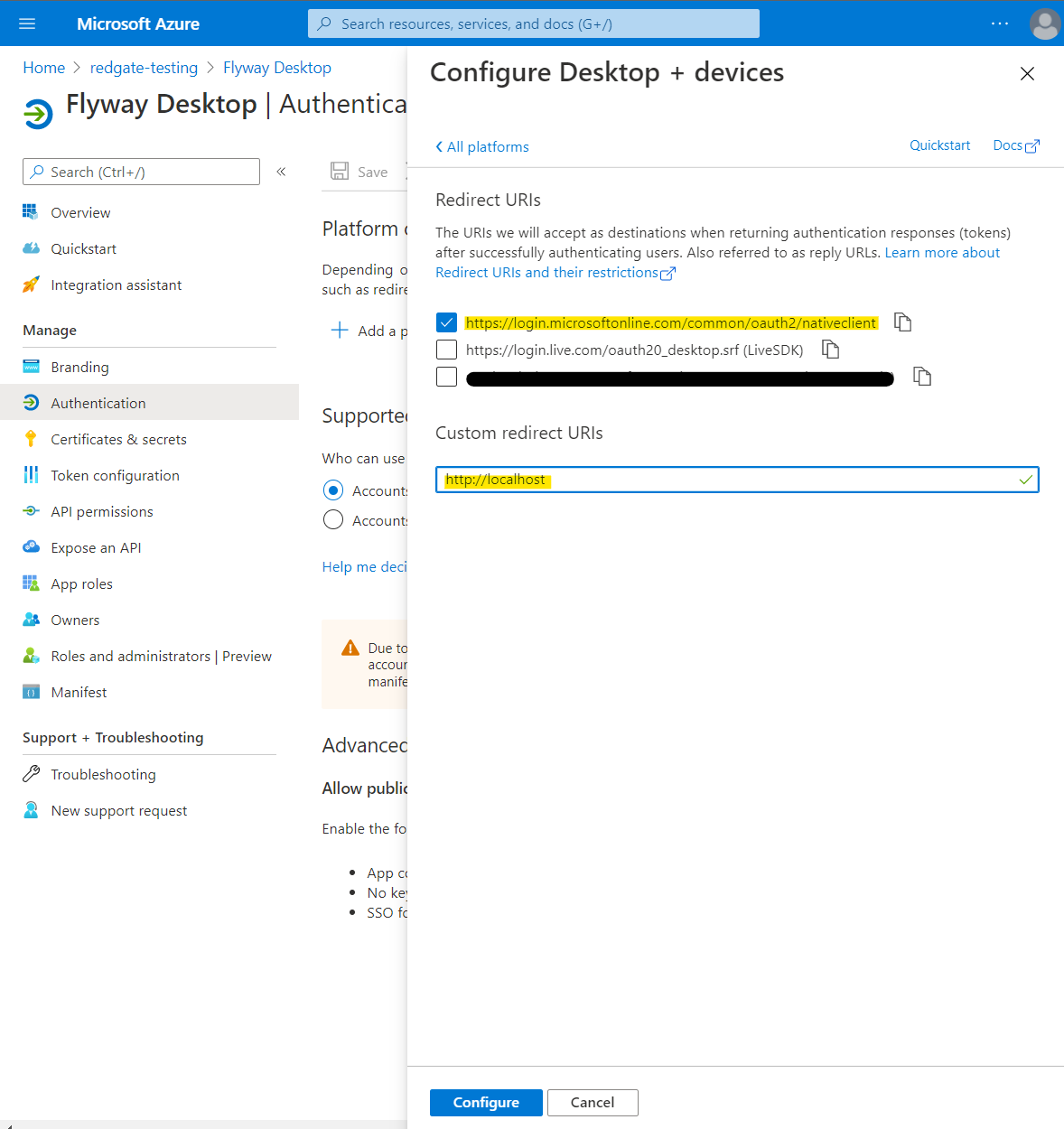
In addition, add a Custom redirect URIs of http://localhost. See here for information about redirect URI and why it is safe to use the http scheme for localhost.
Select API permissions > Add a permission.
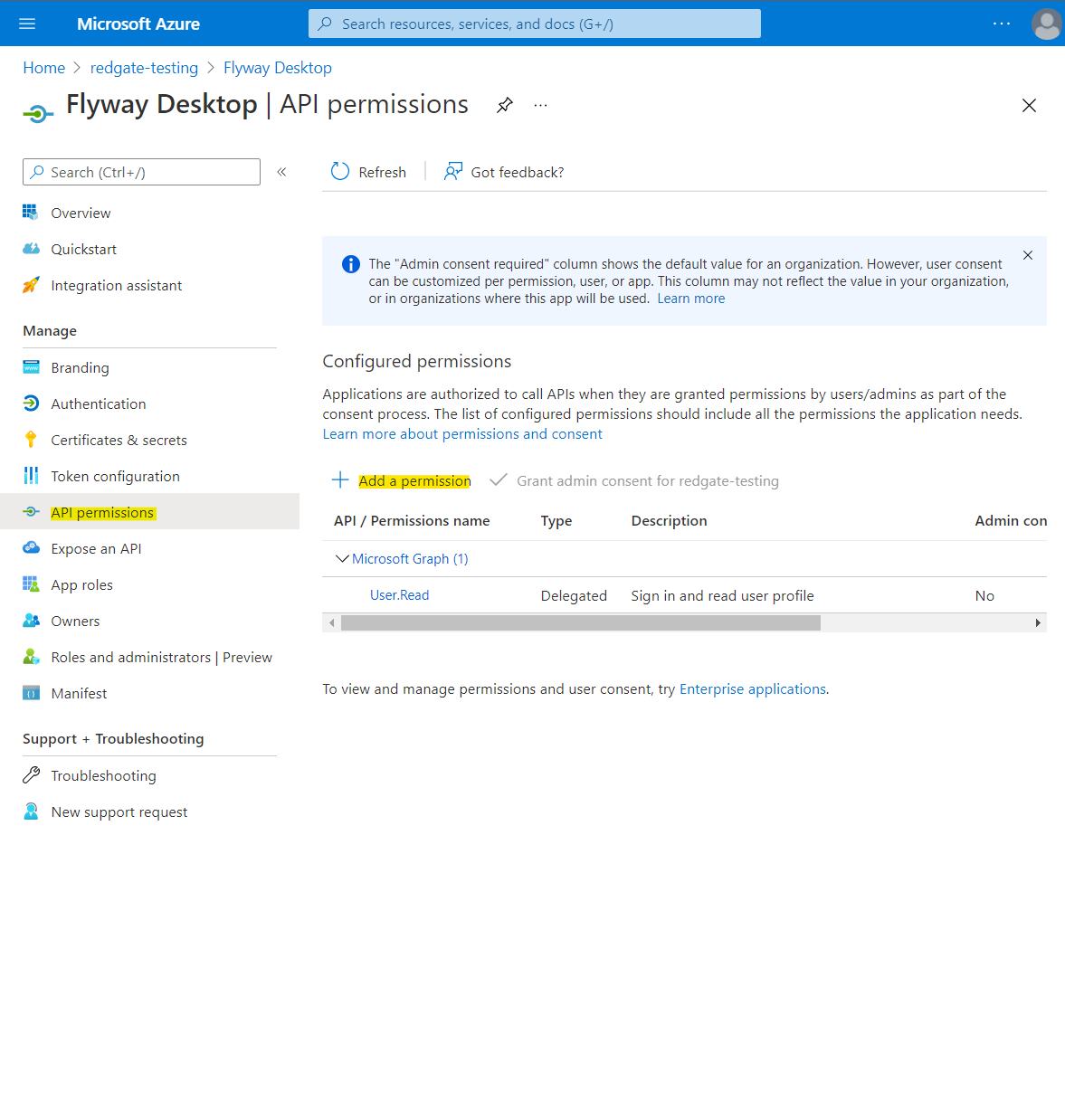
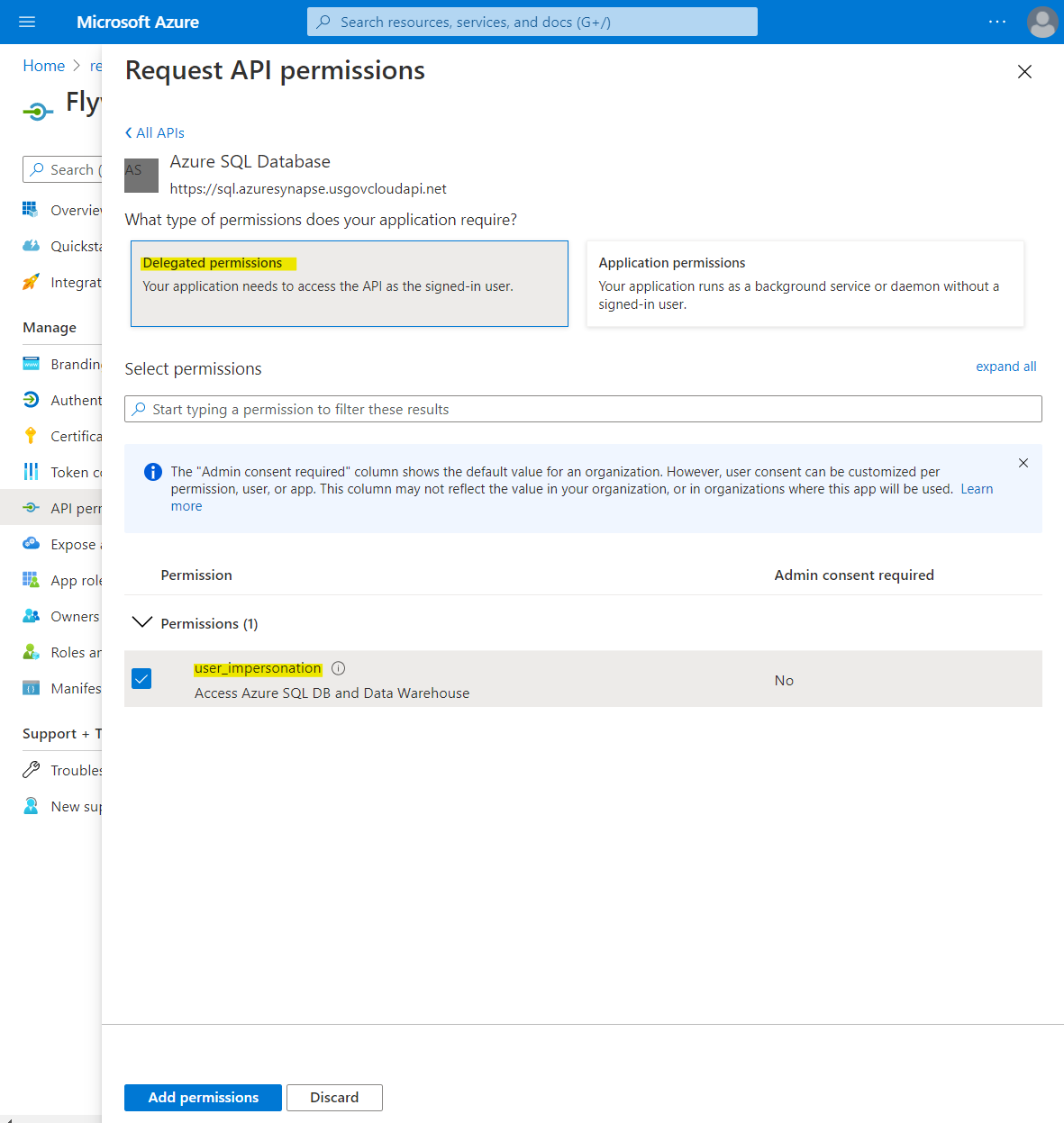
Select APIs my organization uses > type Azure SQL Database into the search and select Azure SQL Database.

Select Delegated permissions. Ensure Permissions > user_impersonation is selected, and then click Add permissions.
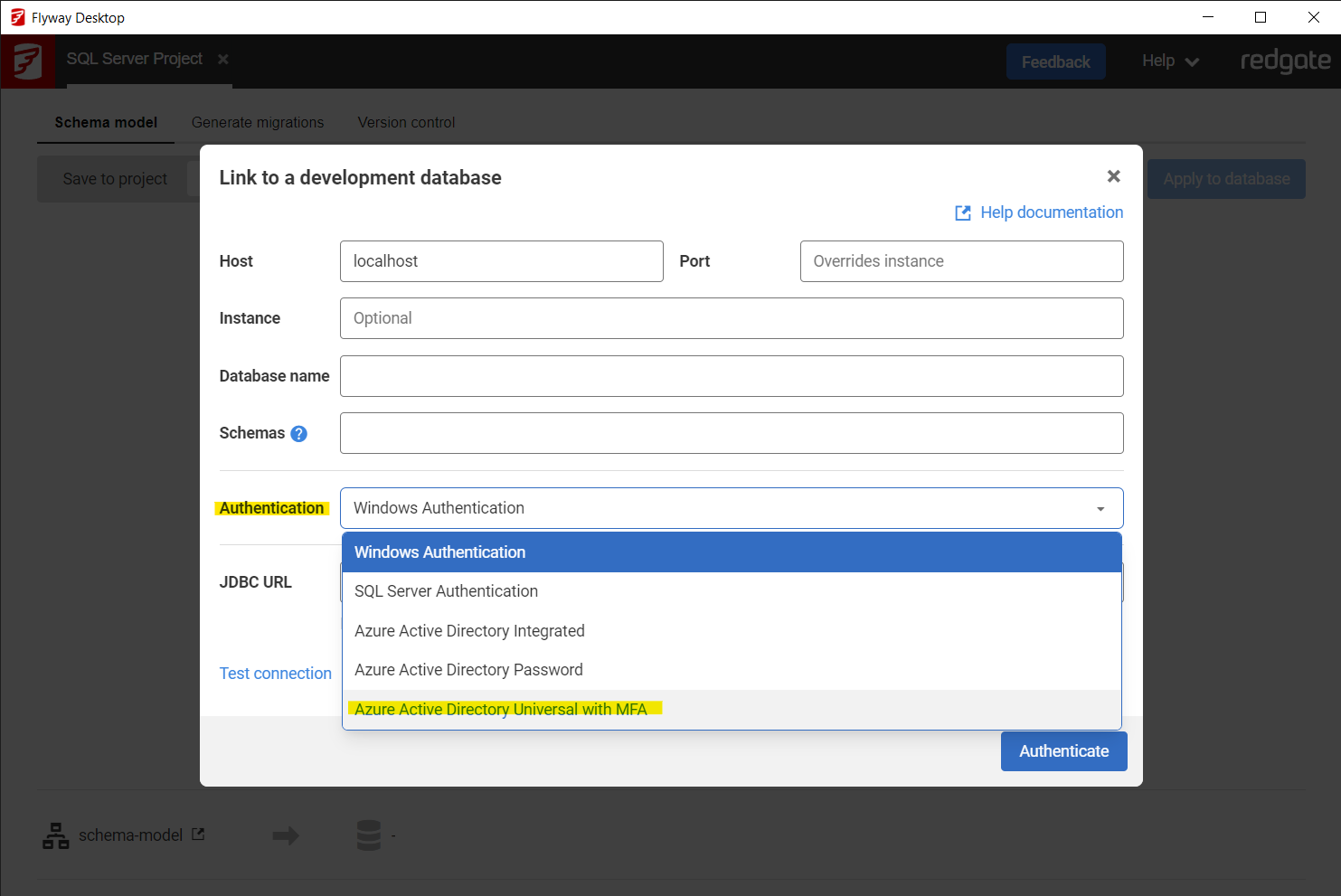
Using your app registration with Flyway Desktop
During a new connection dialogue, select Azure Active Directory Interactive from the Authentication Type drop down. This only applies to new projects for SQL server databases.
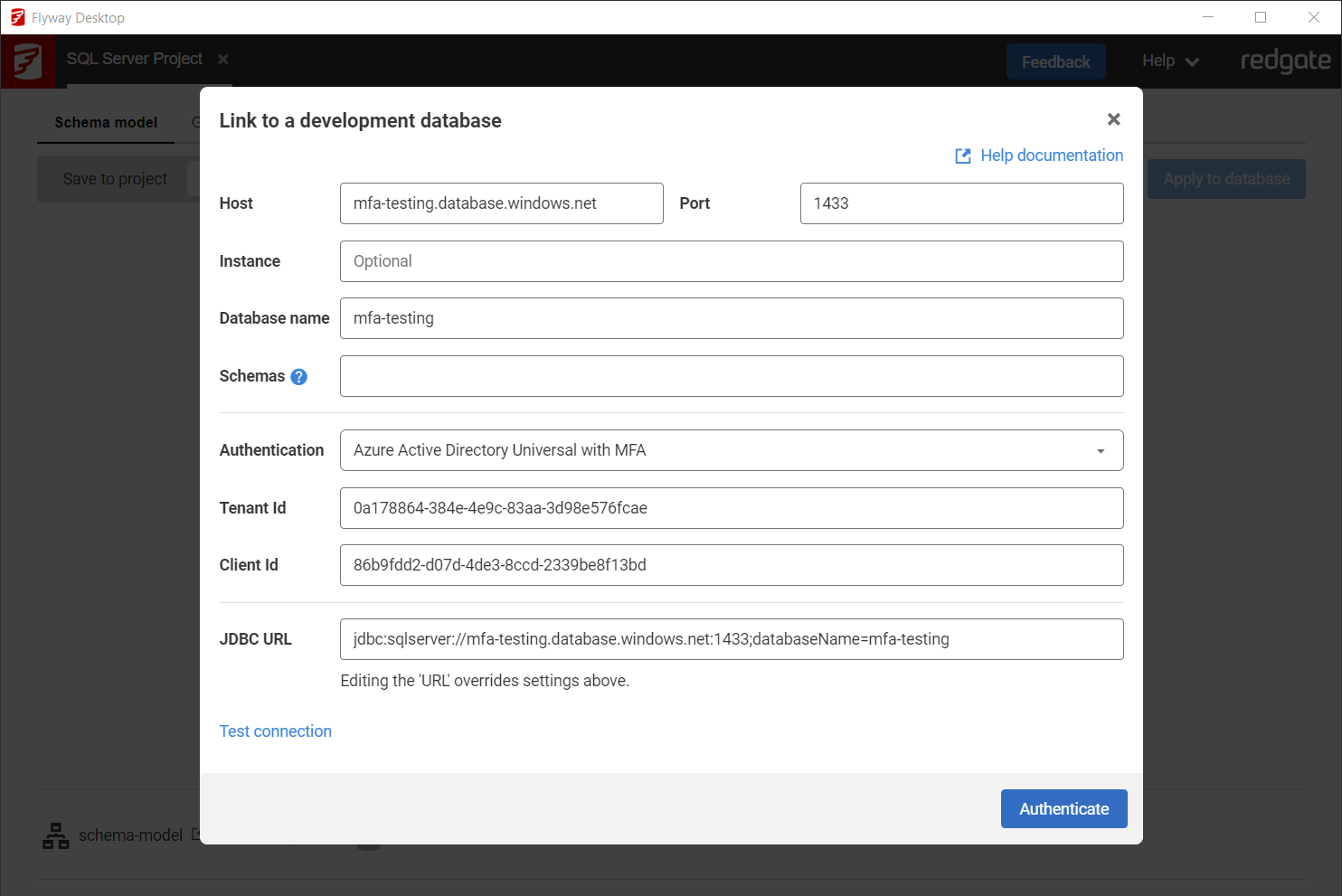
Enter the JDBC URL for your SQL server database, the schemas you wish to target. Input the Tenant ID and Client ID that you recorded earlier.
Click Test connection. This will open a web page in your default browser in order for you to log onto your Azure AD account.
Proceed through the authentication flow to ensure the details you provided are correct and that the app is configured correctly.
Connection details such as the Tenant and Client ID have been randomized in the below example and do not point to a live database.
Configure the environment in your TOML configuration, using the Microsoft Entra Interactive Resolver
[environments.development]
url = "jdbc:sqlserver://dev-server.database.windows.net:1433;databaseName=mydb"

[environments.development.jdbcProperties]
accessToken = "${entraId.token}"

[environments.development.resolvers.entraId]
tenantId = "<your-tenant-id>"
clientId = "<your-client-id>"
Connecting with an Access Token
Either configure then environment in your TOML configuration
[environments.production]
url = "jdbc:sqlserver://prod-server.database.windows.net:1433;databaseName=mydb"

[environments.production.jdbcProperties]
accessToken = "<your-access-token>"
Or specify directly on the command-line
# Acquire token using Azure CLI
ACCESS_TOKEN=$(az account get-access-token --resource https://database.windows.net/ --query accessToken -o tsv)

# Pass to Flyway
flyway migrate \
  -url="jdbc:sqlserver://prod-server.database.windows.net:1433;databaseName=mydb" \
  -jdbcProperties.accessToken="$ACCESS_TOKEN" \
  -environment=production
This documentation contains proprietary information and is protected by copyright law.
Copyright © 2026 Red Gate Software Limited. All rights reserved


