Tutorial - Edit code review settings using Flyway Desktop
Published 11 August 2026
You don't need to hand-edit a sqlfluff.cfg file to change your project's code review policy (see here). Flyway Desktop provides a settings screen for enabling and disabling rules, setting their severity, and configuring parameters — this tutorial walks through using it.
This covers SQLFluff rules only; regex rules are still configured by hand.
How to edit code review settings
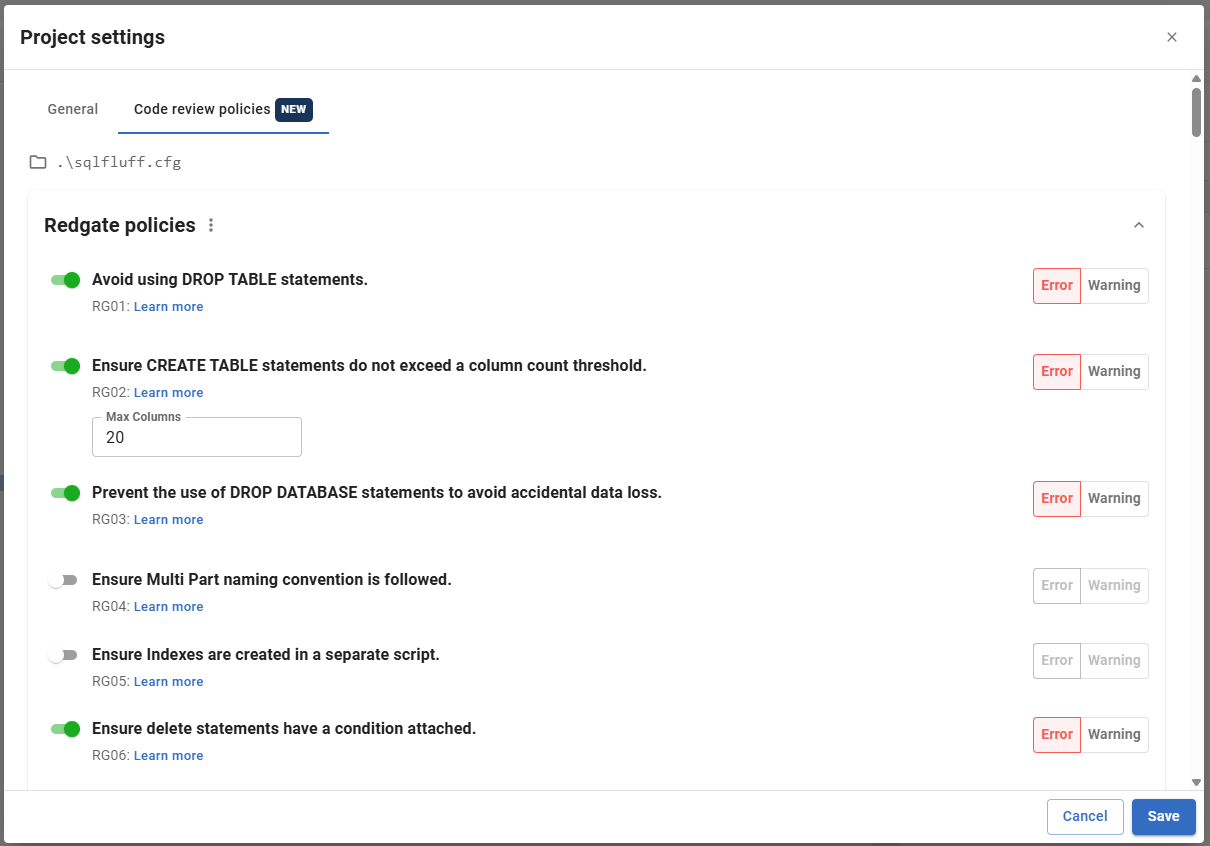
- With your project open in Flyway Desktop, click the settings icon in the top-right of the window to open Project settings.
- Select the Code review policies tab.
- Rules are grouped into categories (for example Redgate, Ambiguous, Convention). Expand a category to see its rules.
- For each rule you can:
- Use the switch to enable or disable it.
- Use the Error / Warning toggle to set its severity.
- Edit any parameters the rule exposes — these appear once the rule is enabled.
- Click Learn more to open that rule's documentation.
- To change every rule in a category at once, use the ⋮ menu on the category header: Enable all, Disable all, Set all to Error, or Set all to Warning.
- Click Save to apply your changes, or Cancel to discard them. If you have unsaved changes, Flyway Desktop will ask you to confirm before discarding.
What happens when you save
If your project doesn't already have a rules configuration file, Flyway Desktop creates one at sqlfluff.cfg in your project directory and points the project's rulesConfig setting at it.
If your project already has one — including a file you wrote by hand — Flyway Desktop updates it in place. Saving rewrites the file into Flyway's own format: sections it doesn't manage (such as custom rule plugins) are left untouched, but the rules/warnings lines and any rule parameter sections are regenerated, so manual formatting, comments, and ordering in those parts won't be preserved. See Configuring SQLFluff Rules for more detail.
This documentation contains proprietary information and is protected by copyright law.
Copyright © 2026 Red Gate Software Limited. All rights reserved


