Tutorial - Upgrade flyway .conf files to toml configuration
Published 20 September 2023
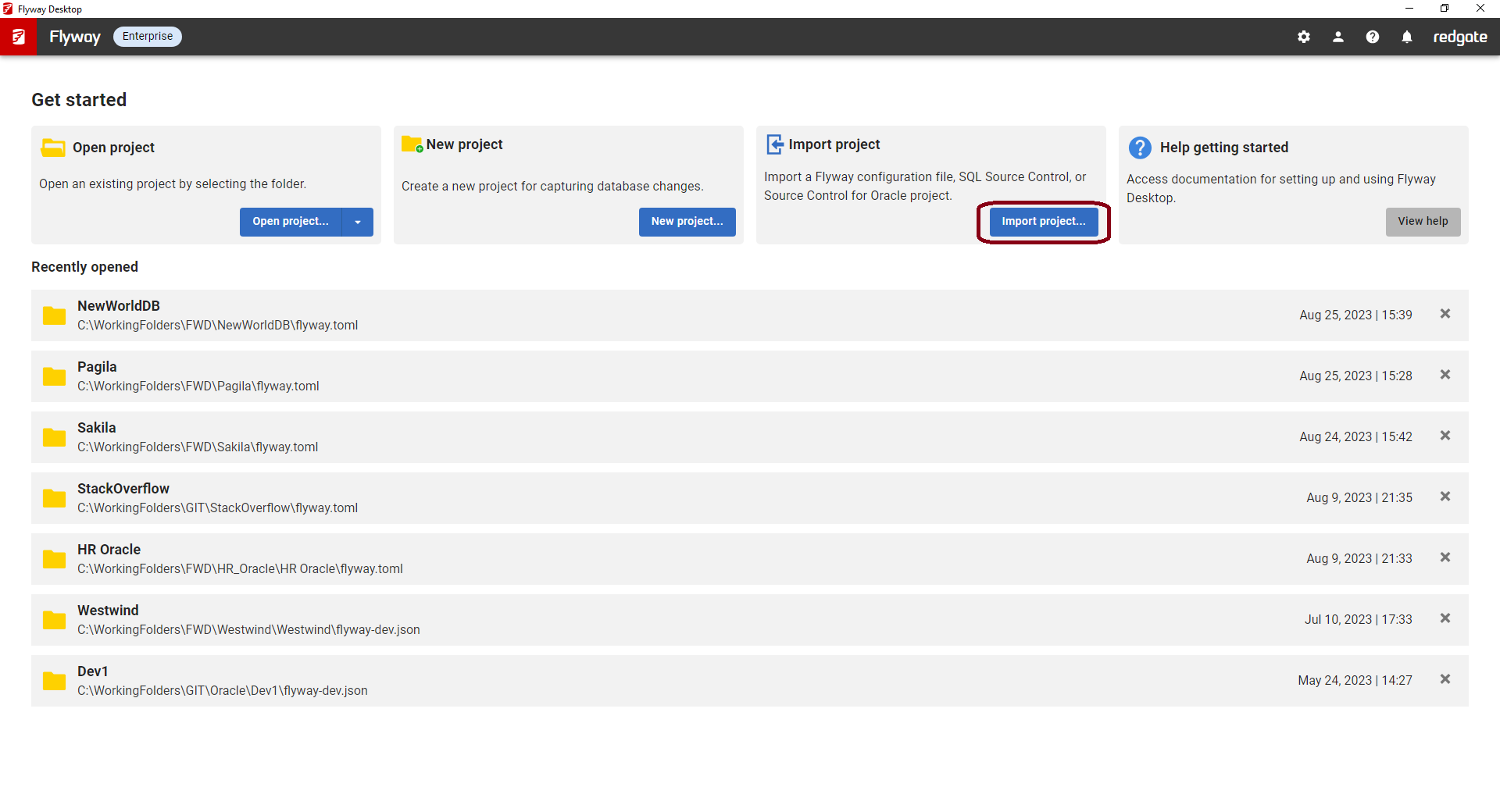
- Choose Import project...
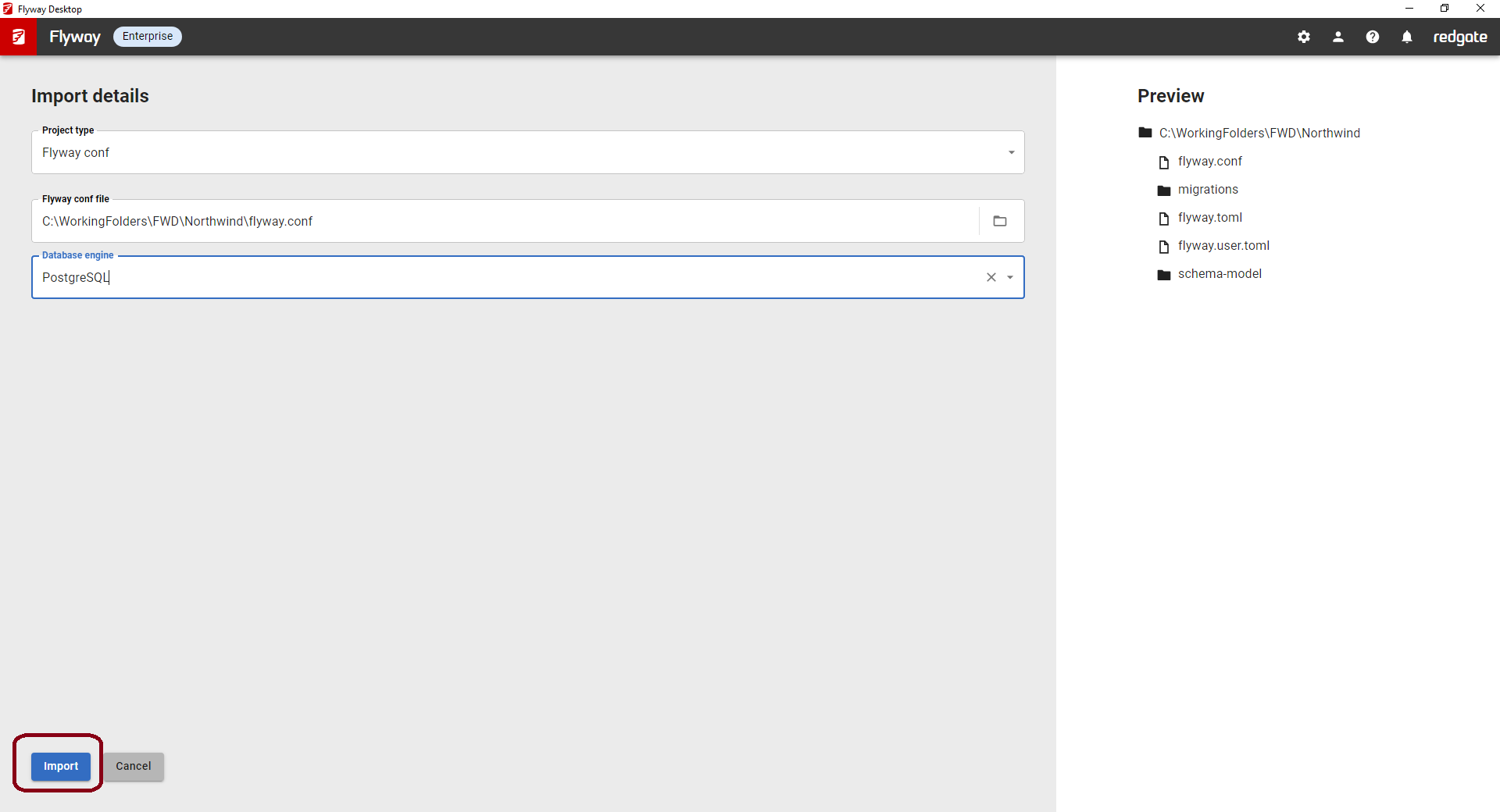
- Choose Flyway conf, navigate to the exact .conf file, and select your Database engine. Then click Import.
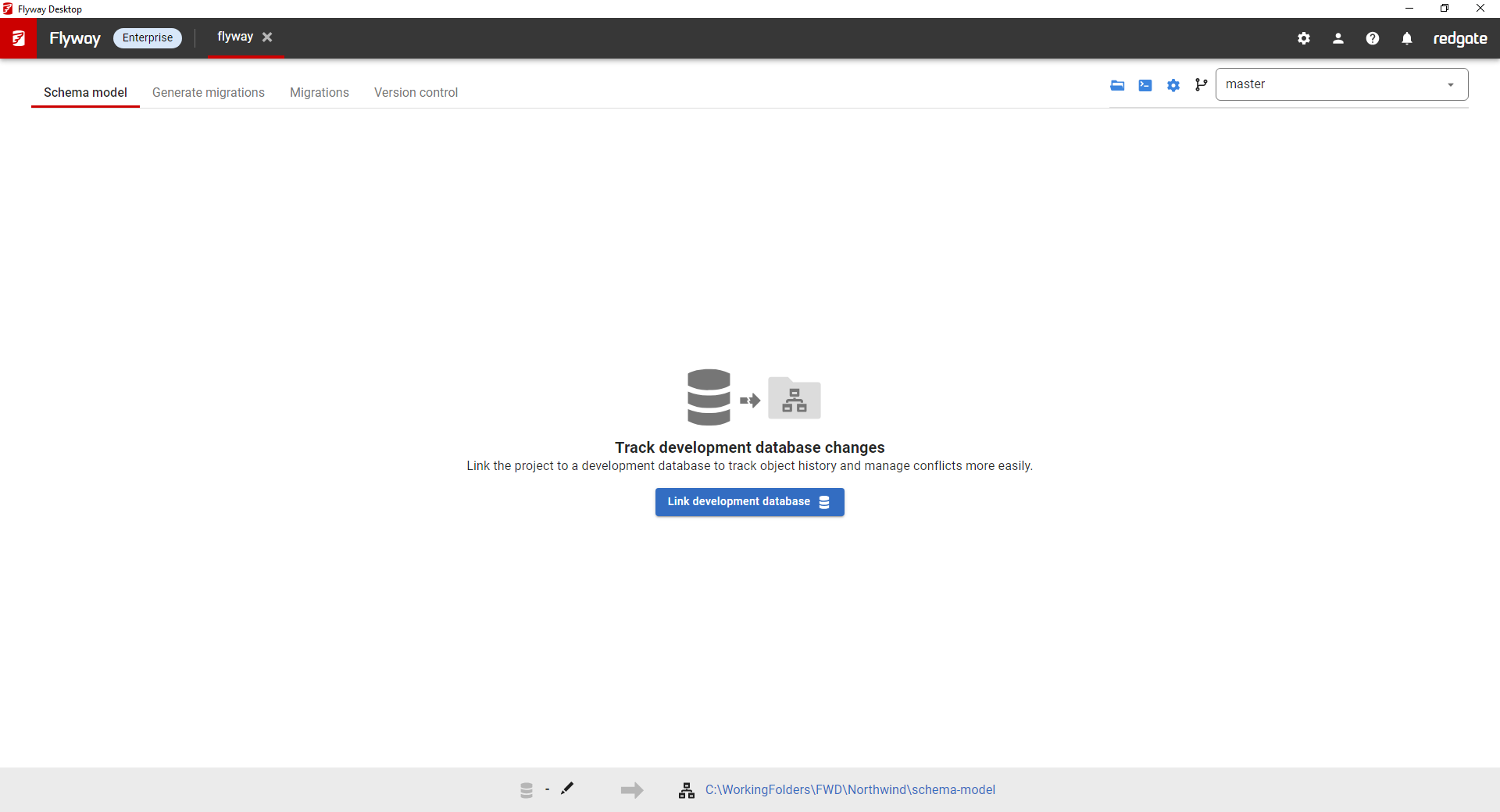
- The flyway.conf has been updated to flyway.toml and you can now start working with Flyway Desktop and the Flyway command line.
Using the Flyway CLI
Use the init command within Flyway CLI, specifying Conf as the fromType and specifying the location of the .conf file you want to upgrade.
flyway init -fromType=conf -from="C:\Users\redgate\Documents\FlywayProject\flyway.conf" -projectName="FlywayProject" -databaseType="Postgres"
Any configurations in your .conf file should be honored during the import process. In addition to upgrading the configuration file, the init command creates some additional default files and folders.
Next steps
- Configure your development database
- Start capturing your object level changes in the schema model to version control these
This documentation contains proprietary information and is protected by copyright law.
Copyright © 2026 Red Gate Software Limited. All rights reserved


