Tutorial - Generate a GitHub Actions deployment workflow with Flyway Desktop
Published 14 May 2026
Flyway Desktop can generate a complete GitHub Actions workflow for your project — including deployment checks, approval gates and multi-environment pipelines — and write it straight into .github/workflows/ .
This tutorial walks through generating a workflow for a migrations project.
Before you start
You'll need:
- A Flyway Desktop project open.
- The project folder inside a git repository that is pushed to GitHub.
- A Flyway Personal Access Token. The Automated Deployment page has a Create one on Redgate link that takes you to the right place; the token will be one of the GitHub secrets you create later.
- Permission to add Secrets and Environments to your GitHub repository.
The Automate deployment page is a Flyway Enterprise feature.
1. Open the Automated Deployment page
In Flyway Desktop, with your project open, go to the Automated Deployment page from the project navigation.
The page needs a Git repository. If your project isn't in one yet, Flyway Desktop shows Automated deployments need a Git repository and offers to create one for you.
2. Choose how you want to deploy
The first time you visit the Automate deployment page, you will see a Get started button.
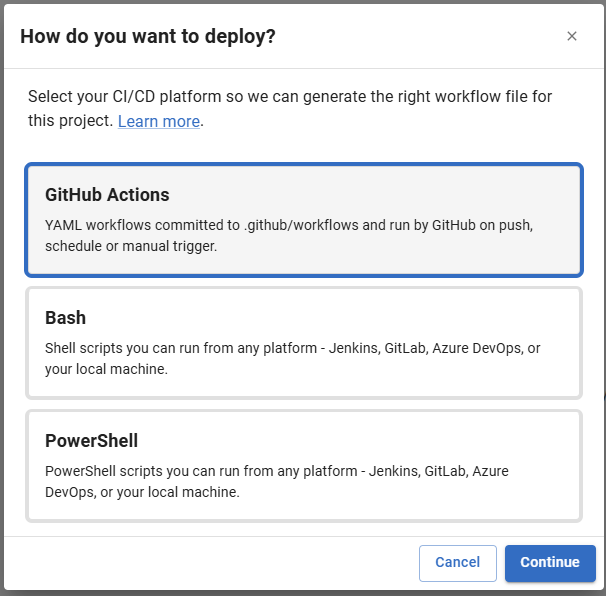
Selecting it asks How do you want to deploy?, with three options:
- GitHub Actions — YAML workflows committed to `.github/workflows` and run by GitHub.
- Bash — shell scripts you can run from Jenkins, GitLab, Azure DevOps, or your own machine.
- PowerShell — the same, as PowerShell scripts.
Choose GitHub Actions and select Continue. Your choice is saved with the project, so you're only asked once — you can change it later from the Automate deployment page.
A wizard will now open for adding your first workflow file (once you have existing workflow files, you will see a list of files and you can add further files via the Add workflow button).
The wizard has four steps: Workflow, Environments, Review and Checklist.
3. Workflow: what should the workflow do?
The first step asks What should the workflow do?. For a migrations project you'll see:
| Workflow | What it does |
|---|---|
| Deployment | Runs deployment checks, then applies pending migrations to the target. |
| Undo | Reverses the most recently applied migration on the target using its undo script. |
State-based projects get a Deployment workflow that generates a deployment script from your schema model and applies it.
Select Deployment and continue.
4. Environments: build your deployment pipeline
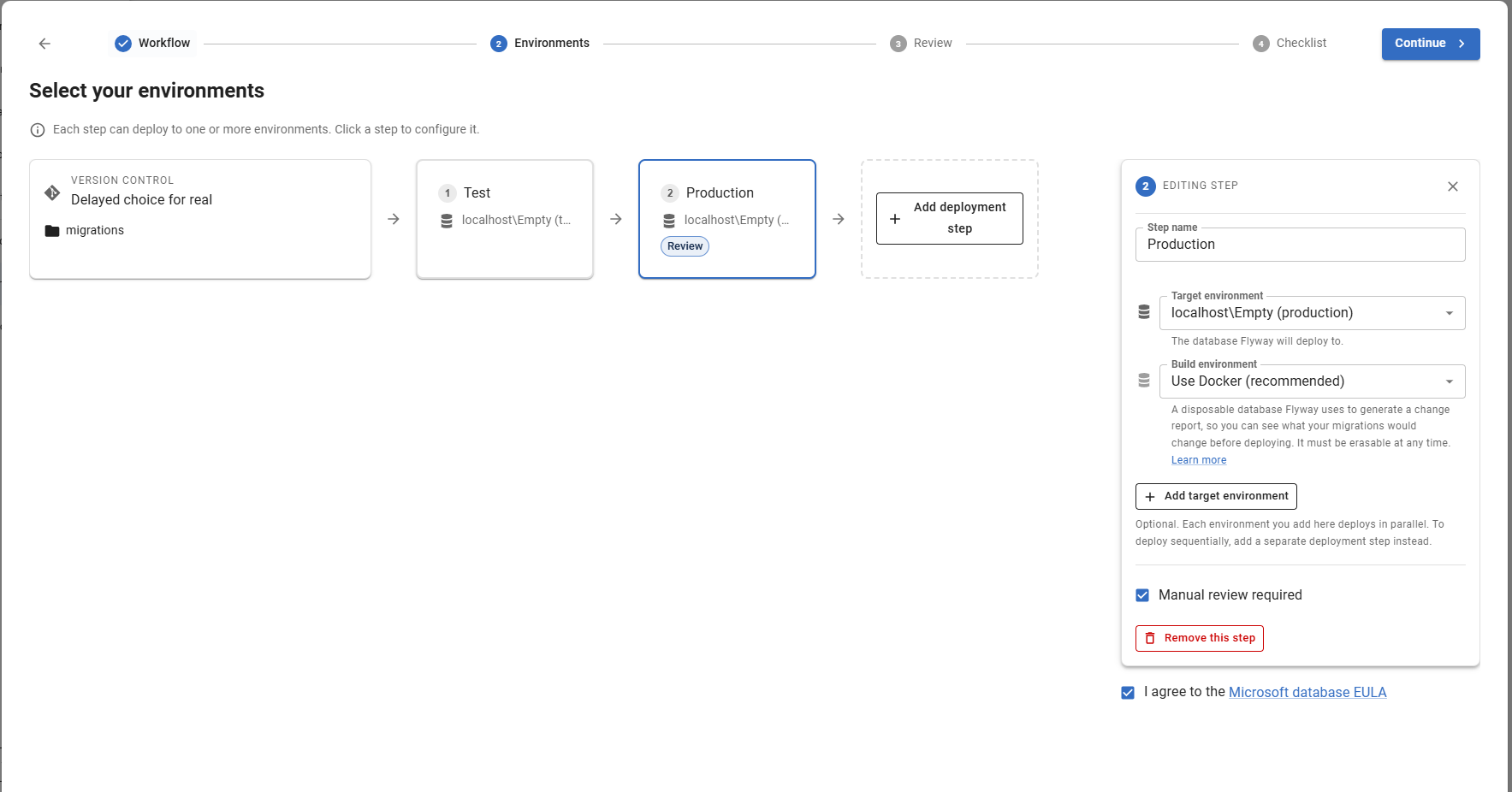
Select your environments is the heart of the new experience. Instead of picking one target database, you lay out the path your changes take to production.
Each step in the pipeline becomes a job in the generated workflow, and steps run in order — step two only starts once step one succeeds. Click any step to open the step editor, where you can set:
- Step name — also used to name the job in the YAML, so use something meaningful like
TestorProduction. - Target environments — use Add target environment to deploy to more than one database from a single step. Extra targets run in parallel as a GitHub Actions matrix.
- Build environment — the temporary database used for deployment checks. This can be a named environment or a Docker container provisioned for the run.
- Manual review required — see step 5 below.
- What to deploy — All pending scripts (default), Up to a specific version (target), or Specific versions (cherryPick).
Each environment can be one you've configured in flyway.toml via Flyway Desktop, or Defined in script if you'd rather fill the connection details in yourself later.
5. Adding an approval gate
Turn on Manual review required for any step that shouldn't deploy without a human saying so — production, typically.
When you do, Flyway Desktop splits that step into two jobs in the generated workflow:
- a read-only job that runs the deployment checks and publishes the reports, and
- a deploy job that waits on a GitHub Environment before it runs.
The two jobs use GitHub Environments named after your step — a step called Production produces production-read-only and production-write. You add the required reviewer to the -write environment in GitHub; the Checklist step tells you exactly which names to create.
6. Review: check and edit the YAML
Review your workflow shows the generated file. It's fully editable, so you can adjust anything before saving — add a schedule trigger, change the runner, add your own steps. There's a copy-to-clipboard button if you'd rather paste it somewhere else.
The generated workflow:
- is triggered by
workflow_dispatch, so you start runs manually from the Actions tab; - checks out your repository with
actions/checkout, then installs and licenses Flyway withred-gate/setup-flywayusing yourFLYWAY_EMAILandFLYWAY_TOKENsecrets; - runs the appropriate Flyway GitHub Actions for your project type —
migrations/checksandmigrations/deployfor migrations projects,state/prepareandstate/deployfor state-based ones; - sets
working-directoryto the path from your repository root to your Flyway project.
6. Save the workflow
Click Save workflow. Flyway Desktop will:
- Create the
.github/workflows/folder in your repository if it doesn't already exist. - Open a save dialog defaulting to
workflow.ymlinside that folder. You can change the filename if you want to keep multiple workflows side by side (for exampledeploy.ymlanddeploy-with-approval.yml). - Write the YAML to disk and confirm the file path.
After the save, a short commit walkthrough may appear, prompting you to commit and push the new file. Either follow it through, or commit and push the change yourself in your usual git client.
7. Checklist: finish the setup in GitHub
The final step lists everything your specific workflow needs. It's generated from the choices you made, so it only shows the environments and secrets that actually apply:
- Create a Flyway Personal Access Token — the workflow uses it to license Flyway on the runner.
- Configure your GitHub Environments — only shown if a step requires manual review. Create each listed environment under Settings → Environments → New environment, and add a required reviewer to each
-writeenvironment. - Add these secrets to your GitHub repository — under Settings → Secrets and variables → Actions → New repository secret.
- Commit and push to activate.
Which secrets you'll need
Every workflow needs your Redgate credentials:
| Secret | Value |
|---|---|
FLYWAY_EMAIL | The email address for your Redgate account. |
FLYWAY_TOKEN | Your Flyway Personal Access Token. |
Database credentials are scoped to each environment. If a step deploys to a named Flyway environment, the workflow looks for secrets named after that environment's ID:
| Secret | Value |
|---|---|
environments_<id>_user | Database username for the <id> environment. |
environments_<id>_password | Database password for the <id> environment. |
So a workflow deploying to environments called test and prod needs environments_test_user, environments_test_password, environments_prod_user and environments_prod_password. This is what lets one workflow deploy to several environments with different credentials.
Where a step doesn't use a named environment — because you chose Defined in script, or the environment ID isn't a valid identifier — the workflow falls back to FLYWAY_USER / FLYWAY_PASSWORD for targets and FLYWAY_BUILD_USER / FLYWAY_BUILD_PASSWORD for build environments. The Checklist shows whichever set applies to you.
8. Save the workflow
Select Finish. Flyway Desktop creates .github/workflows/ if it doesn't exist and opens a save dialog. The suggested name comes from the workflow you chose — deployment.yml for a deployment workflow, migrations_undo.yml for an undo one — so rename it to something that describes your pipeline, such as deploy-migrations.yml.
Flyway Desktop confirms with Workflow saved as <name>. Commit and push to run it.
The file now appears in the list on the Automate deployment page. Select it to open a preview pane where you can edit it in place — Save and Discard appear once you make a change — or use Open in editor to open it in your usual editor. A reminder banner, Don't forget to add your GitHub secrets, stays on the page with a View setup button that reopens the checklist whenever you need it.
9. Run it
Commit and push the workflow, add your secrets in GitHub, then go to the Actions tab, select your workflow, and choose Run workflow. If you added an approval gate, the run pauses before the deploy job until a reviewer approves it.
After the run, check the deployment reports published by the Flyway actions for the changes applied and any drift detected.
Troubleshooting and further reading
- Workflow fails on Setup Flyway — check that your
FLYWAY_EMAILandFLYWAY_TOKENsecrets exist and that the PAT is still valid. - Workflow fails when connecting to the database — check the
FLYWAY_USER/FLYWAY_PASSWORDsecrets, and that the database is reachable from GitHub-hosted runners (or use a self-hosted runner if it isn't). - Manual-approval workflow runs straight through without prompting — check that the deploy job's
environment:value matches an Environment that has a Required reviewer configured. No reviewer means no gate. - The Flyway GitHub Actions in the marketplace (
red-gate/flyway-actions) have a README with additional samples, including the "Manual review between..." workflow that these generated workflows are based on.
Useful links
- Automating deployment using a CI/CD tool — the concepts behind the generated workflows.
- Redgate Flyway GitHub Actions — the marketplace listing for the
red-gate/flyway-actions/*actions used in the generated workflows, including sample workflows for blue/green deployments, drift checks, and the manual-review pattern. - Flyway licensing and authentication — what the PAT does, how Enterprise licensing works, and how to troubleshoot auth errors from
Setup Flyway. - GitHub Actions: workflows and GitHub Actions: using secrets — the same GitHub docs the generated YAML comments link to, kept here for convenience.
- Tutorial - Generate a Bash or PowerShell deployment script with Flyway Desktop — the same wizard for other CI/CD platforms
This documentation contains proprietary information and is protected by copyright law.
Copyright © 2026 Red Gate Software Limited. All rights reserved


