Adding Entra ID
Published 28 October 2026
This page explains how to add an Entra ID tenant to Redgate Monitor.
Before you start: You need Cloud Service Credentials (an Azure app registration) with the permissions listed in step 4. If you don’t have any yet, see Creating access key for Microsoft Azure first.
- Go to the Configuration page and, under Estate, select Monitored Identity and Access Management (IAM).
- Click + Add an IAM. The Add Monitored IAM panel expands:
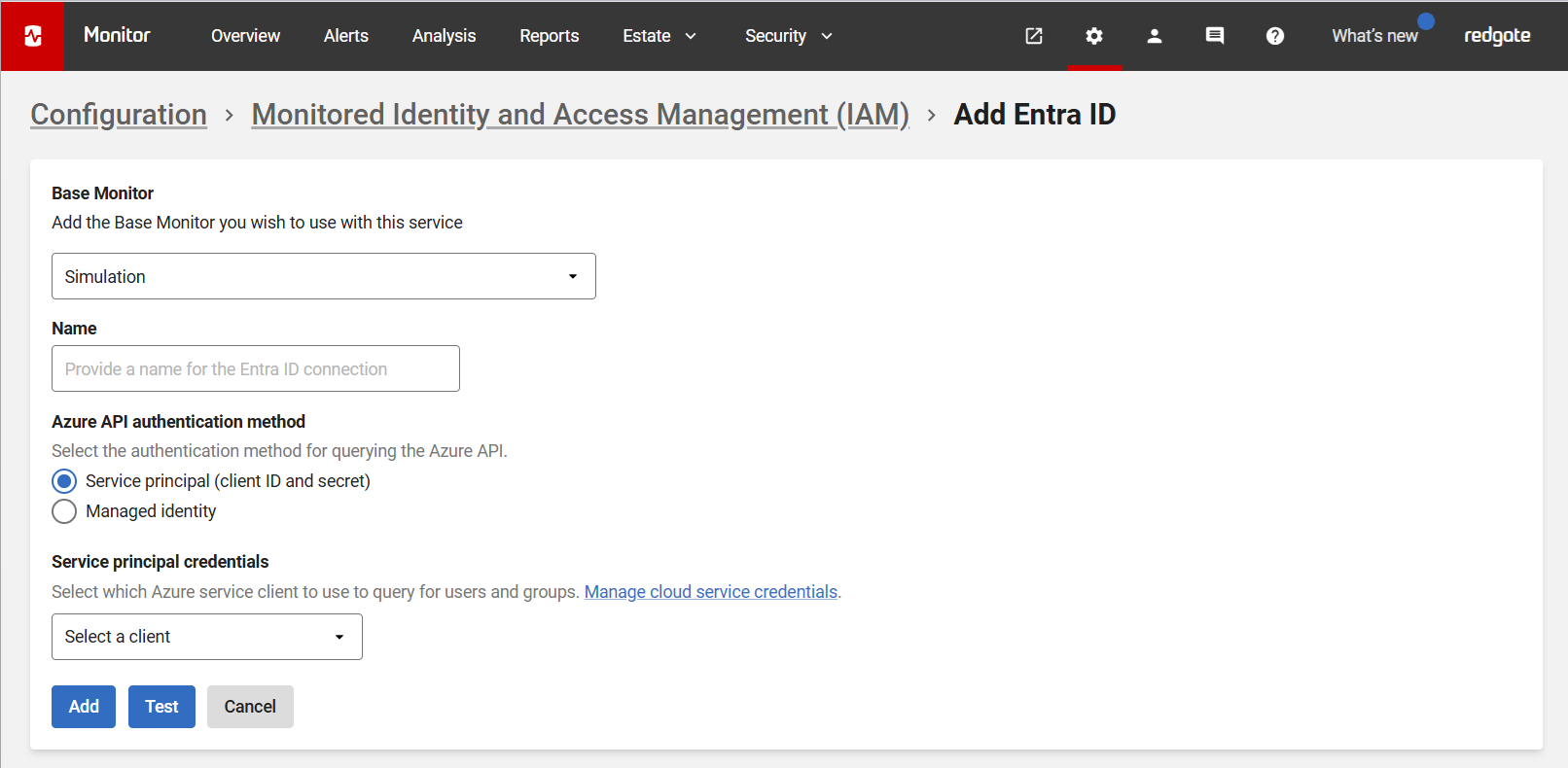
- Enter a Name for the monitored IAM. Use this to distinguish between multiple Entra ID tenants.
- Select the appropriate Cloud Service Credentials for your authentication method. If you haven’t created any yet, see Managing cloud services. The credentials need at least these permissions to collect user and group data from Entra ID:
- Select the appropriate Service Principal credentials. You can then add the Entra ID tenant directly, or click Test to verify that the registered application has the required permissions.
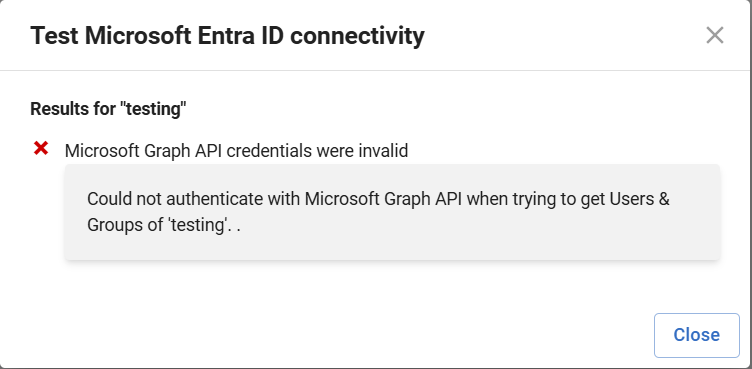
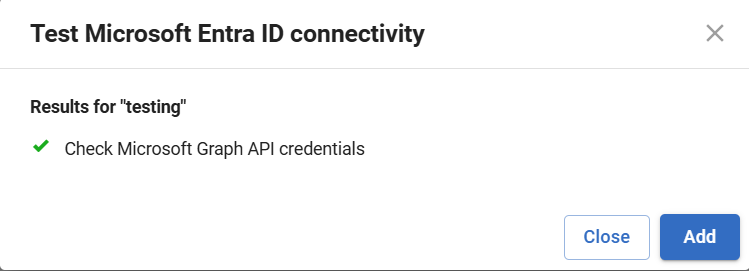
The test result indicates whether the credentials are valid:- Invalid credentials:
- Valid credentials:
- Invalid credentials:
After a connection is established and a data collection event completes successfully, the monitored IAM status is displayed as Monitoring permissions. If Redgate Monitor encounters a problem and displays a different status, see Monitoring status explained.
This documentation contains proprietary information and is protected by copyright law.
Copyright © 2026 Red Gate Software Limited. All rights reserved


