Adding Google Cloud SQL for SQL Server
Published 02 July 2026
Google Cloud SQL is a fully-managed database service. Each database instance runs in its own isolated database environment within Google Cloud. When dealing with a cloud-managed server, it's not possible to retrieve host metrics in the same way as on-premises servers, so Redgate Monitor relies on the Google Cloud Monitoring API to retrieve host-level metrics (CPU, memory, disk, and network).
For details of the metrics and alerts available for Google Cloud servers please see: SQL Server on Google Cloud SQL metrics and alerts.
Before starting
1. Network connectivity
Ensure the Google Cloud SQL instance is reachable from the machine running the Base Monitor. You can test this by connecting to the instance from the Base Monitor machine using SQL Server Management Studio (SSMS).
Depending on how your Cloud SQL instance is configured, you may need to add the Base Monitor's IP address to the instance's authorized networks, or ensure the Base Monitor can reach the instance's private IP over your VPC.
2. Set up a Google Cloud service account
Redgate Monitor authenticates to Google Cloud using a service account key. Create a service account, or use an existing account in the project that hosts your Cloud SQL instance, grant it the two roles below, and download or copy the JSON key:
Role | Why it’s needed |
roles/cloudsql.viewer | Lets Redgate Monitor identify the instance from the endpoint you enter and read its metadata (instance type, region, engine version, and state). Required to add the instance. |
roles/monitoring.viewer | Lets Redgate Monitor read host-level metrics (CPU, memory, disk, and network) from the Google Cloud Monitoring API. |
3. A SQL Server login
Google Cloud SQL for SQL Server is monitored using SQL Server authentication — a SQL Server login and password. Windows authentication is not supported for Cloud SQL instances.
See Permissions required to monitor SQL Server for further details.
Add the Google Cloud SQL instance
- Go to the Configuration page and under Estate, select Monitored servers.
- Click Add > Google Cloud SQL for SQL Server. You will be redirected to the Add Add Google Cloud Server page:
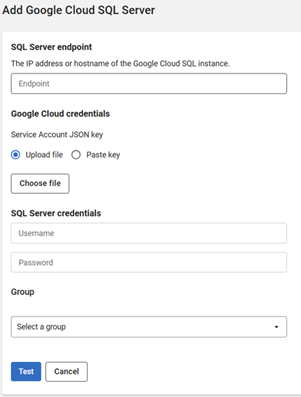
- In the SQL Server endpoint field provide the IP address of the instance, as provided by Google Cloud.
- Upload or paste the Google Cloud service key.
- Enter the SQL Server username and password
- Select a group where the instance will be added
- Click Test to verify whether the details are correct, after which you will be able to add the instance.
This documentation contains proprietary information and is protected by copyright law.
Copyright © 2026 Red Gate Software Limited. All rights reserved


