Using the server overview
Published 28 March 2024
At the top of the server overview page is the interactive activity graph, which plots the machine metrics (CPU, Memory, Throughput) and Waits against an interactive timeline (x-axis). You can add baseline comparisons to the graph, in order to detect whether any of these metrics are behaving unusually.
The x-axis timeline is marked automatically with any alerts that fired during the displayed period (color-coded to indicate the severity of the alert). For SQL Server and Postgres servers, the timeline can also display annotations, to mark events such as deployments or configuration changes.
The graph has a calendar and a focus window, with "grab bars" to expand and contract it to the required period of investigation. When you do so, the metric graphs you see as you scroll down the page will automatically update to reflect activity over the period determined by the graph.
The activity graph remains fixed in place and visible as you scroll down the page, making it easy to correlate the alerts, events and resource-use patterns over that period, with all the metric graphs, lists and properties that follow. Clicking on any metric graph automatically loads that metric onto an Analysis graph, for you to compare its behavior to other, related metrics.

(1) Page navigation
Hover over an area to bring up the navigation panel to jump to different sections of the server overview page. The sections available vary depending on the type of monitored server.
(2) Server selector
Change to view information for other monitored servers from the drop-down list.
(3) Interactive graph
The graph displays different metrics relevant to the type of monitored server, for example CPU, Memory, Throughput, and Waits. By default the graph displays the last 24 hours of activity. The time period shown can be changed using the time controls at the top right of the graph.
Each metric graph line can be turned on or off using the tick boxes at the top left of the graph. A baseline for an individual metric can also be displayed via the baseline checkbox/drop-down. The baseline represents the last 7 time periods that the graph is currently set to. So if the time period is set to "Last 24 hours", the baseline will represent the previous 7 days of data.
The focus window, by default the last two hours in a 24-hour period, determines the period for which all subsequent data on the Server overview page is displayed. If you want to focus on a particular period, such as when an alert occurred, simply click on that point on the timeline and the focus window will be placed at that point. If you want to select a shorter or longer time period, you can drag the focus window to the area of the graph you are interested in (the shortest time period is 15 minutes).
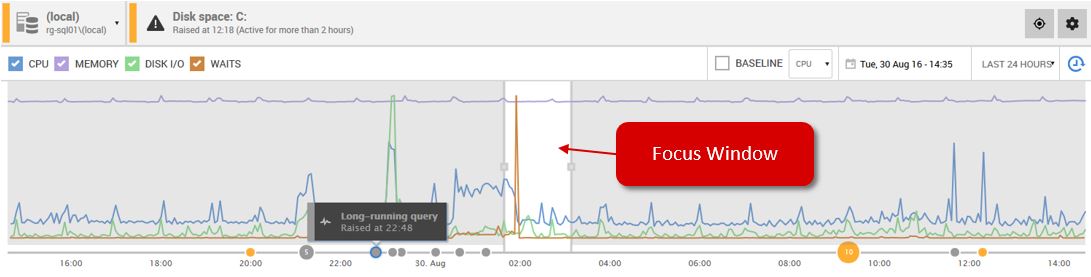
When an alert is raised, a small circle appears along the bottom of the graph. Hovering over the circle brings up a summary of the alert, and clicking on it brings up the details in the Alerts panel (see (6), below). Similar alerts occurring at the same time are grouped together and a number will appear in the circle indicating the number of similar alerts raised.
Deployments made by Redgate tools, such as SQL Compare and Flyway, appear as annotations on the timeline for SQL Server instances.
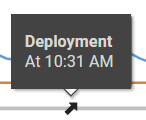
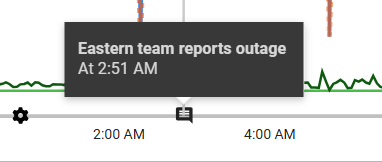
For SQL Server and Postgres servers, you can annotate events of your choosing. Enable annotations mode above the graph and click a point in time to add an annotation. See also Annotation and Add-RedgateMonitorAnnotation.
(4) Snapshot metrics
Below the activity graph are separate graphs of individual metrics and statistics relevant to the monitored server type. These snapshot graphs correspond to the time period selected in the focus window above.
For example, on the server overview page for an Azure SQL Server database, these graphs will display DTU, CPU, Data IO and Log IO.
(5) Go back in time
Use the Back in Time feature to see the state of your data at some point in the past.
(6) Alerts sidebar
The sidebar displays alerts that were raised in the time period selected by the focus window. Clicking on the alert will bring up the details and alert description. From here you can clear the alert, add a comment, configure the alert or go to the full details of the alert.
The alerts sidebar can be hidden by clicking the > chevron icon.
The alert banner at the top, to the right of the server selector, shows the most recent active alert. The alert banner also contains buttons to clear the alert, navigate the focus window to that alert, or to the configuration page for that alert type.

Next step
This documentation contains proprietary information and is protected by copyright law.
Copyright © 2026 Red Gate Software Limited. All rights reserved


