Scheduling restore jobs > Select destination server and backups to restore > Select destination database > Specify file locations > Specify verification options > Configure restore options > Create restore schedule > Review summary
On step 3 of the wizard, specify the location of the database files. The options available depend on whether you opted to restore from a Folder and file name pattern or Specific backup files on step 1.
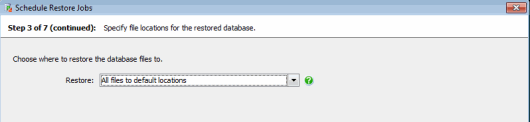
If you have selected Restore from folder and file name pattern on step 1, you must specify where the database files are restored to using one of three options:
| If you have launched the Schedule Restore Jobs wizard from a reminder, Individual files to specified locations is selected by default and and the locations are populated with details from the scheduled backup job. |
WITH REPLACE to the RESTORE command. To avoid this, do one of the following: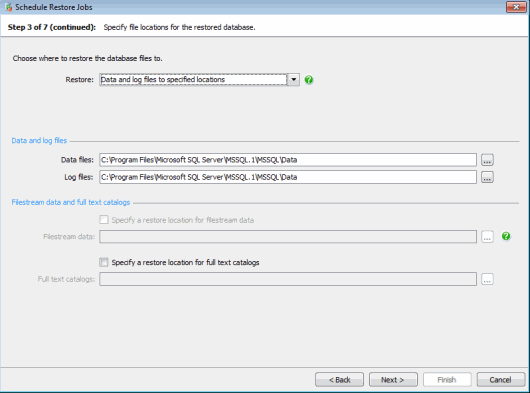
Select Data and log files to specified locations to specify the locations each type of database file is restored to. You can specify a location for data files, log files, filestreams and full text catalogs. The files will be restored to the specified locations using the file names defined in the backup.
 to open the Folder Browser and select a location or make a new folder. The files will be restored to the specified folders using the file names defined in the backup file.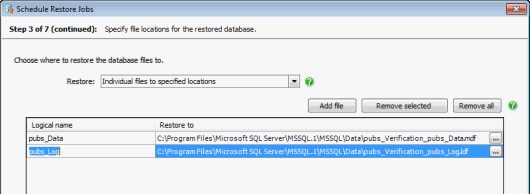
If you have launched the Schedule Restore Jobs wizard from a reminder, this option is selected by default and populated with the logical names of the database files from the source database. The restore locations are populated using the default file locations for the destination server and file names composed of the source database name, followed by _Verification, followed by the existing file name, for example AdventureWorksDW_Verification_AdventureWorksLog.ldf.
Select Individual files to specified locations to specify the location and file name that each data and log file will be restored to. You can also specify where filestreams or full text catalogs are restored to. Any files that you do not specify will be restored to the default location (see above).
For each database file:
to open the File Browser and select the location or create a new folder to restore the file to. You can also rename the file by entering a new file name.For information about finding the logical names and other details of database files, see Finding database files.
If you have selected Restore from specific backup files on step 1, the details of the database files are populated from the backup.
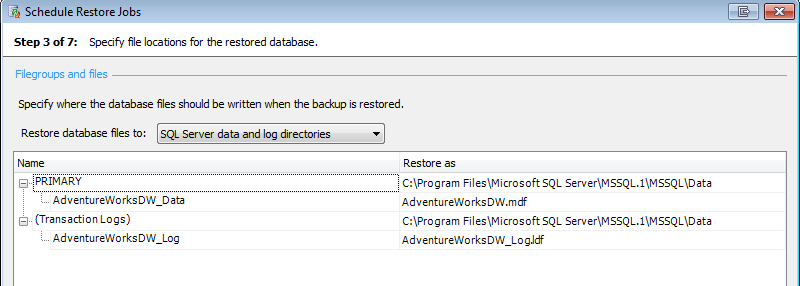
Database files will be restored to the default SQL Server data and log directories, unless you change the file locations. You can select Original database data and log directories from the drop-down list, or specify the location by selecting Other (Custom) and clicking to open the Folder Browser or File Browser. Note that the file path is relative to the selected SQL Server. For example, if you are restoring a database on a remote SQL Server instance called ServerA and you specify a local path such as C:\Data, the backup files will be created on the C: drive on ServerA, not on the local server.
| If you have selected Overwrite an existing database on step 2, any files listed under Filegroups and files will be overwritten; other files that are not shown in the list but which previously belonged to the database being overwritten will be deleted. |
Next: specify verification options