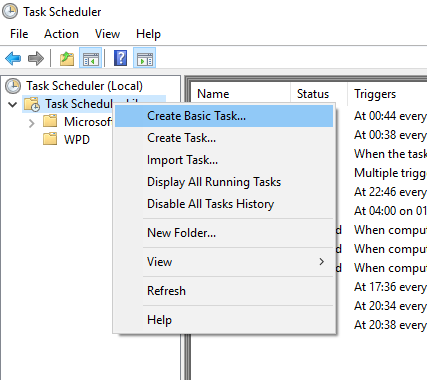
This example shows how to schedule a SQL Clone task using PowerShell and Windows Task Scheduler. It shows how to create a new task that'll run daily and remove any images older than a week that have no clones.
This example assumes the following have already been completed:
1. Start Windows Task Scheduler by opening the start menu and typing Task Scheduler
Task Scheduler can also be opened using the Control Panel under System and Security > Administrative Tools > Task Scheduler |
2. Right click on the Task Scheduler Library and select Create Basic Task…:
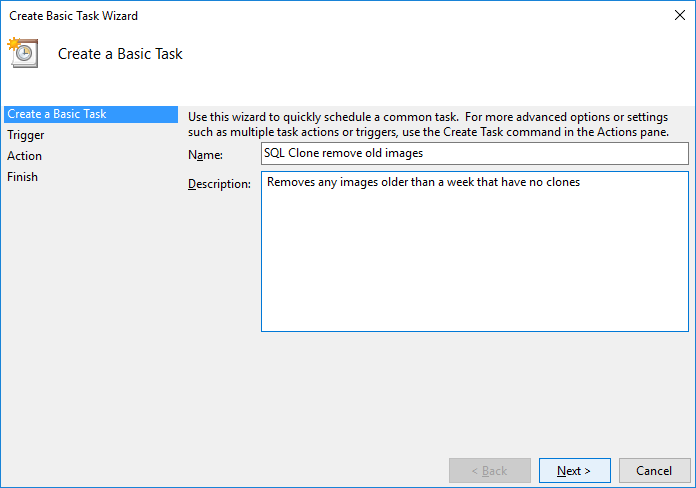
3. Enter a name and optional description and click Next:
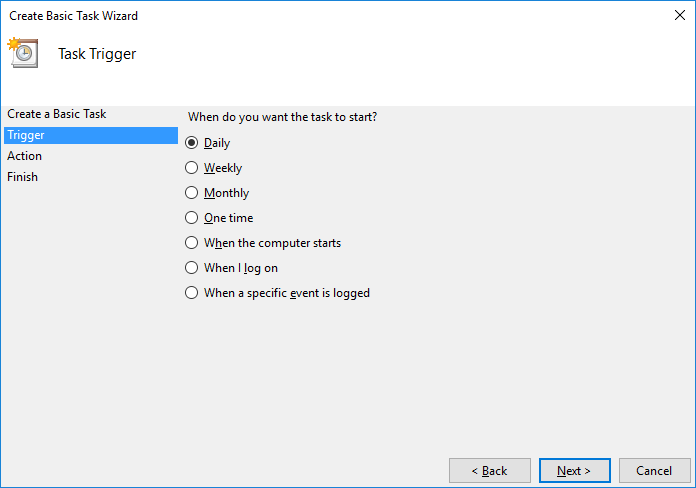
4. Leave the default as Daily and click Next:
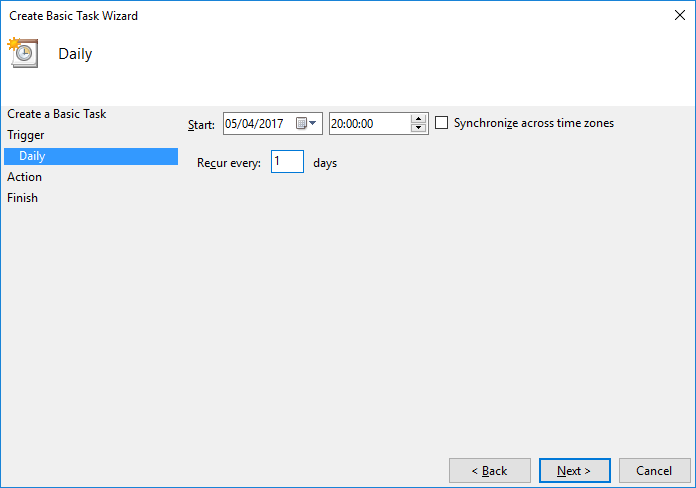
5. Select the time when you'd like to run the task and click Next:
6. Leave the default as Start a program and click Next:
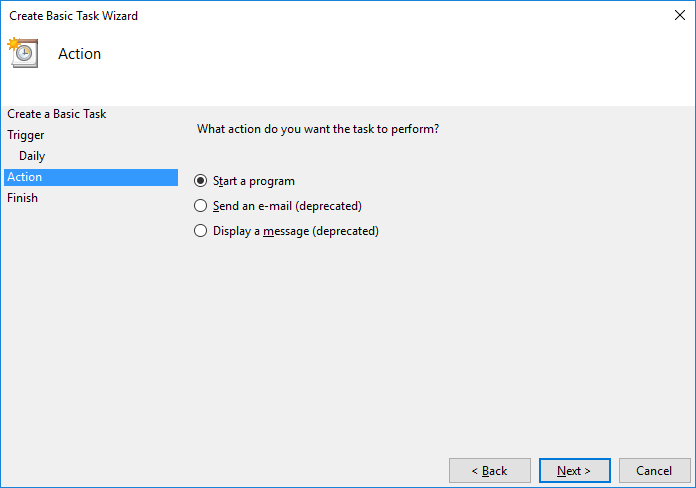
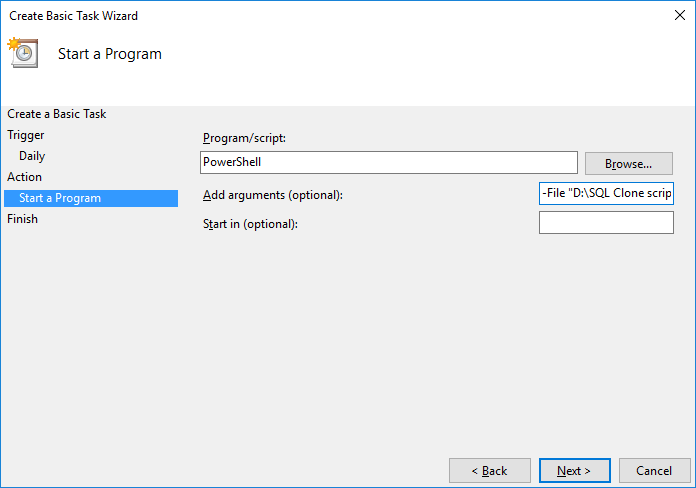
7. Enter PowerShell as the Program/script and enter -File followed by the path to the saved PowerShell script under Add arguments and click Next:
If the path to the PowerShell file contains any spaces, make sure the path is enclosed in quotation marks |
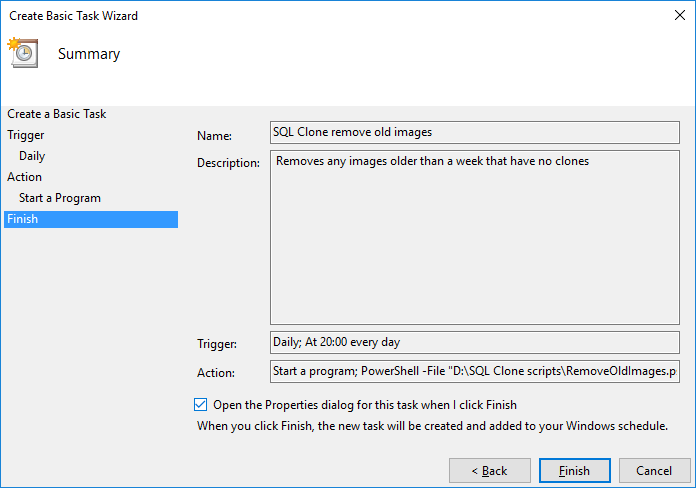
8. Check the Open the Properties dialog for this task when I click Finish check box and click Finish
9. In the properties window under Security options:
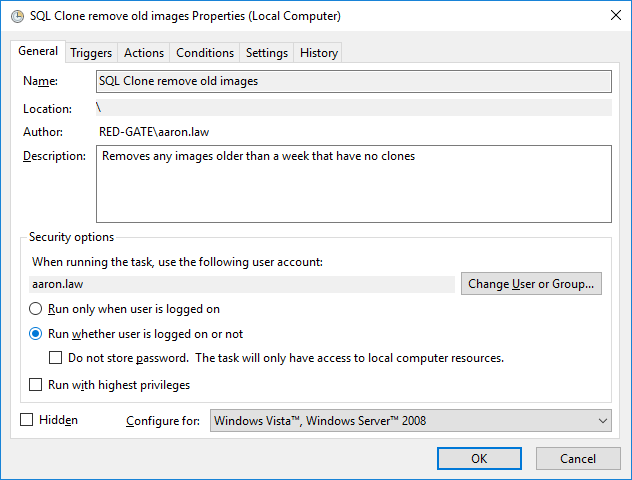
10. Press OK and enter the password for the user when prompted.