Sharing
Published 05 August 2025
Find a model you want to share, right-click on it and pick Share....

You can also use the sharing button from the top bar.
If you want to share your model or review who has access to it, then from the context menu mentioned above select Share..., and the following pop-up will show up.
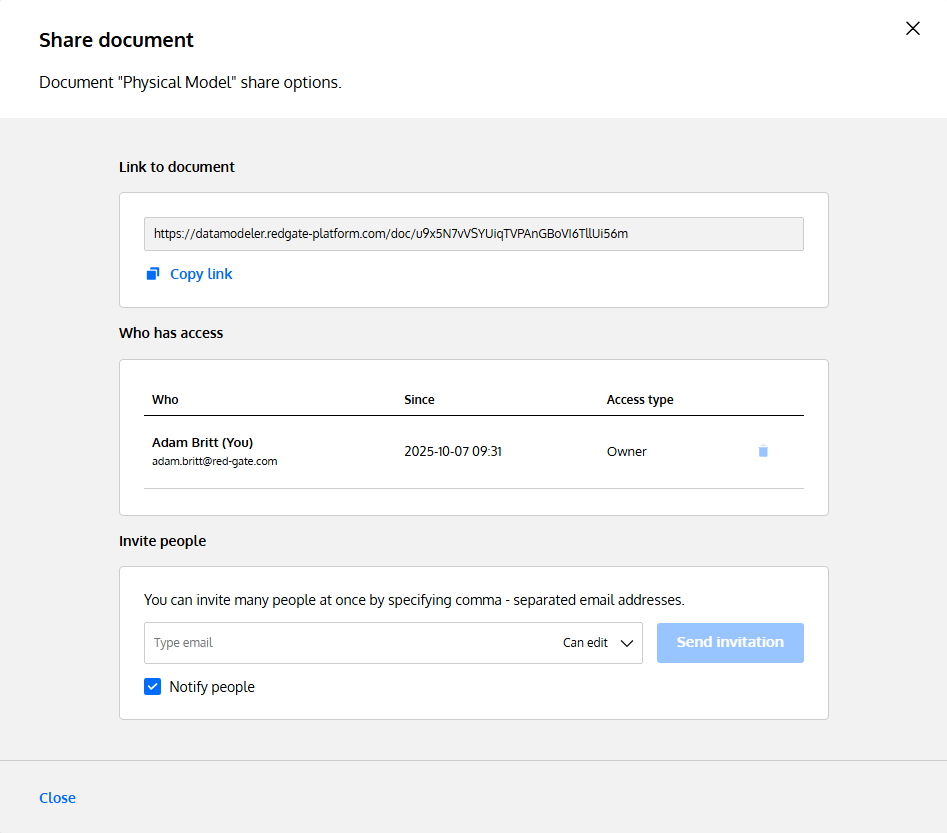
You may change the type of access for a given user by clicking the pencil icon, and selecting the right option. You may also revoke the access simply by clicking on the X button.
To grant access for new users simply start typing their e-mail address (or name) into the field, pick the correct role (from the list on the right), decide whether they need a notification about this and if this notification should contain a personal message (the Notify people and add personal message checkbox).
Sharing roles
When sharing a model inRedgate Data Modeler, you may decide which role an user will get. These are the options:
Owner– will grant full access (control over sharing, editing, etc.)Can edit– will grant access only for editing but the user won't be able to change the sharing options nor publish the model on the web.Can view– the user can do nothing but view the model.
This documentation contains proprietary information and is protected by copyright law.
Copyright © 2026 Red Gate Software Limited. All rights reserved


