Workflows
Published 06 January 2026
This page explains what workflows are and how to manage and run them in Test Data Manager.
What is a workflow?
A workflow in TDM is a set of operations to be performed on one or more databases. Currently the following operations are available:
A workflow allows running one or more such operations against target databases in a consistent and repeatable way.
The Workflows Page
The workflows page can be accessed via the Workflows link in the navigation drawer.
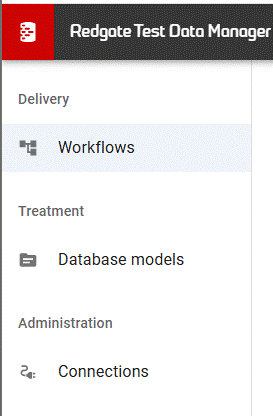
There, a view similar to the following is presented:
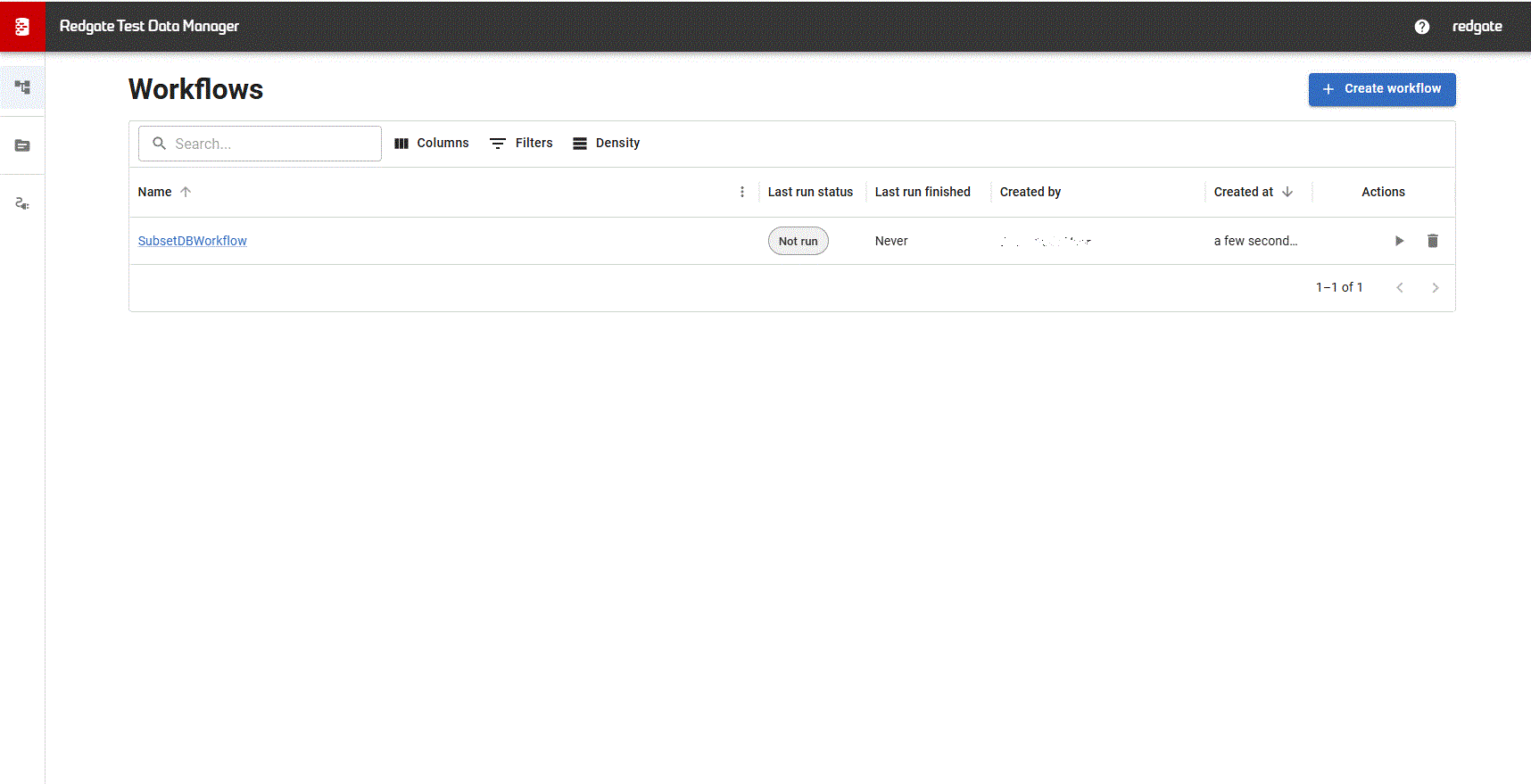
The page features:
- A list of clickable workflows, each in a row with an actions menu at the right hand side. Clicking on a workflow leads to a details page where its previous runs and associated treatments can be viewed.
- A button to create new workflows, level with the page heading.
Creating a workflow
To create a workflow, either click the 'Create workflow' button at the top right of the workflows page or select one or more treatments in the database models page for a single model and click the 'Create workflow' button that pops up.
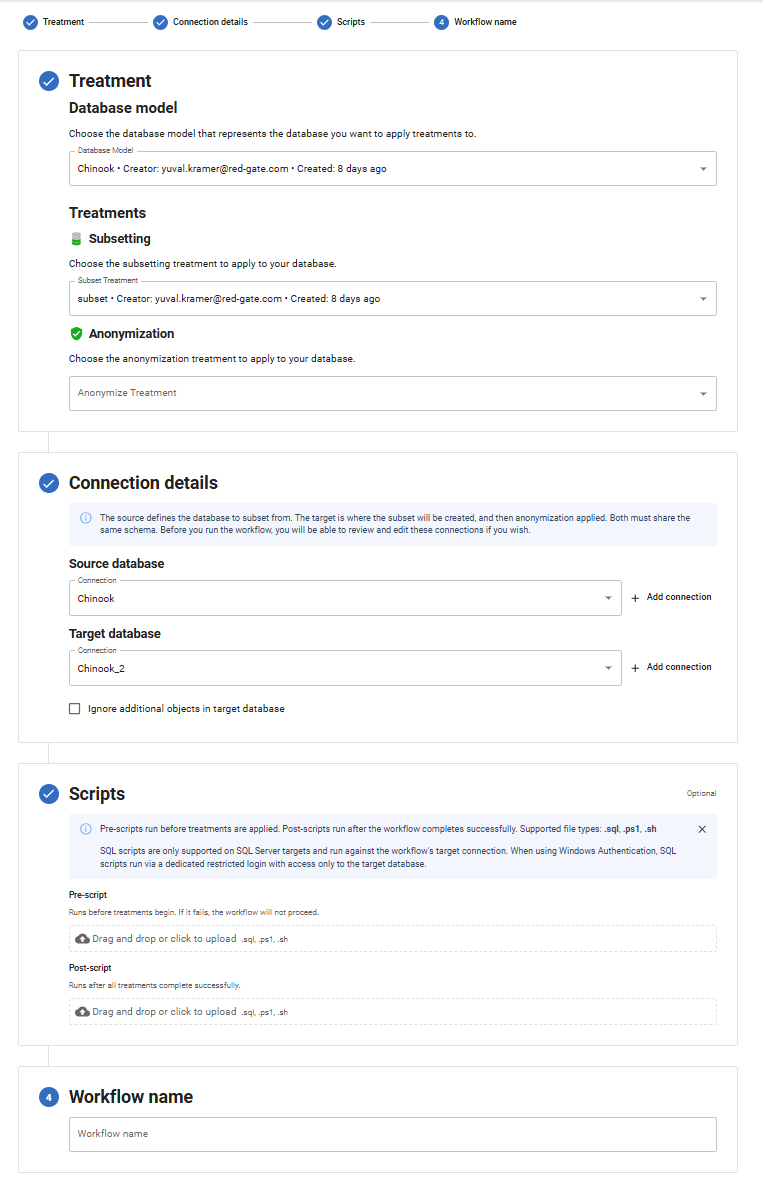
Either option will open the Create workflow dialog (with the latter option having the database model and treatments fields already populated):
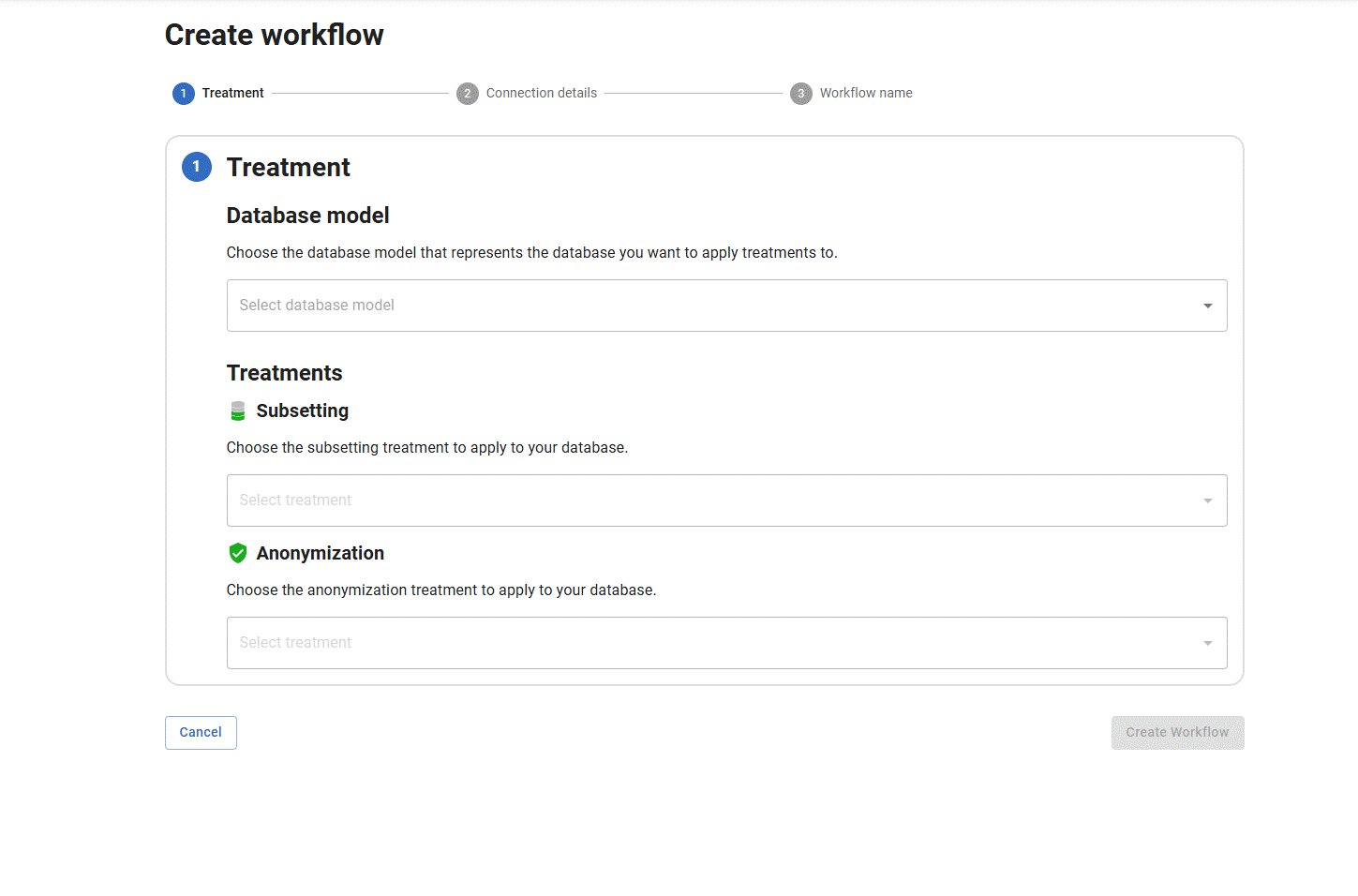
This dialog requires the following information:
- A database model (this is the model from which treatments will be selected).
- Treatments to be run as part of the workflow (at least one of subsetting and anonymization).
- A source database (if performing a subset).
- Target databases (if performing a subset, only one target database may be selected).
The dialog also includes an optional Scripts step, where pre- and post-execution scripts can be attached to the workflow. See Adding scripts to a workflow below.
Adding scripts to a workflow
Uploading and removing scripts is only available to TDM admins. Non-admins can still execute workflows that use scripts.
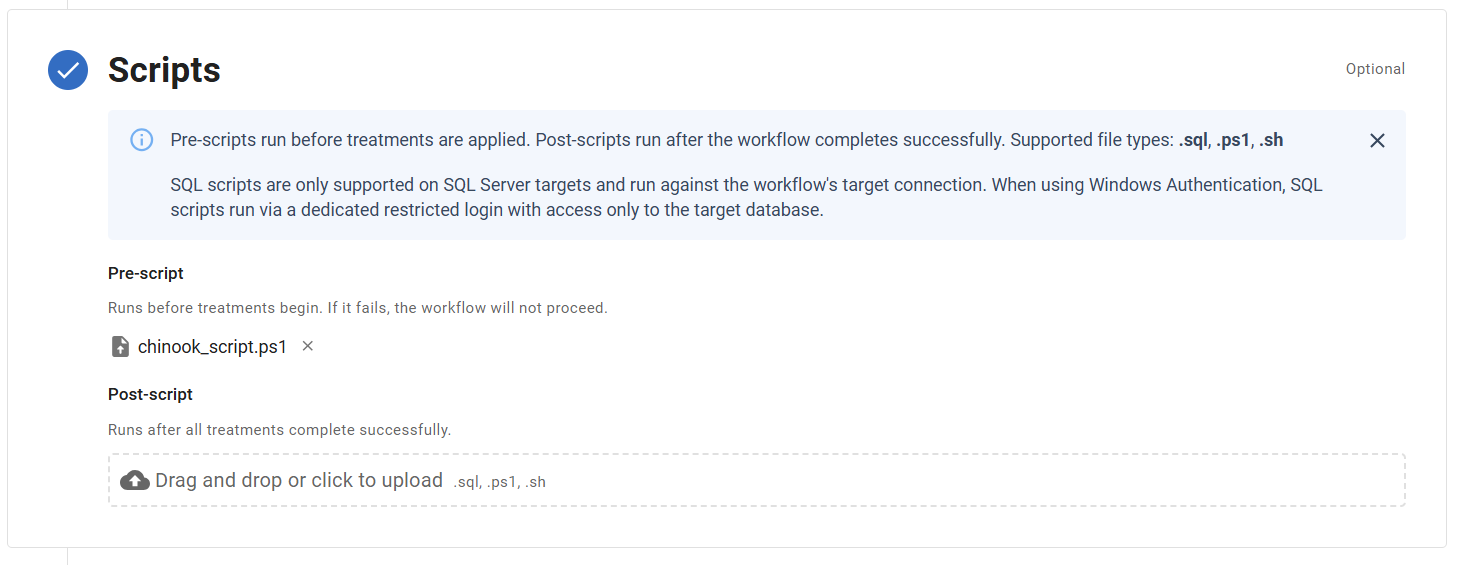
Workflows support optional pre-scripts and post-scripts that run custom logic before or after the workflow's treatments:
- Pre-script - runs before any treatments are applied. If it fails, the workflow will not proceed.
- Post-script - runs after all treatments complete successfully. It does not run if the workflow fails.
Scripts can be added during workflow creation or editing via the Scripts step in the workflow form.
Uploading a script
Each script is uploaded as a file (up to 32 KB). Supported file types:
| Extension | Type |
|---|---|
| .sql | SQL Server scripts NOTE: SQL scripts require connections that have at least the following permissions on their SQL server:
|
| .ps1 | PowerShell scripts (Windows only) NOTE: Powershell scripts are executed on the host machine running TDM with all the permissions of the TDM service. NOTE: Scripts run under the machine's system locale, so characters outside its code page (for example accented letters or non-Latin scripts) may not be preserved. To use these characters, enable Use Unicode By default the TDM service should start as a Network Service with minimal permissions but this can be modified. |
| .sh | Bash scripts (Linux only) NOTE: Bash scripts are executed on the host machine running TDM. They are executed by a non-root user with limited permissions. |
To upload, drag and drop a file onto the upload zone or click to open a file picker. The file is uploaded immediately and a confirmation message is shown.
To remove a script, click the × button next to the filename.
SQL script constraints
SQL scripts always run against the target connection, and are only supported on SQL Server targets. Attempting to save a workflow with a SQL script against a non-SQL Server target will be rejected.
When the target connection uses Windows Authentication, SQL scripts run via a dedicated restricted login that has access only to the target database.
Error handling for script steps
Script steps that execute PowerShell or Bash scripts follow the default error behaviour of these scripting languages, more information on which can be found at
- Learn Microsoft: About Error Handling - for PowerShell
- The GNU Bash manual (specifically section 3.7 is most relevant) - for Bash
The most relevant aspect of this is that an error in a script step will not always stop the script.
Because of this, TDM interprets any raw errors as warnings, only the final outcome of the script process determines the success or failure of the script step. If it is essential for a specific command to succeed for the script step as a whole to succeed the script must be written to reflect this. If it is neccessary for all commands to succeed for the script step to succeed this can be achieved
in PowerShell by setting $ErrorActionPreference='stop' at the top of the script
- in Bash by calling set -e at the top of the script. Note there are edge cases with set -e consult Bash documentation if issues arrise.
If the default behaviour is maintained, it is possible for a script step to succeed with many of its commands having failed. These failures will be displayed as warnings in the logs shown on the run details page.
Script steps and multi-target workflows
When a workflow has multiple targets, the script steps in the workflow will be run once for each target, and will be run in parallel.
SQL Scripts are run against the target connection and so if multiple target databases are part of the same database engine the script should be written carefully to avoid issues caused by concurrent modification.
PowerShell and Bash scripts are run on the TDM host machine, and so when used with multi-target workflows should always be written to avoid issues caused by concurrent modification.
Viewing a workflow's details
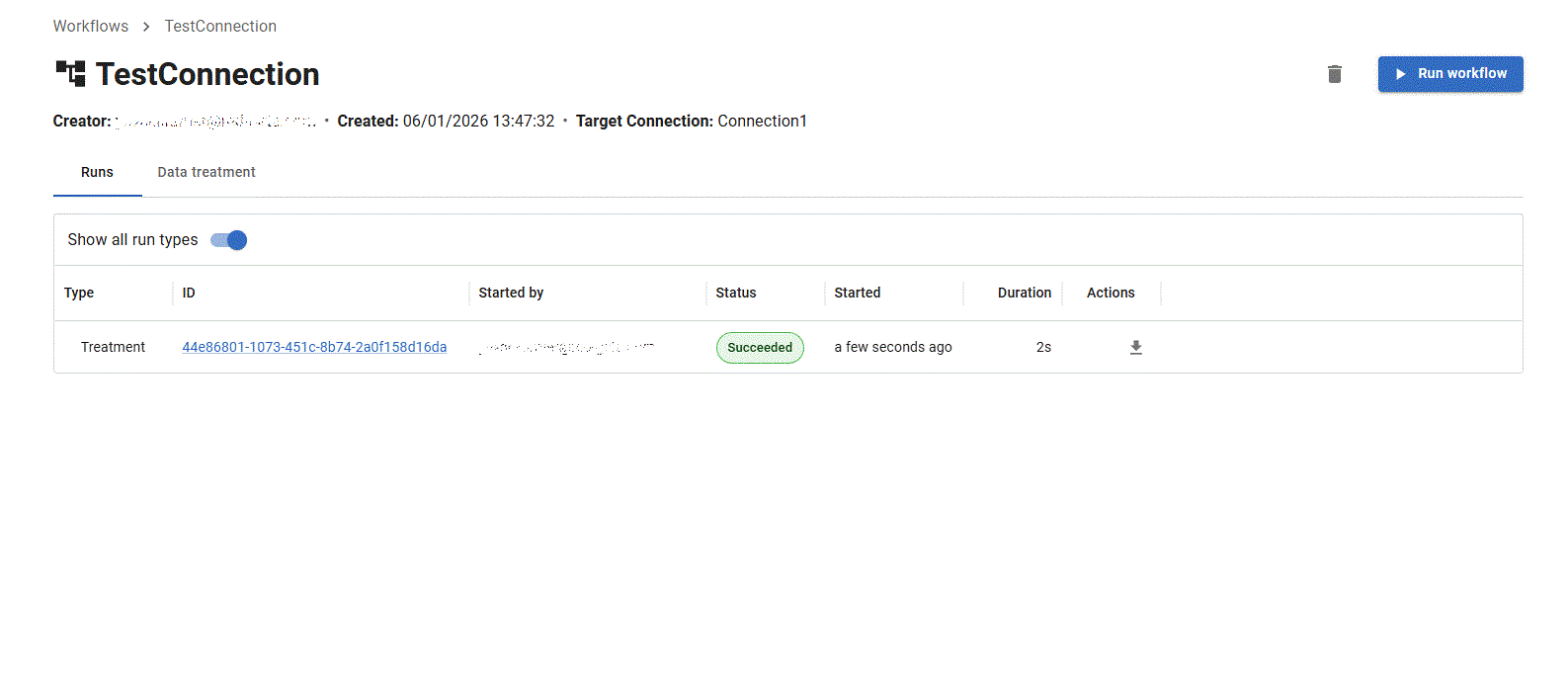
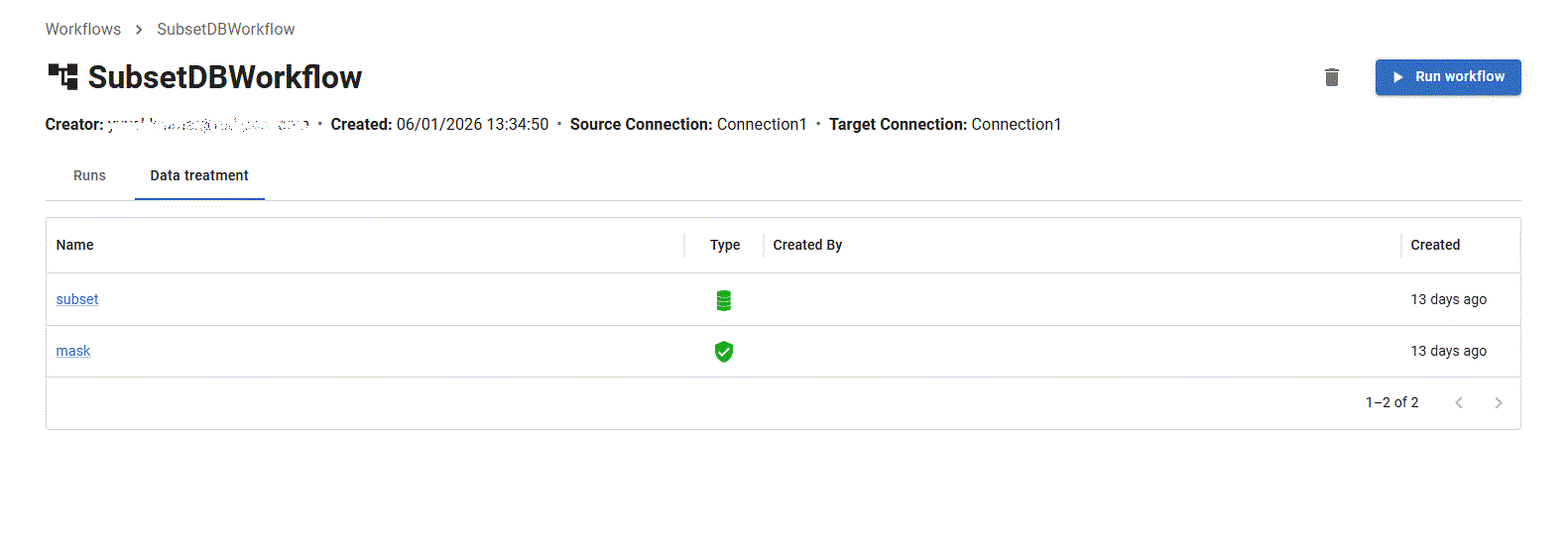
Clicking on a workflow opens the workflow view with two available tabs.
The Runs tab
This tab shows details of all workflow runs. These runs can be clicked to view detailed runtime logs.
The Data Treatment tab
This tab shows the treatments associated with the workflow.
Running a workflow
To run a workflow, click on the 'run' action for a given workflow in the workflows page, or click the 'Run workflow' button at the top right inside a workflow view.
TDM will then create a workflow run for each target and execute the operations one after the other. The execution order is:
1. Pre-script
2. Subset treatment
3. Anonymization treatment
4. Post-script
Note that subsetting always runs before anonymizing to minimize runtime. Any configured scripts are shown in the run sidebar before starting.
Editing a workflow
To edit a workflow, click on the 'edit' action for it in the workflows page or on the 'edit' button at the top right of a workflow view.
You will then be able to make changes to its name, treatments, database connections, and scripts:
Deleting a workflow
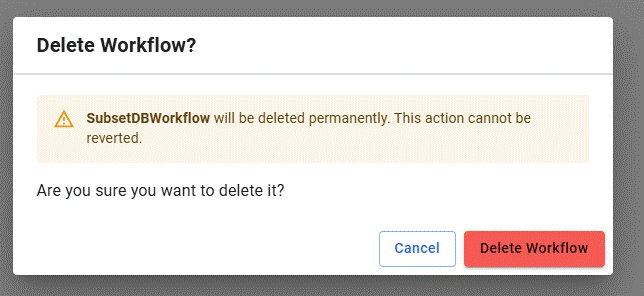
To delete a workflow, click on the 'delete' action for that workflow in the workflows page, or click on the delete icon at the top right inside a workflow view.
You will be prompted to confirm that you want to proceed:
This documentation contains proprietary information and is protected by copyright law.
Copyright © 2026 Red Gate Software Limited. All rights reserved


