Importing from DDL SQL script (or XML)
Published 26 August 2025
If you've already got a running database, and you want to visualize it, simply follow the steps on this page.
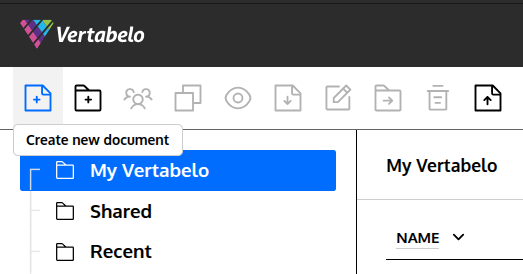
Start by clicking on the Create new document button.
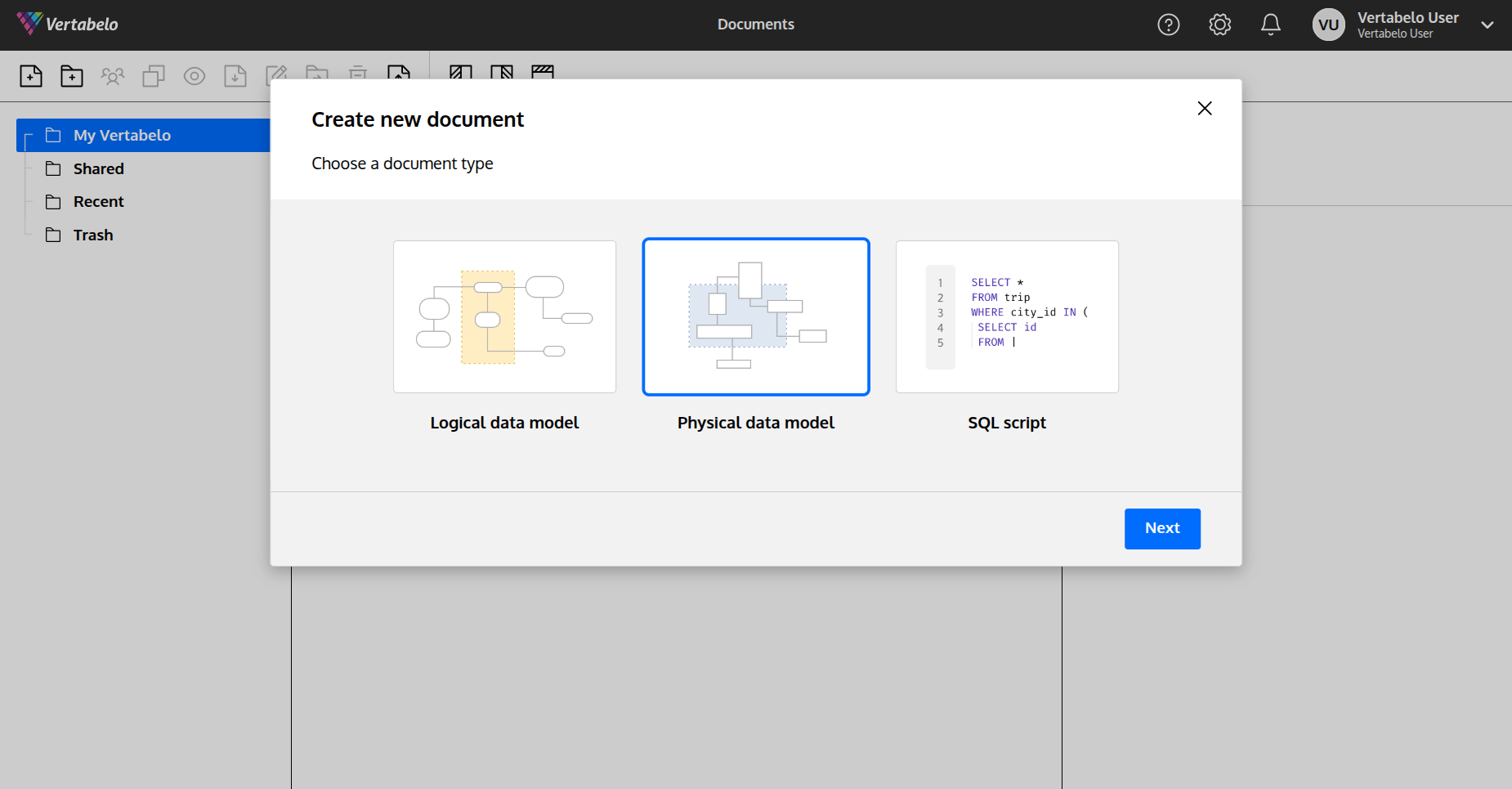
Then, pick the Physical data model option and click Next.
\
In the pop-up, provide a name, select the database engine that suits you, and in the Content section select From SQL. You'll be able to upload your SQL file. If you want to re-import the Redgate Data Modeler model from an XML model, proceed with the From XML option.
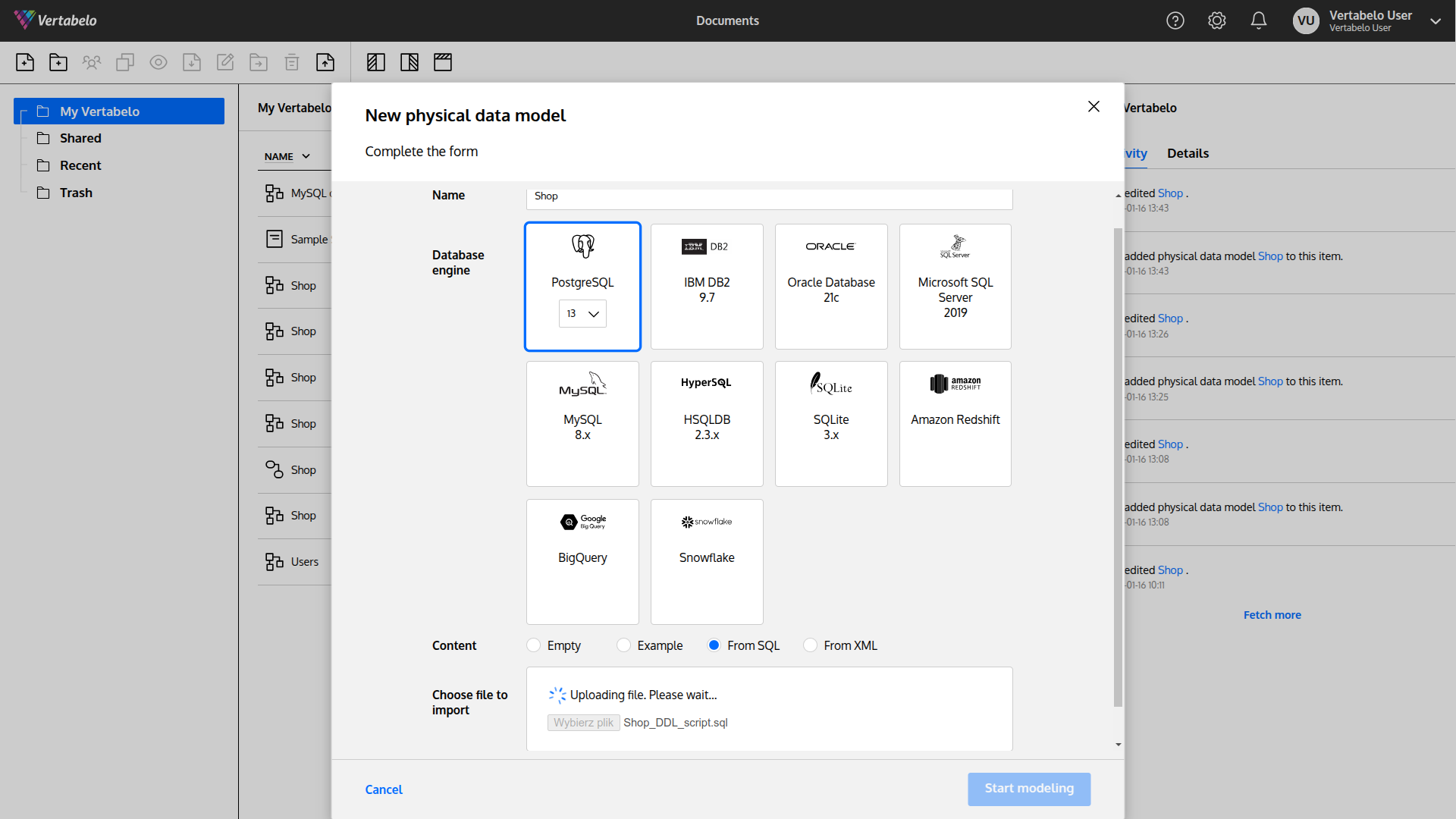
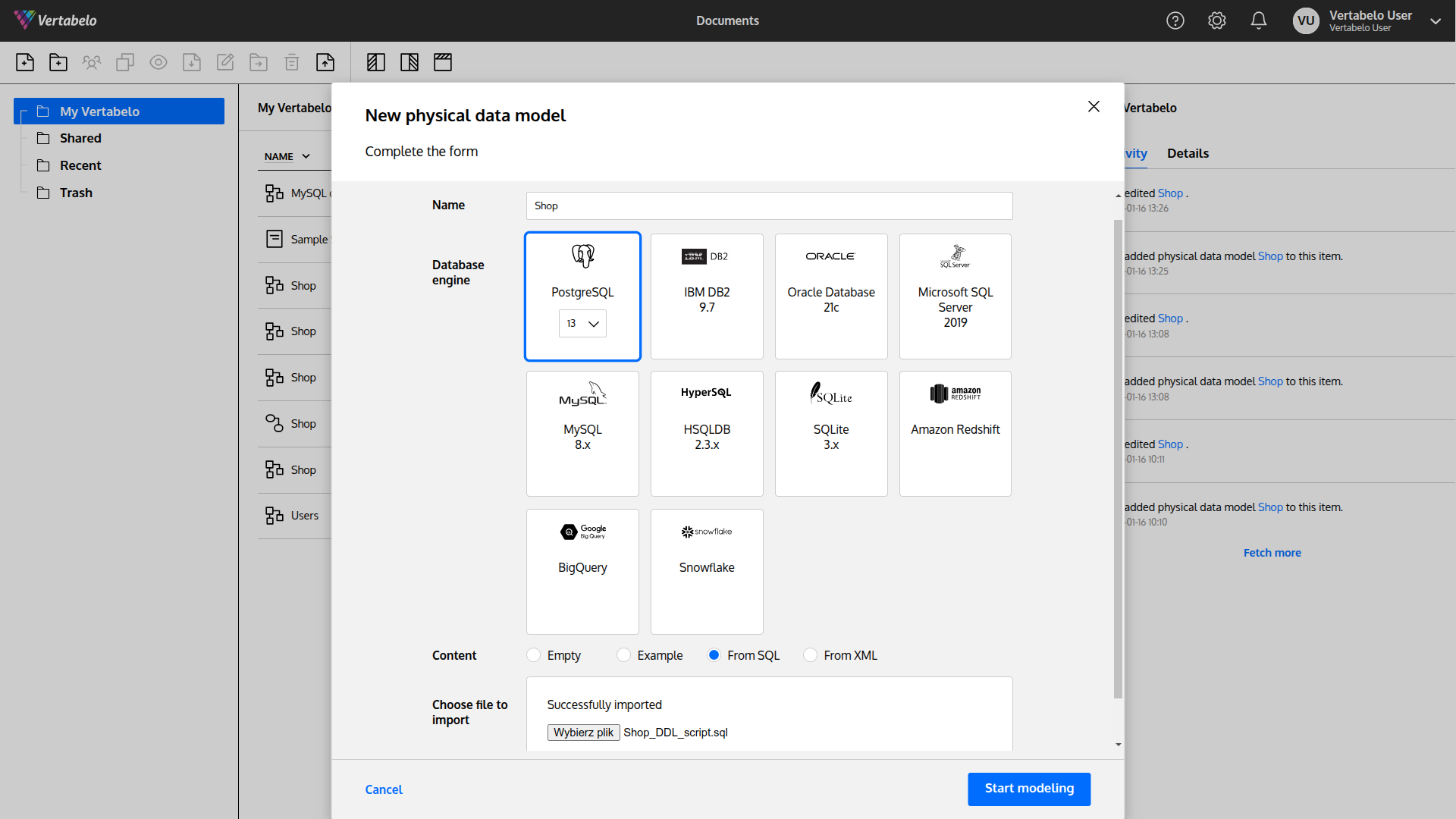
Wait for a few seconds until the Successfully imported text shows up – then click on the Start modeling button.
And you're done! You may start working on the model.
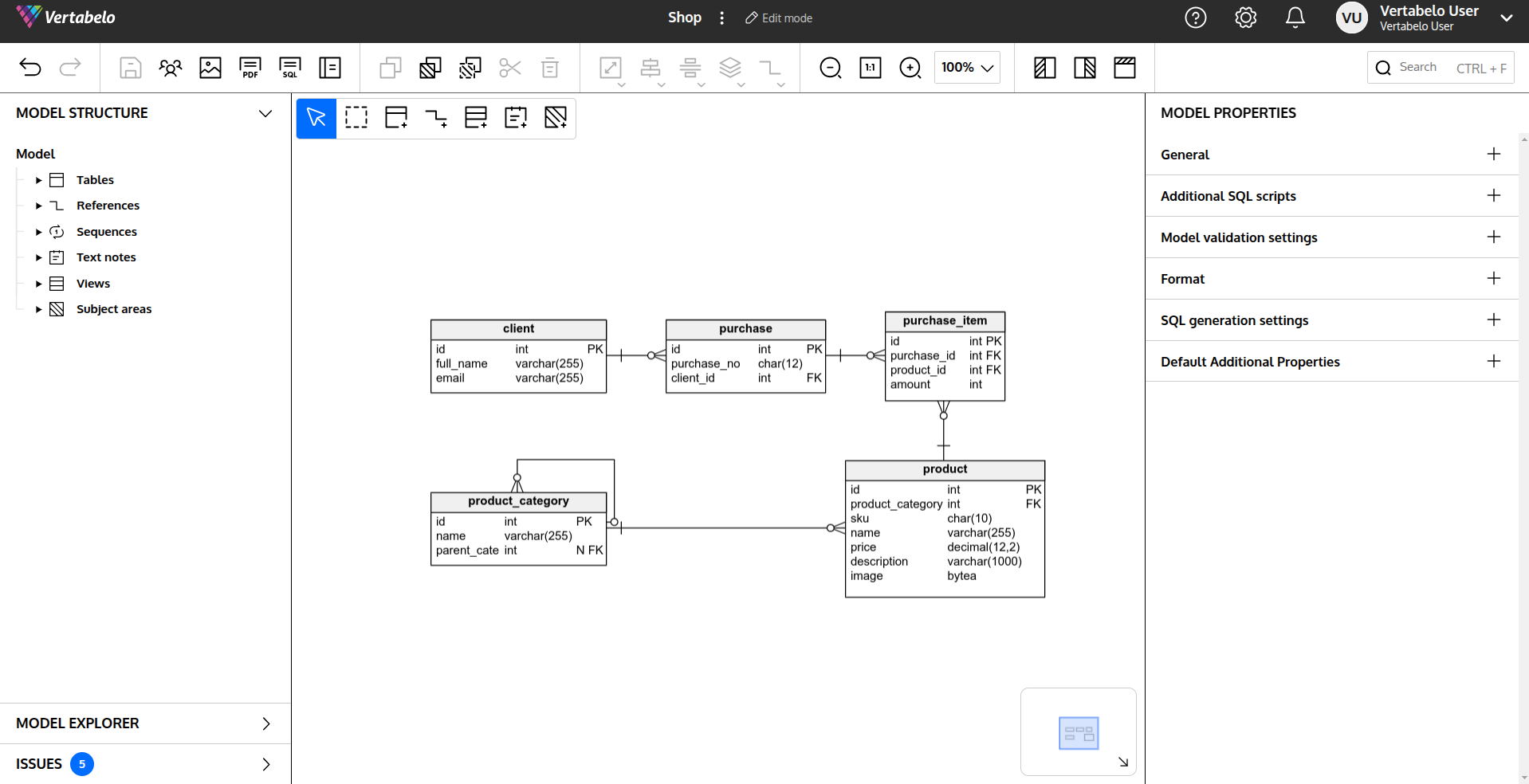
Adding some elements to an existing model
You may add some elements from an SQL script using the Main toolbar (see where here). You may also import the SQL/XML file to a separate model, and copy&paste some elements between the models (using classic keyboard shortcuts or buttons located in the main toolbar).


