Quickstart - Flyway CLI
Published 17 July 2024
Flyway Pipelines is now Flyway Insights. Read our blog to find out more details. These documentation pages will be updated soon. You can access Flyway Insights and see sample data at https://flyway.redgate.com.
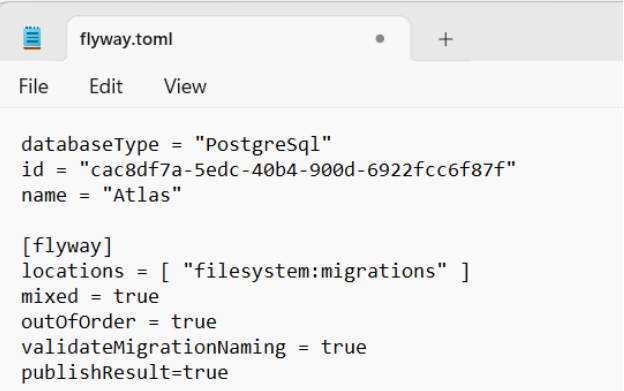
- If you did not use Flyway to create your Flyway project (either through Flyway Desktop or the flyway init CLI), you'll need to configure a databasetype, id and name at the top of your project's flyway.toml file, which is found in the root of your Flyway project folder.
databaseType = "<yourDatabaseType>"
id = "InsertGUIDhere"
name = "<yourProjectName>"
- You can generate a guid here: Online GUID Generator (encrypt-online.com)
- You can generate a guid here: Online GUID Generator (encrypt-online.com)
- You'll also need to add publishResult = true in the [flyway] section.
- Save the flyway.toml file.
Note: The service does not work with older flyway.conf files. To use the service, convert the conf file to a TOML file.
2. Authenticate the Flyway CLI
- To use Flyway Insights, run flyway auth to authenticate the Flyway CLI.
flyway auth -IAgreeToTheEula

3. Publishing deployment data to Flyway Insights
- To publish your deployment event to the service, you need to run flyway migrate or flyway deploy with some pending changes on a target database.
- Run the following command to deploy to your target environment
flyway migrate -url="<yourJdbcURL>" -user="<yourUserName>" -password="<yourPassword>"
Or, if your environment connection details are defined in your flyway.toml files, then you can just use the environment parameter.
flyway migrate -environment="<yourEnvironmentName>

4. Viewing your deployments and more in Flyway Insights
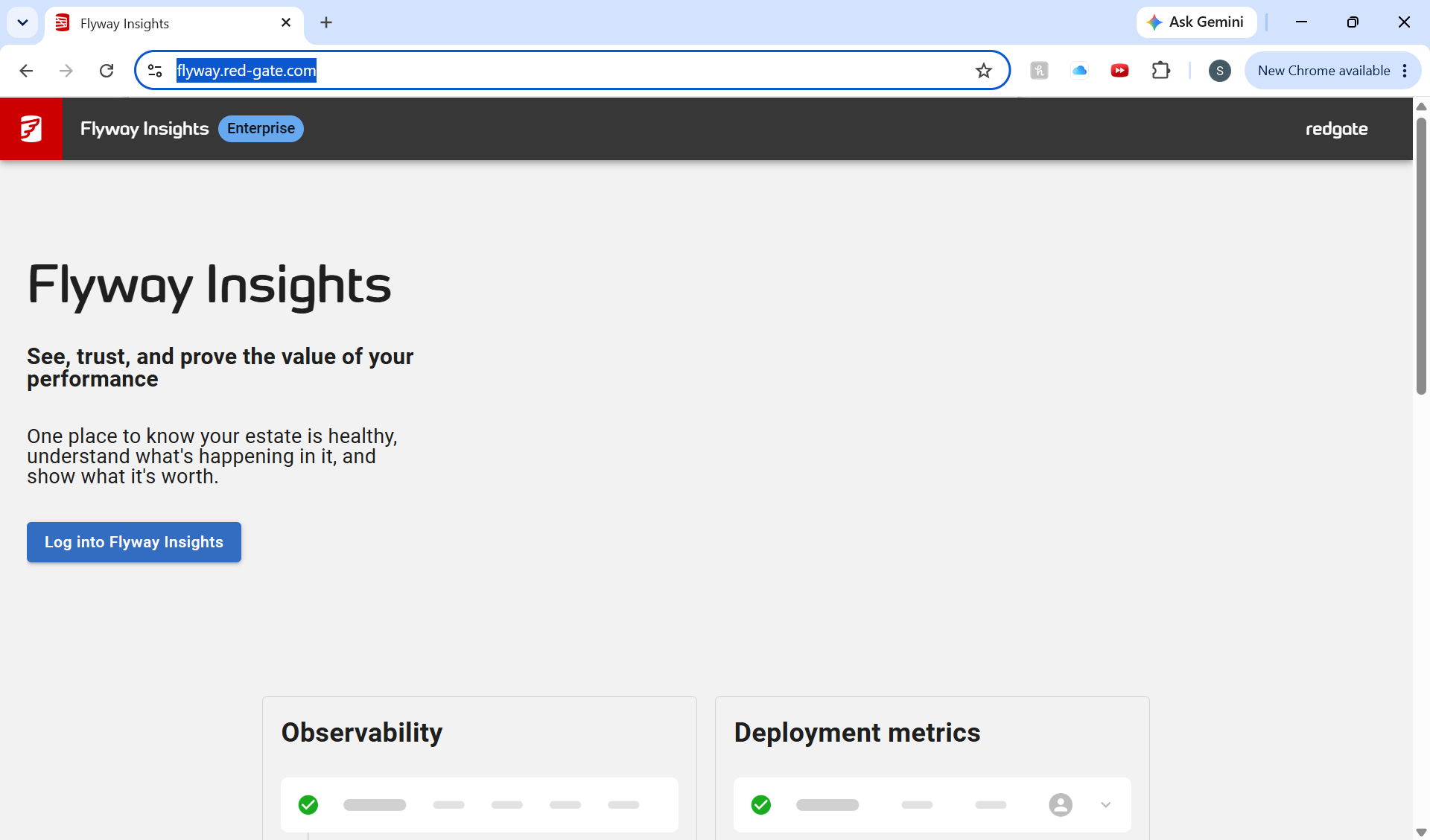
Flyway has now published deployment results to the Flyway Service. Visit https://flyway.red-gate.com and login with your Redgate ID to see the different views.
 -->
-->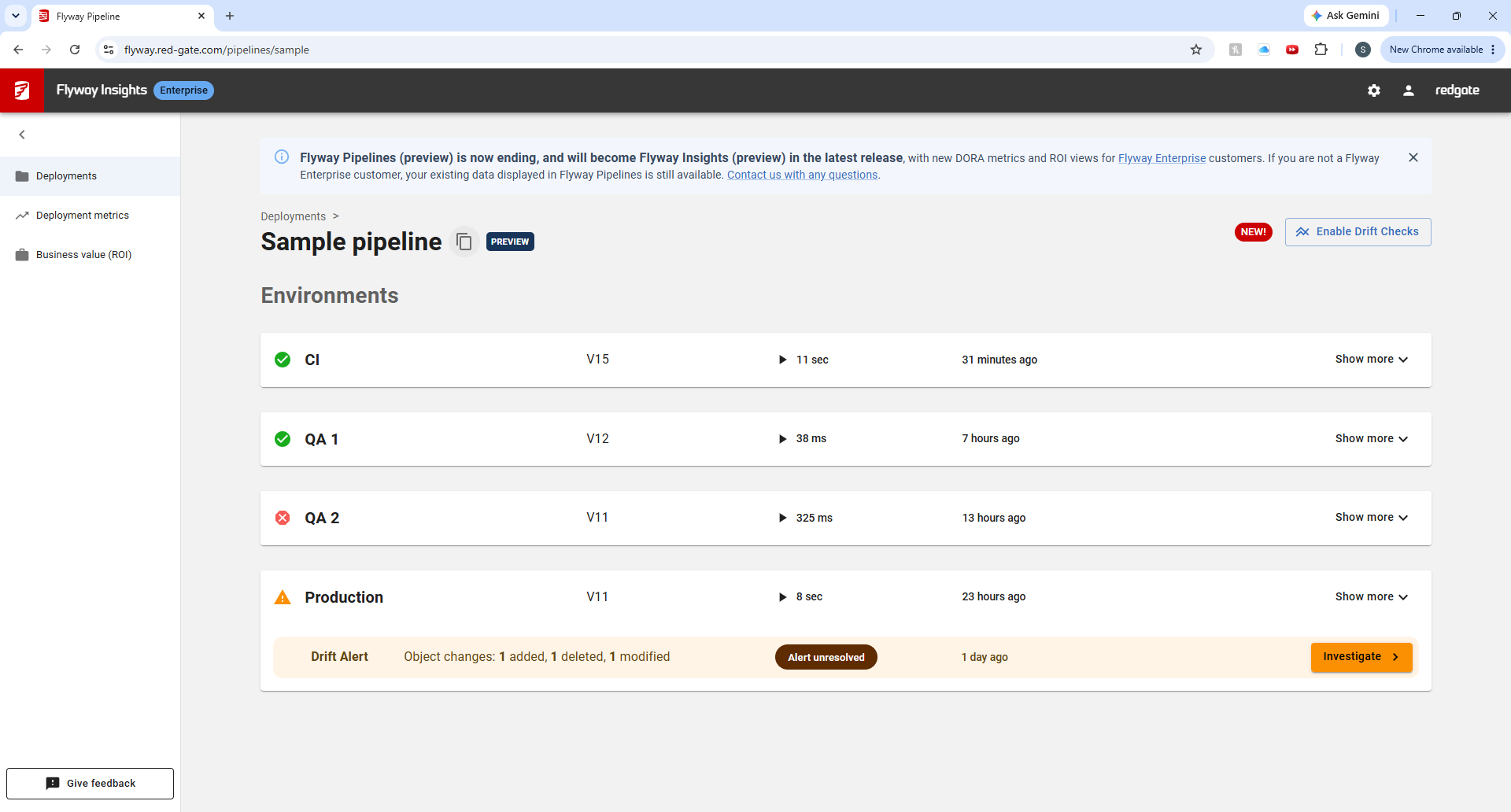
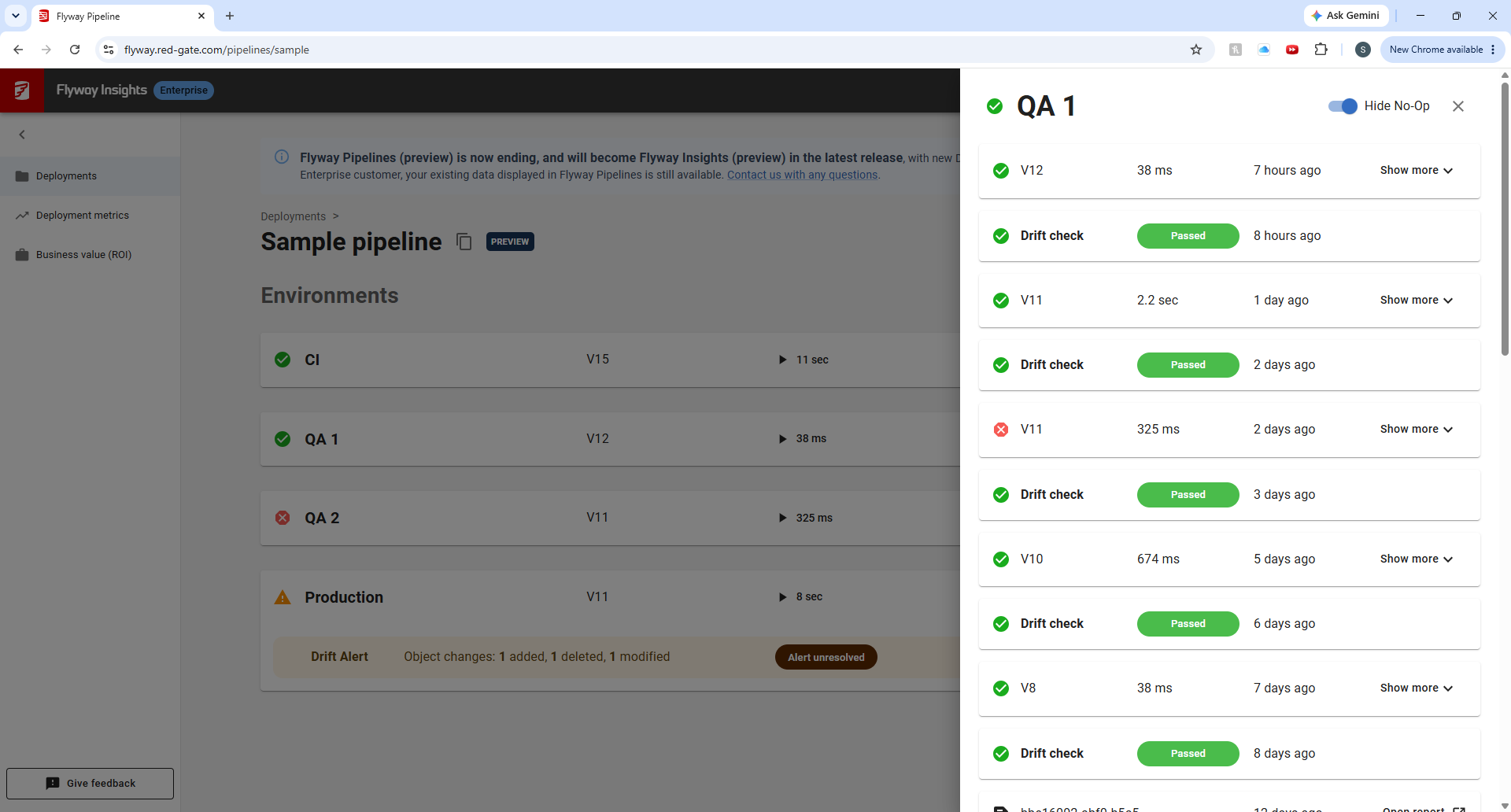
On the Deployments Tab, click on any Environment to see it's deployment history and drift details.
You can also click Show more and Deployment history > to get this information.
This documentation contains proprietary information and is protected by copyright law.
Copyright © 2026 Red Gate Software Limited. All rights reserved


