Adding PostgreSQL on Google AlloyDB
Published 22 October 2026
Additional configuration required
Make sure you have prepared PostgreSQL for monitoring before adding a PostgreSQL instance to Redgate Monitor.
This page explains how to add the primary instance of a Google AlloyDB cluster to Redgate Monitor. Host and instance metrics, along with error logs and query execution plans, are collected through the Google Cloud APIs using the service account key you provide below - on Google AlloyDB there is no separate host monitoring step to enable.
Read pool instances are not supported. Add only the primary instance of the AlloyDB cluster. If you add a read pool instance, the connection test fails.
Ensure that the AlloyDB primary instance is reachable by the machine running the Base Monitor. Depending on your network setup this is typically achieved by connecting over the instance's private IP from within the same VPC, or by enabling its public IP and adding the Base Monitor's address to the instance's authorized external networks. See Google's connection overview for the different ways to connect to an AlloyDB instance.
- Go to Configuration → Monitored servers → Add → PostgreSQL
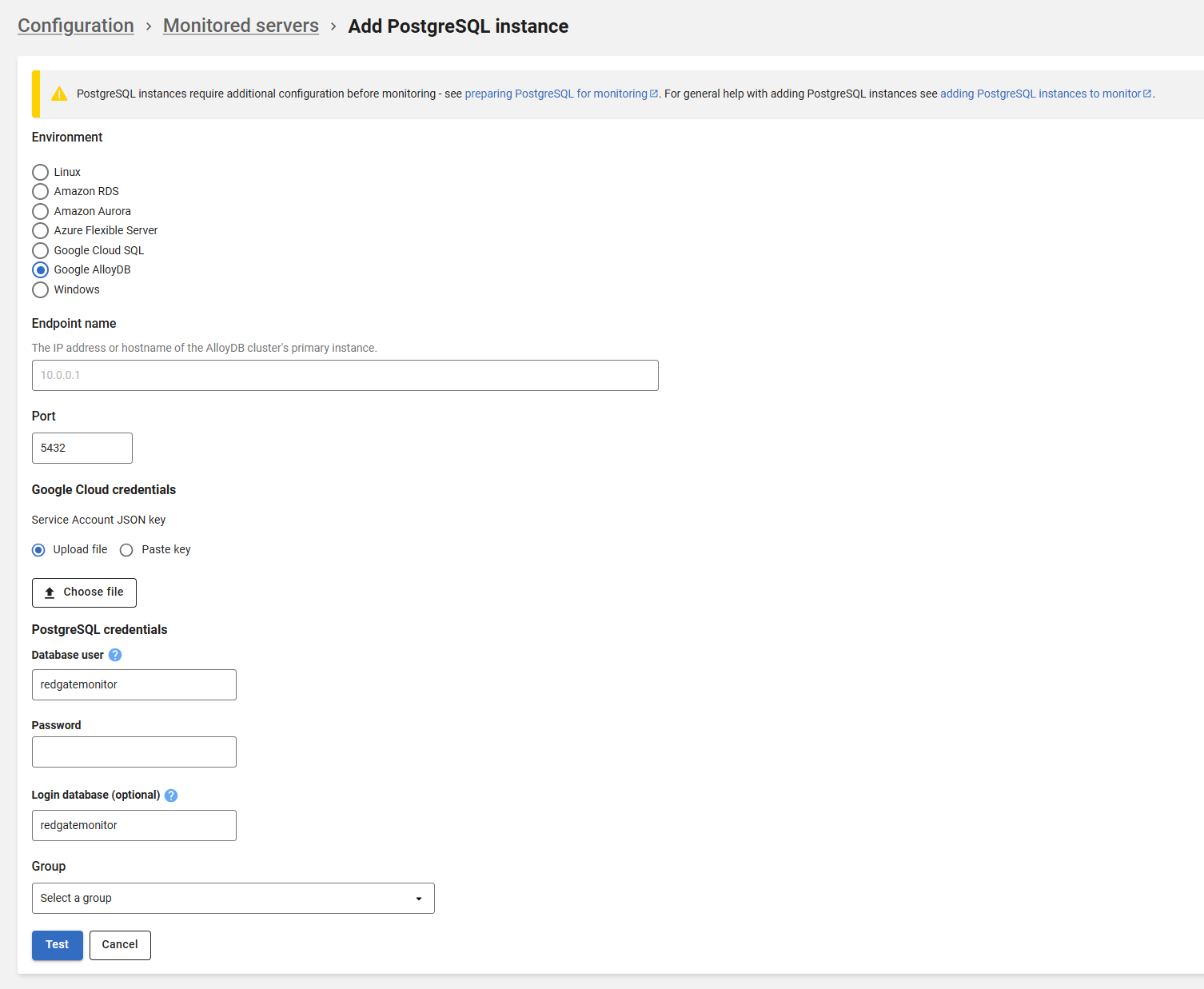
Select Google AlloyDB as the environment.
In the Endpoint name field, enter the IP address or hostname of the AlloyDB cluster's primary instance. You can find this on the cluster's Connectivity page in the Google Cloud console, with the primary instance selected. Use the private IP address if the Base Monitor connects over a VPC, or the public IP address otherwise.
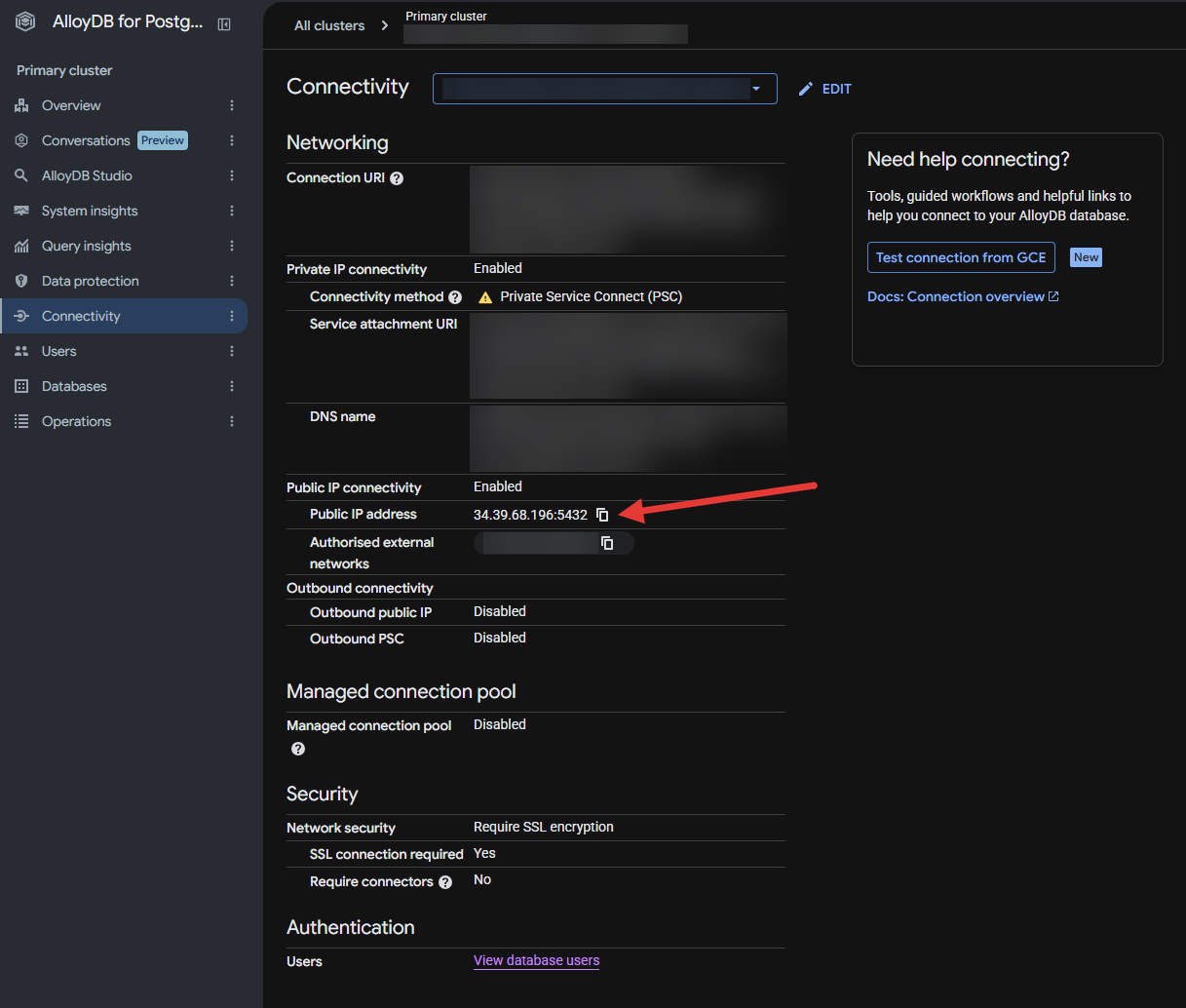
- Enter the port in the Port field. This is typically the default of
5432for PostgreSQL. - Under Google Cloud credentials, provide a Google Cloud Service Account JSON key. Select Upload file to choose the downloaded key file, or Paste key to paste its contents directly.
This service account is used to detect the AlloyDB cluster and primary instance, collect its host metrics, and read its error logs from Google Cloud Logging.
- Grant the service account the
roles/alloydb.viewer,roles/monitoring.viewerandroles/logging.viewerroles on the project containing the cluster, as described in Preparing PostgreSQL for monitoring.
- Under PostgreSQL credentials, enter the username and password of the monitoring user. You should use the Monitor user you created when following the Preparing PostgreSQL for monitoring guide (
redgatemonitorby default). - Optionally, enter the "Login database" if you are not using the same database name as your username (
redgatemonitorby default). - You can select a group where the instance will be added, select "Uncategorized" if you don't want to put it in any particular group.
- Click Test to verify the endpoint, credentials and service account key, then Add the instance.
This documentation contains proprietary information and is protected by copyright law.
Copyright © 2026 Red Gate Software Limited. All rights reserved


