Verifying SSH host keys
Published 17 November 2026
Redgate Monitor checks the SSH host key of each Linux machine it connects to. This stops another machine from impersonating the Linux machine and receiving its SSH credentials.
How it works
The first time Redgate Monitor connects to a Linux machine, it trusts the host key that the machine presents. On each later connection, it checks that the machine presents the same key.
If the machine presents a different key, Redgate Monitor rejects the connection and stops monitoring the machine. The machine shows the SSH host key changed status on the Configuration > Monitored servers page.

A host key can change for expected reasons, such as a reinstall of the operating system or a key rotation. It can also mean that someone is intercepting the connection. Check the new key on the machine before you trust it.
The trusted key belongs to the machine's host name and SSH port. If you change the SSH port of a Linux machine, Redgate Monitor clears the trusted key. By default, it then trusts the key that it finds on the new port.
Getting the host key fingerprint of a machine
To list the host key fingerprints of a Linux machine, run this command on the machine:
cat /etc/ssh/ssh_host_*_key.pub | ssh-keygen -lf -
The command prints one line for each host key, for example:
256 SHA256:uNiVztksCsDhcc0u9e8BujQXVUpKZIDTMczCvj3tD2s root@linux-host (ED25519)
Redgate Monitor shows a key as the key type and the SHA256 fingerprint, for example ssh-ed25519 SHA256:uNiVztksCsDhcc0u9e8BujQXVUpKZIDTMczCvj3tD2s. Compare the fingerprint with the line of the same key type.
When you enter a key in Redgate Monitor, give one line exactly as ssh-keygen -lf prints it. Redgate Monitor also accepts a key in the form that it shows. Only SHA256 fingerprints are supported. Supported key types are ED25519, ECDSA, RSA and DSA.
Reviewing and trusting a changed key
You need administrator permissions to trust a host key.
Go to Configuration > Monitored servers.
Find the Linux machine with the SSH host key changed status. Click the status, or open the row menu and select Review SSH host key.
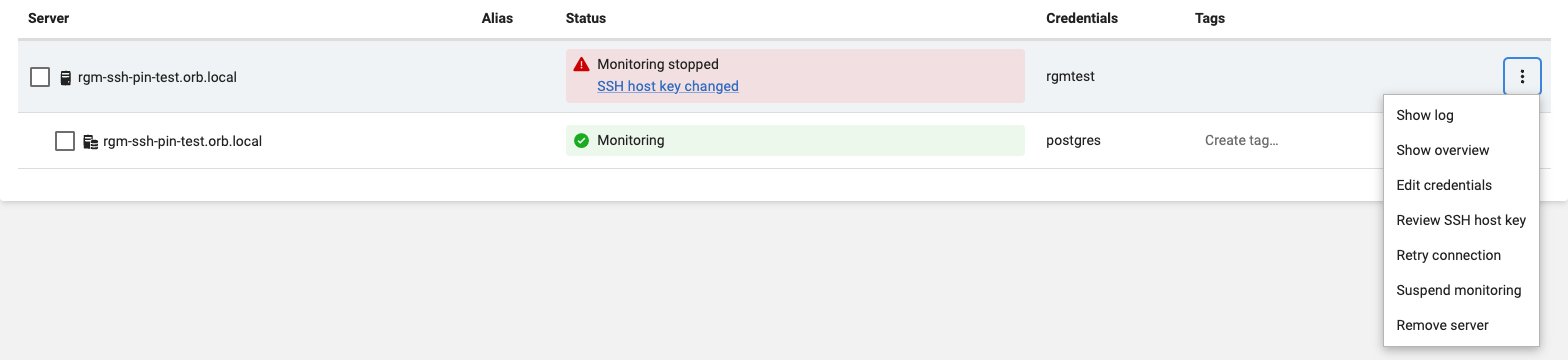
The Review SSH host key dialog shows the key that Redgate Monitor trusts and the key that the machine presented. Run the command in the dialog on the machine, and check that the presented key matches the output.
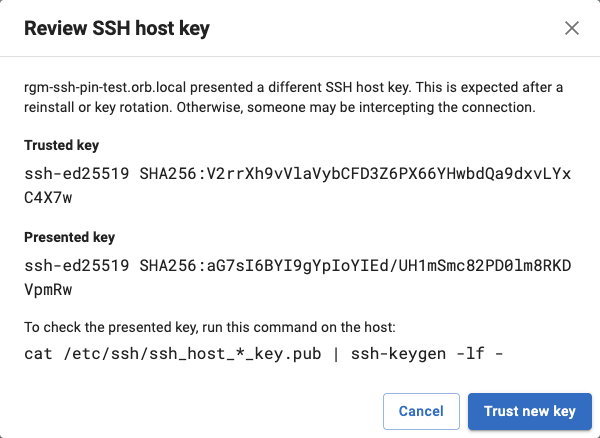
If the key matches, select Trust new key. Redgate Monitor trusts the presented key and starts monitoring the machine again.
If the key does not match, do not trust it. Find out why the machine presents a different key before you continue.
Setting a host key with PowerShell
You can give the host key when you add a Linux machine with the PowerShell API. Redgate Monitor then trusts only that key, and does not trust the key it sees on the first connection.
$server = New-RedgateMonitorLinuxHost -HostName "linux-host" -BaseMonitor $BaseMonitor -SshUserName "ssh_user" -SshPassword "ssh_pass" -SshHostKey "256 SHA256:uNiVztksCsDhcc0u9e8BujQXVUpKZIDTMczCvj3tD2s root@linux-host (ED25519)"
$instance = New-RedgateMonitorSqlServer -FullName "linux-host" -BaseMonitor $BaseMonitor -UserName "sql_username" -Password "sql_pass"
$server, $instance | Add-RedgateMonitorMonitoredObject
To change or clear the trusted key of a monitored Linux machine, use Set-RedgateMonitorSshHostKey or Clear-RedgateMonitorSshHostKey:
Get-RedgateMonitorMonitoredObject -Type Machine -Name 'linux-host' | Set-RedgateMonitorSshHostKey -SshHostKey '256 SHA256:uNiVztksCsDhcc0u9e8BujQXVUpKZIDTMczCvj3tD2s root@linux-host (ED25519)'
Get-RedgateMonitorMonitoredObject -Type Machine -Name 'linux-host' | Clear-RedgateMonitorSshHostKey
After you clear the key, Redgate Monitor trusts the key it sees on the next connection, unless strict host key checking is on.
For all parameters, see the PowerShell cmdlet reference.
Strict host key checking
By default, Redgate Monitor trusts the key that a Linux machine presents on the first connection. If you want an administrator to check every key before Redgate Monitor trusts it, turn on strict host key checking.
With strict host key checking on:
- Redgate Monitor rejects the first key of a new Linux machine. The machine shows the SSH host key not trusted status until an administrator trusts the key.
- A change to the SSH port clears the trusted key, and an administrator must trust the key on the new port.
- Machines that already have a trusted key are not affected.

Turning on strict host key checking
Strict host key checking is available for self-hosted installations only.
Do one of the following on the Base Monitor server:
Set the environment variable
REDGATEMONITOR_StrictSshHostKeyCheckingtotrue.Add the setting to the
appSettings.jsonfile in the shared data folder. The value must be a string.{ "featureFlags": { "StrictSshHostKeyChecking": "true" } }The shared data folder is:
- Windows:
C:\ProgramData\Red Gate\Redgate Monitor\ - Linux:
/etc/opt/redgate/redgatemonitor/
- Windows:
Then restart the Base Monitor service.
Trusting the key of a new machine
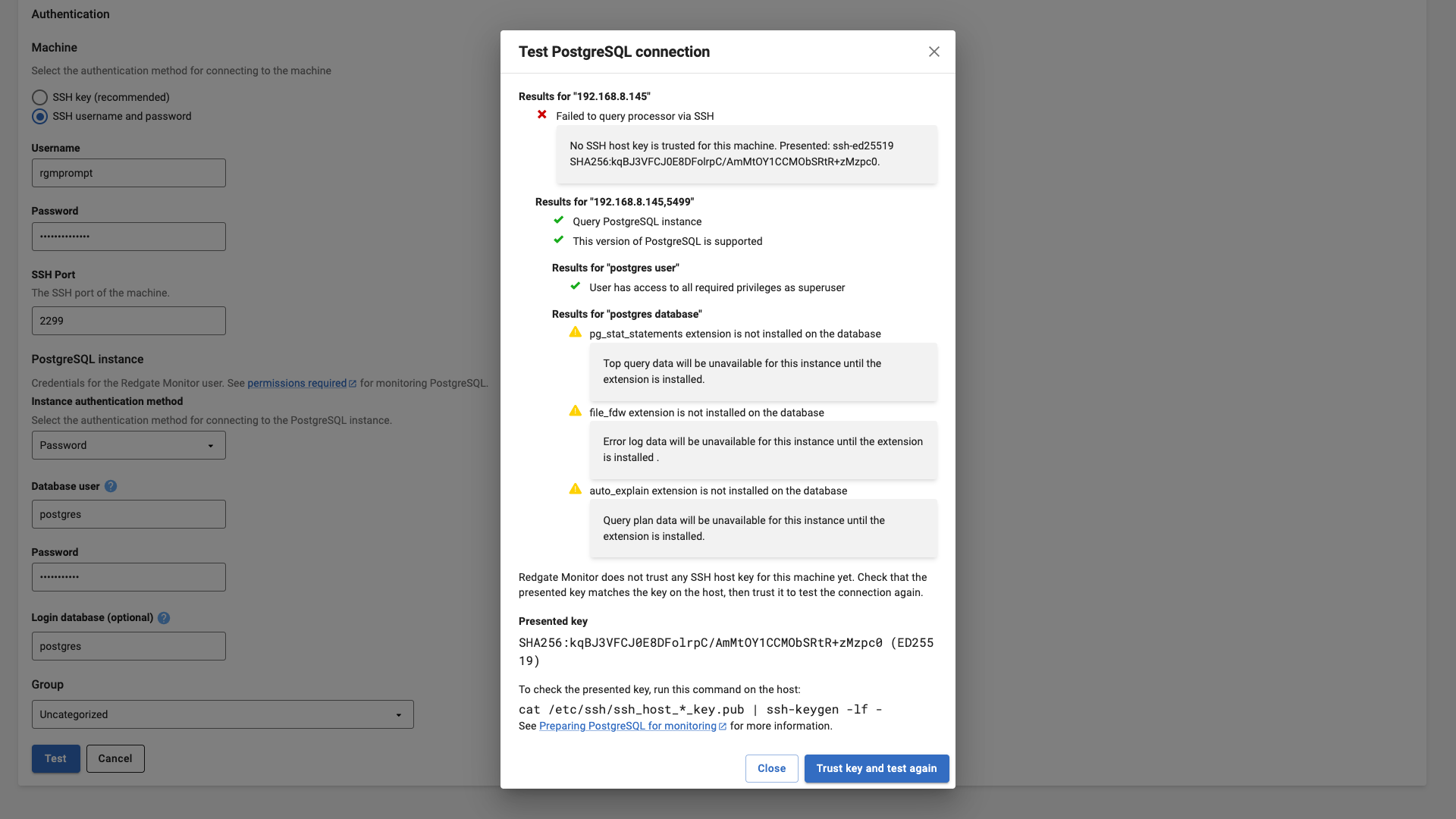
When you add a Linux machine, the connection test shows the key that the machine presented. Run the command in the dialog on the machine and check that the presented key matches the output. Then select Trust key and test again. If the test passes, select Add. Redgate Monitor adds the machine with the trusted key.
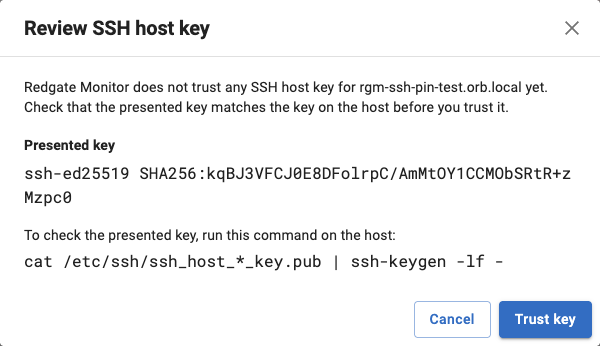
To trust the key of a machine that already shows SSH host key not trusted, click the status, or select Review SSH host key from the row menu. Check the presented key, then select Trust key.
You can also give the key when you add the machine with PowerShell. See Setting a host key with PowerShell.
This documentation contains proprietary information and is protected by copyright law.
Copyright © 2026 Red Gate Software Limited. All rights reserved


