Copy alert settings
Published 06 October 2026
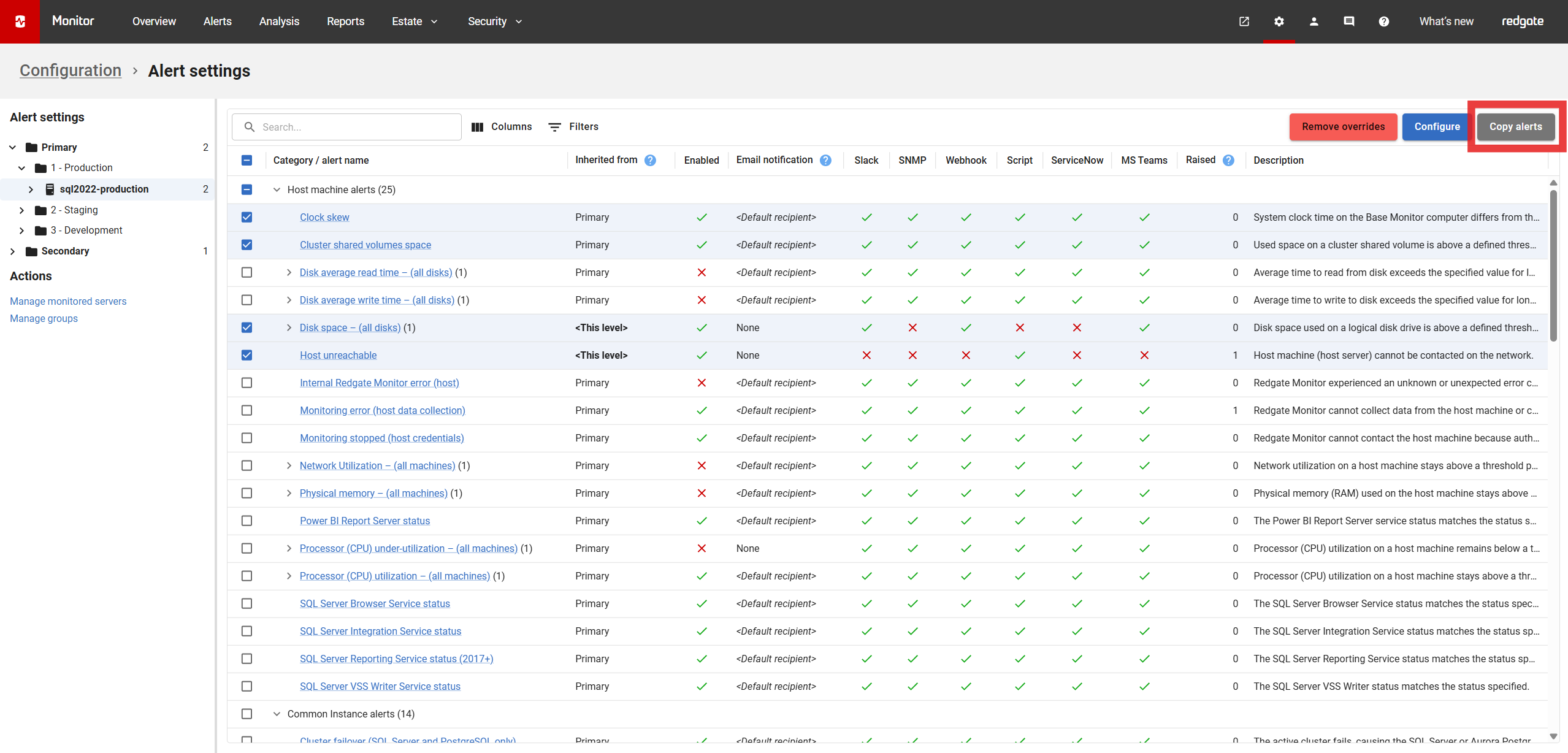
On the alert settings page you can copy the alert settings of any selection of alert types (at any level of the monitored servers hierarchy), and apply those settings to any selection of other monitored servers in the hierarchy.
The level in the monitored servers hierarchy you copy alert settings from will be referred to as the source. The levels in the monitored servers hierarchy you copy to will be referred to as the targets.
To copy alert settings first select the source monitored object: this can be any level of the monitored servers hierarchy; a monitored server, a group, or even a base monitor. Now select the alert types whose settings you want to copy. Click the "Copy alerts" button and the copy alert settings dialog will open. Select the target monitored objects you want to apply the source alert settings to. Finally, click the "Copy settings" button.
Copy alert settings dialog
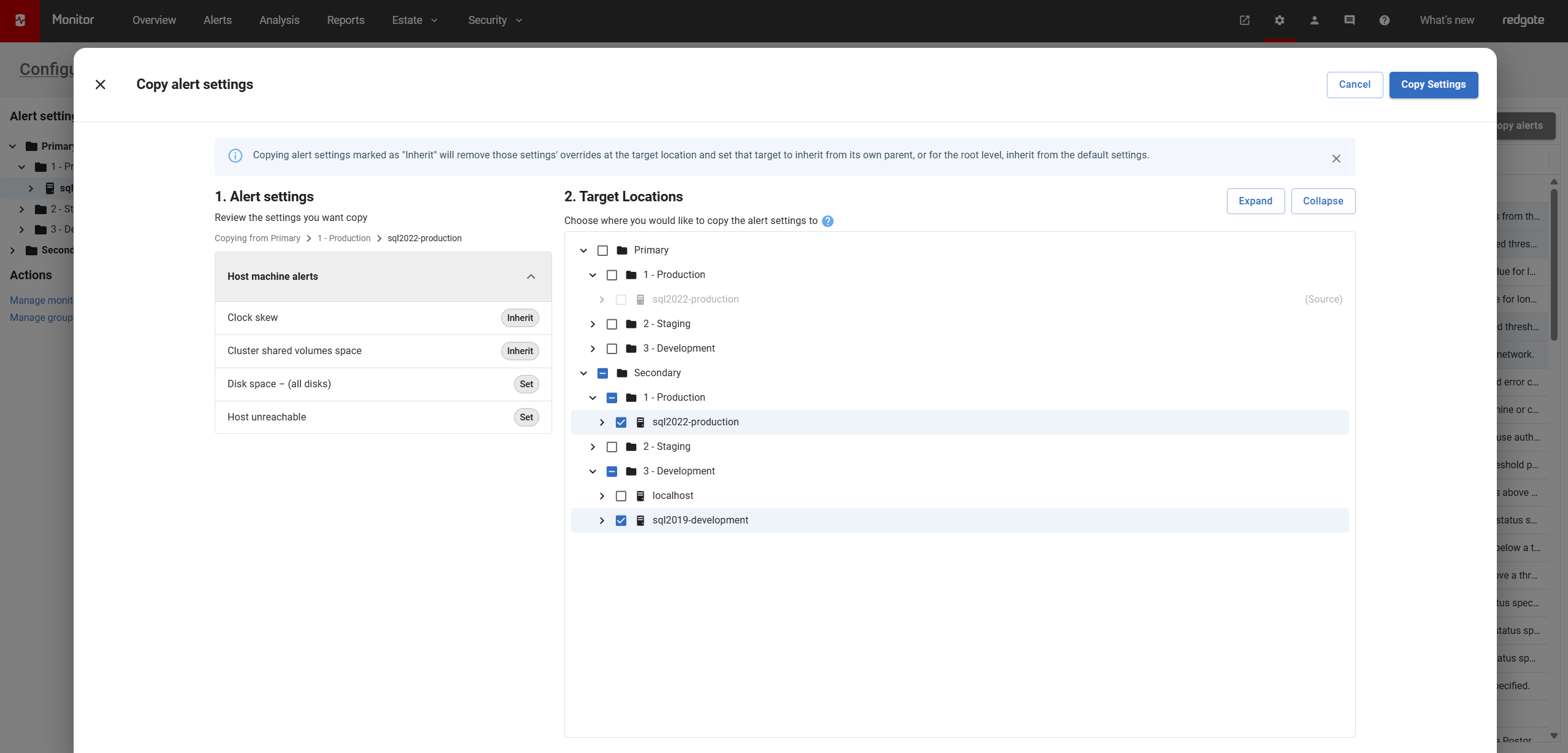
The copy alert settings dialog comes in two parts: 1. Alert settings and 2. Target locations.
1. Alert settings section
The alert settings section displays the source monitored object as well as all the selected alert types whose settings you are going to copy.
The alert types each have a tag describing the kind of alert setting you are copying:
- Set - otherwise known as an override, means you have alert settings "set" for that alert type at the source monitored object level. Copying will apply the source override to each selected target; for that alert type.
- Inherit - the source monitored object inherits its alert settings for that alert type. Copying will remove any override set on each selected target, hence the target will inherit its alert settings. Its important to note that this can mean the effective alert settings for the source and targets may still differ after copying.
- Disabled - the source monitored object has disabled this alert type. Copying will disable this alert type on each selected target.
Unsupported alert types
Some alert types are not supported when copying alert settings. Sub alert types and custom alert types are not supported. Sub alert types are any alert type that requires a dropdown on the main alert configuration page: this includes alert settings for a specific disk of a machine. Custom alert types are any alert type found in the custom alert category of the main alert configuration page. If any of these are selected they will be filtered out of the alert settings section and you will see a warning on the dialog. You can still click "Copy settings", however none of the alert settings for an unsupported alert type will be applied to the targets.
2. Target locations section
The target locations section displays the monitored servers hierarchy. Here you can select all the targets you would like to apply the source's selected alert settings to.
Some alert types are only configurable at certain levels, for example the "Host unreachable" alert type is only configurable at the machine level and above. If, for example, you try to copy alert settings for the host unreachable alert type to a SQL Server you will see a warning icon next to the target SQL Server explaining that some of the selected source alert settings do not apply to this target. You can still click "Copy settings", if an alert type is incompatible for a selected target it will simply be ignored when copying to that target.
Troubleshooting errors
- All selected alert types are invalid
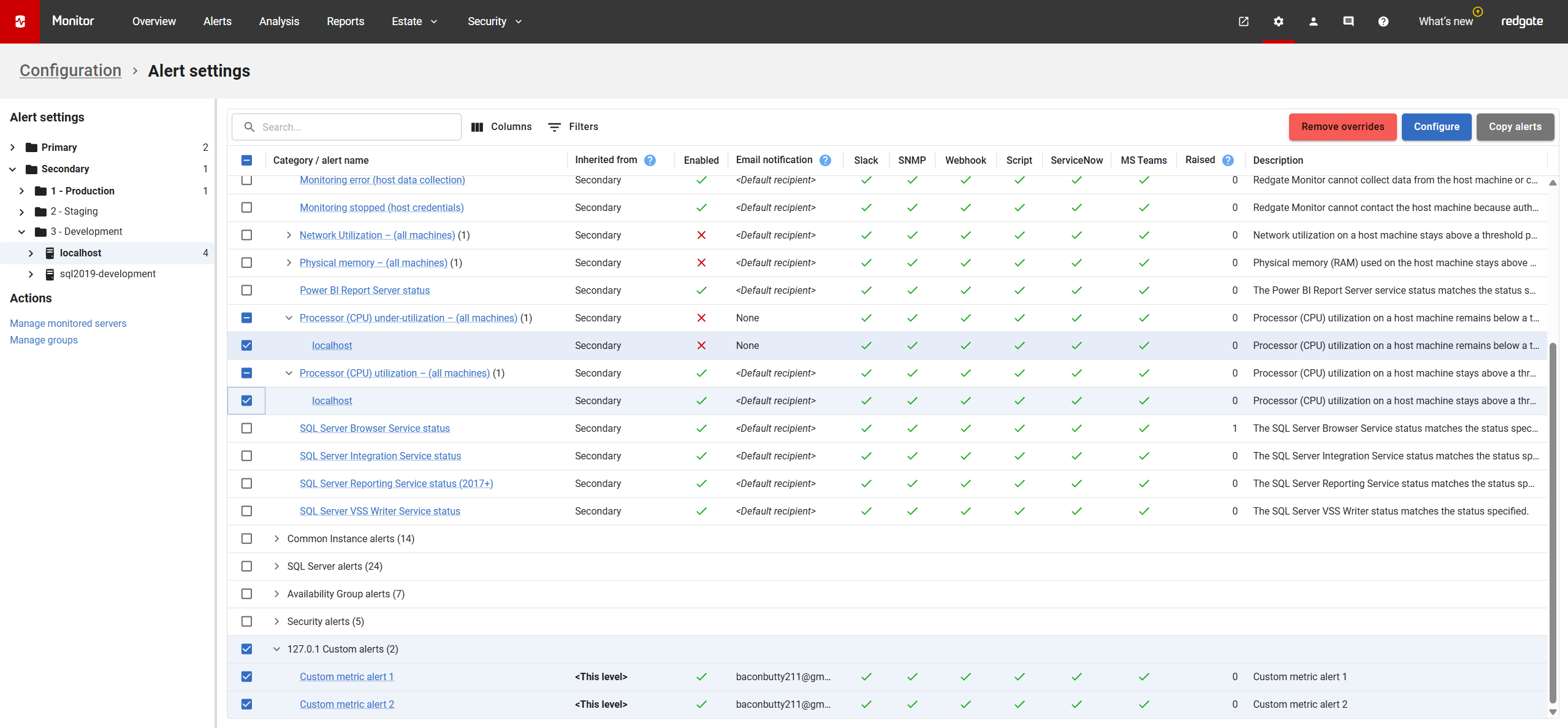
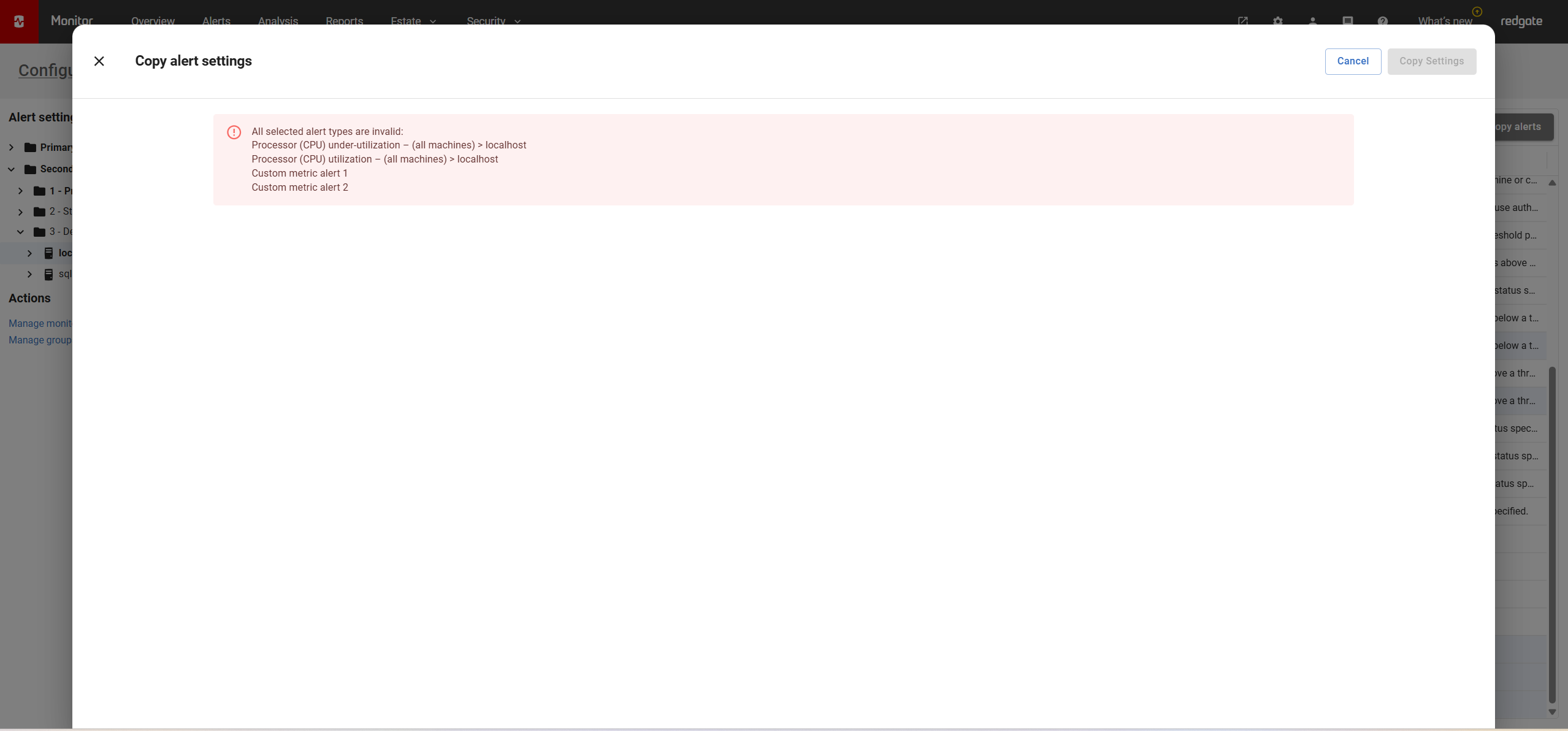
If you select only unsupported alert types to copy you will see the above error message. You cannot copy the alert settings for any of these alert types, hence you are restricted from progressing any further in the copy alert settings dialog. You will need to cancel out of the dialog and manually set the alert settings for these alert types on the desired targets.
- Base Monitor unavailable
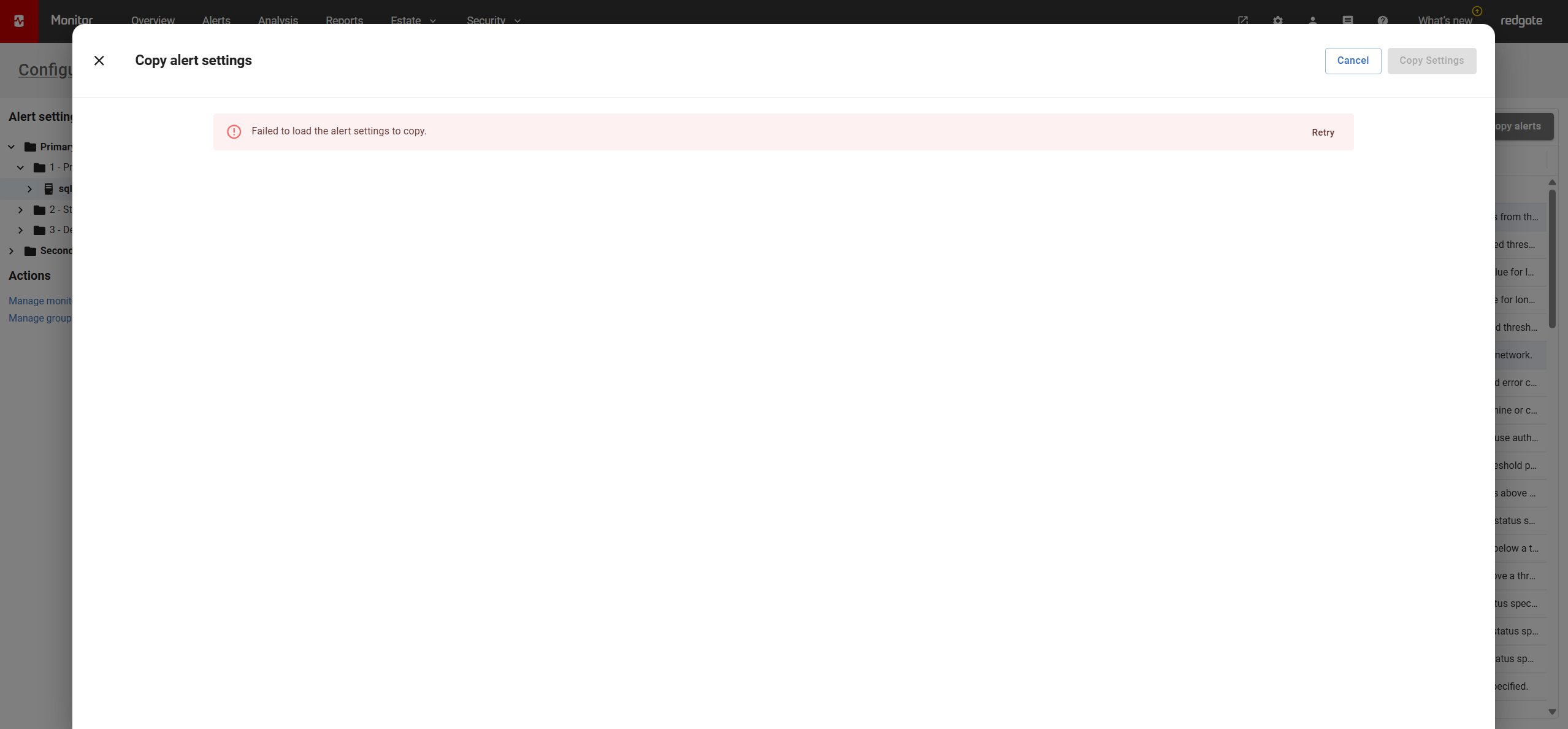
If you see the above error, "failed to load alert settings to copy", then there is likely an issue with the source base monitor. See unable to connect to base monitor for help troubleshooting a connection issue. You will not be able to continue with the copy alert settings dialog until this is resolved.
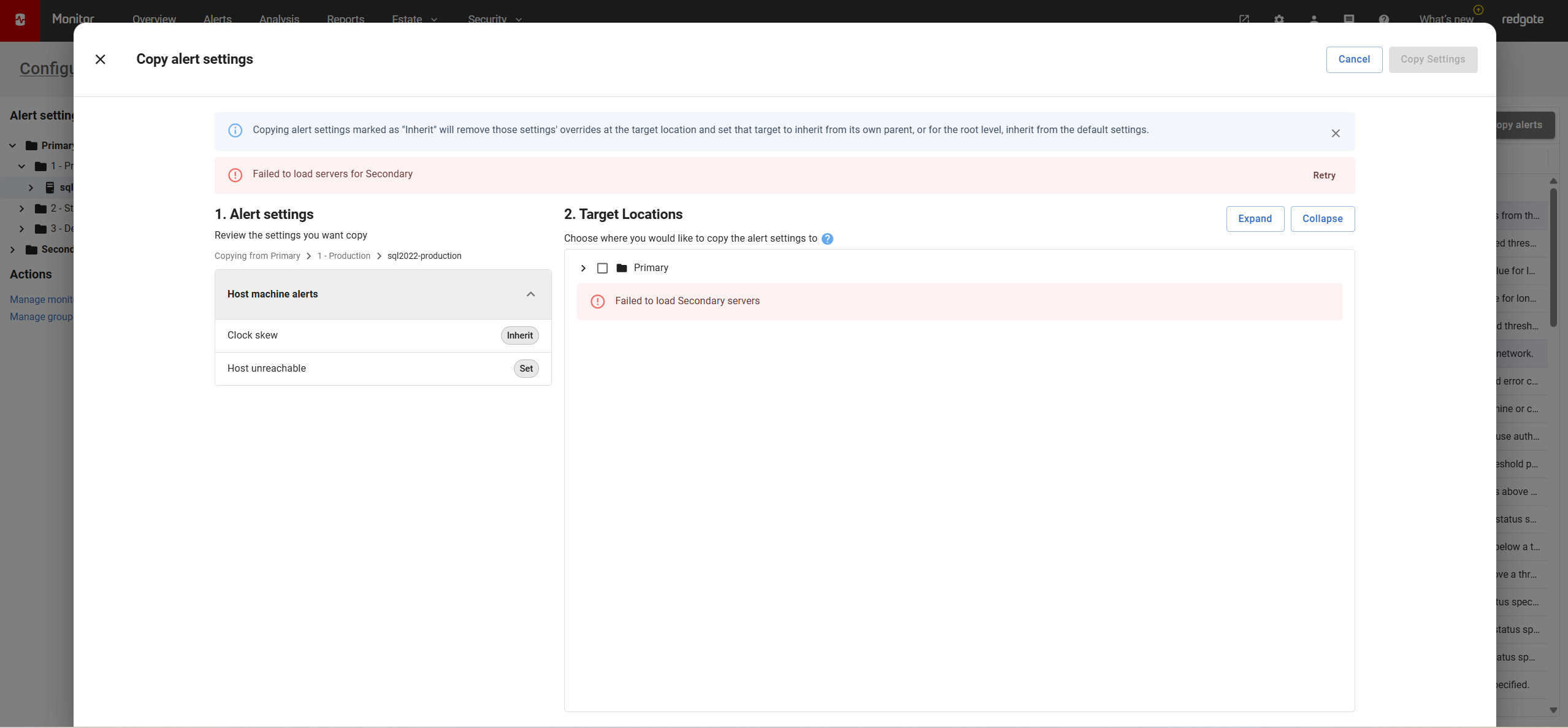
If you see the above error, "target servers have failed to load for a specific base monitor", then there is likely an issue with the that base monitor. See unable to connect to base monitor for help troubleshooting a connection issue. Its worth noting that if you see this error and the targets you want to copy to have loaded, you can still select your desired targets and click the "Copy settings" button. Alert settings will still be applied as expected.
- Partial success
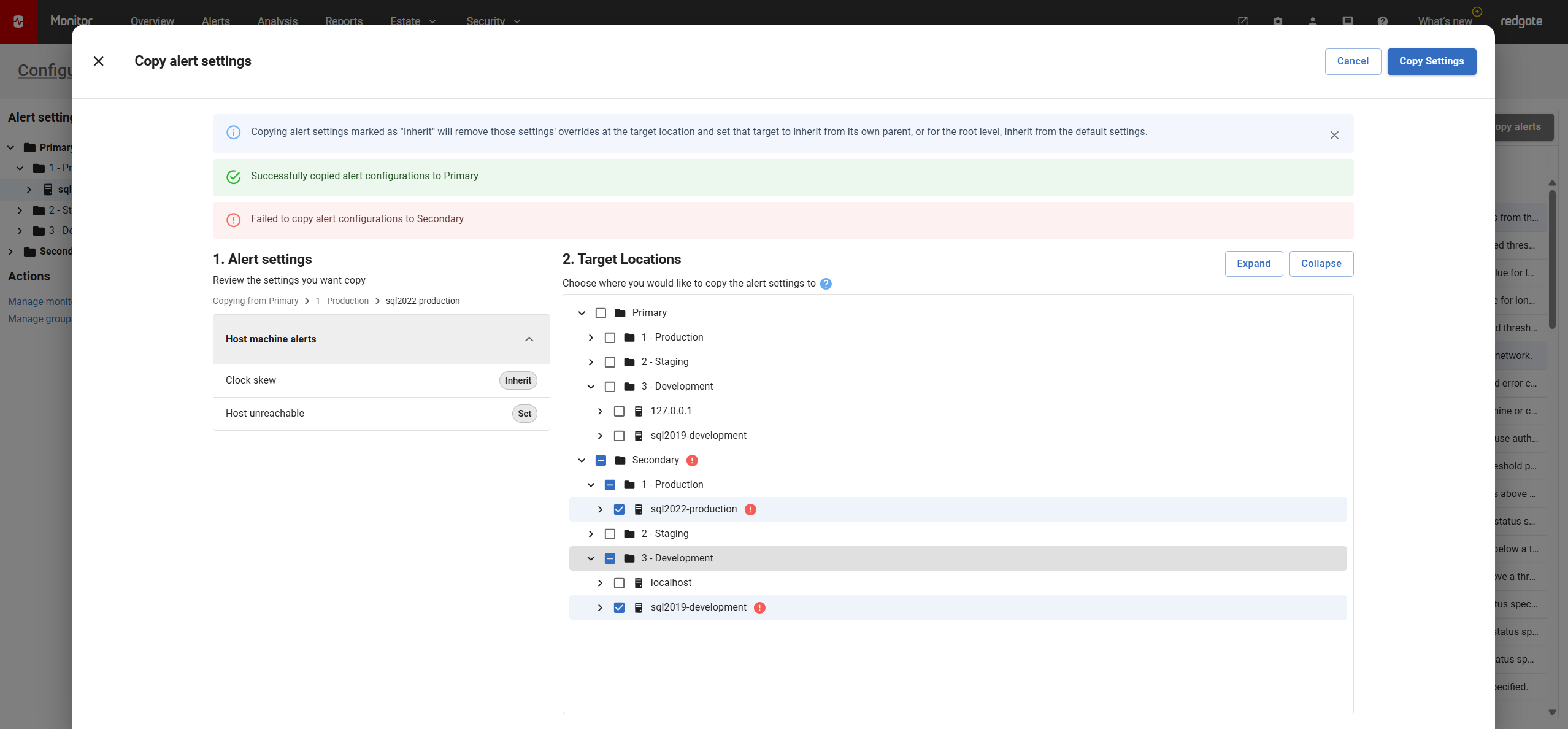
If you see the above error, "Failed to copy alert configurations to <base monitor>", then there is likely an issue with that base monitor. See unable to connect to base monitor for help troubleshooting a connection issue. It is worth noting that if you selected targets on other base monitors and there is a success message, "Successfully copied alert configurations to <base monitor>", then your alert settings have been applied to those targets and have been deselected on the monitored server hierachy. The only remaining selected targets will be ones that have failed. You can click the "copy settings" button again to retry only for the failed targets. The dialog will close only when the selected alert settings have been successfully applied to all the selected targets.
This documentation contains proprietary information and is protected by copyright law.
Copyright © 2026 Red Gate Software Limited. All rights reserved


