Integrating with Power Automate using webhooks
Published 13 April 2026
Power Automate can take Redgate Monitor's Webhook notifications as a workflow trigger, allowing Redgate Monitor's alerts to be handled with automated logic that integrates with other Microsoft applications.
Further information on Power Automate workflows for Microsoft Teams
Note that the following walkthrough configuring Power Automate to route Redgate Monitor alert notifications to Microsoft Teams channels is provided for convenience only. Redgate isn't able to provide personalized support for configuring Power Automate.
For more detailed guidance, refer to Microsoft's own documentation on the topic.
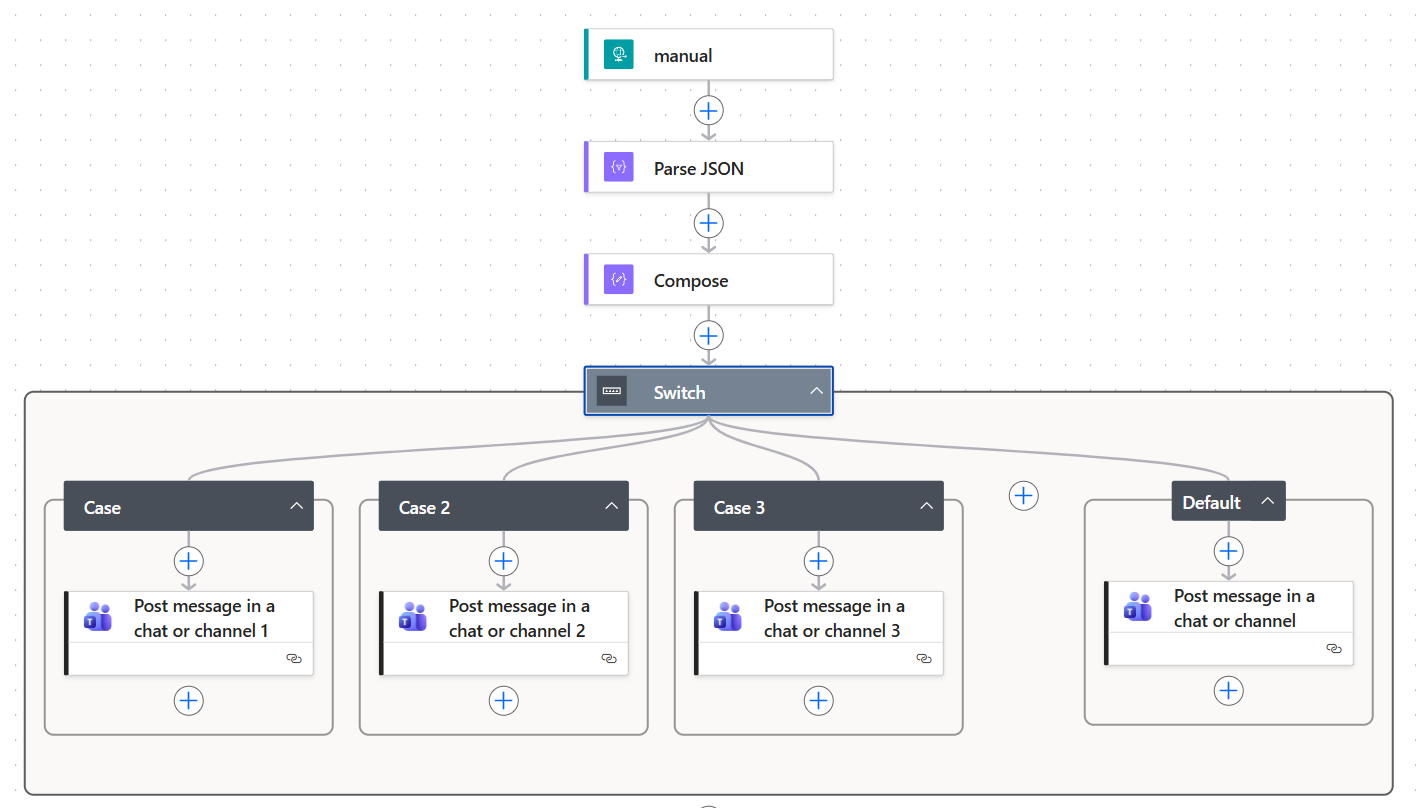
In this example walkthrough, we'll build a Power Automate instant cloud flow to receive Redgate Monitor Webhook notifications, filter the alerts according to the server group, and finally post each alert to an appropriate Microsoft Teams channel.
The key steps involved are:
- Create a workflow that is triggered whenever a webhook JSON message is received
- Parse the JSON and extract the 'groupName' property
- Define logic to route the alerts to different Microsoft Teams channels
- Configure Redgate Monitor to send webhook messages to this Power Automate workflow
Example Power Automate workflow resulting from this walkthrough:
1. Create a workflow that is triggered whenever a webhook JSON message is received
In make.powerautomate.com, select Create > Instant cloud flow.
Select the trigger action called When an HTTP request is received. This trigger will accept raw JSON, which Redgate Monitor's default webhook feature will provide. This trigger action may appear with the title 'manual' when you save the workflow.
2. Add a Parse JSON action
Add an action after the trigger to parse the JSON. Select the action type Data Operations → Parse JSON.
In the configuration pane for the Parse JSON action, for the Content parameter, type / to access Insert dynamic content > Body. This allows the action to use the body portion of the JSON we receive from the previous action (in our example, a trigger called 'manual').
For the Schema parameter, select Generate from sample. Paste the sample JSON from Setting up webhook notifications > Sample message.

3. Add a Compose action to extract the 'groupName' property
Add another action to extract the field relevant to your desired routing logic (in our case, group name). Select the action type Compose.
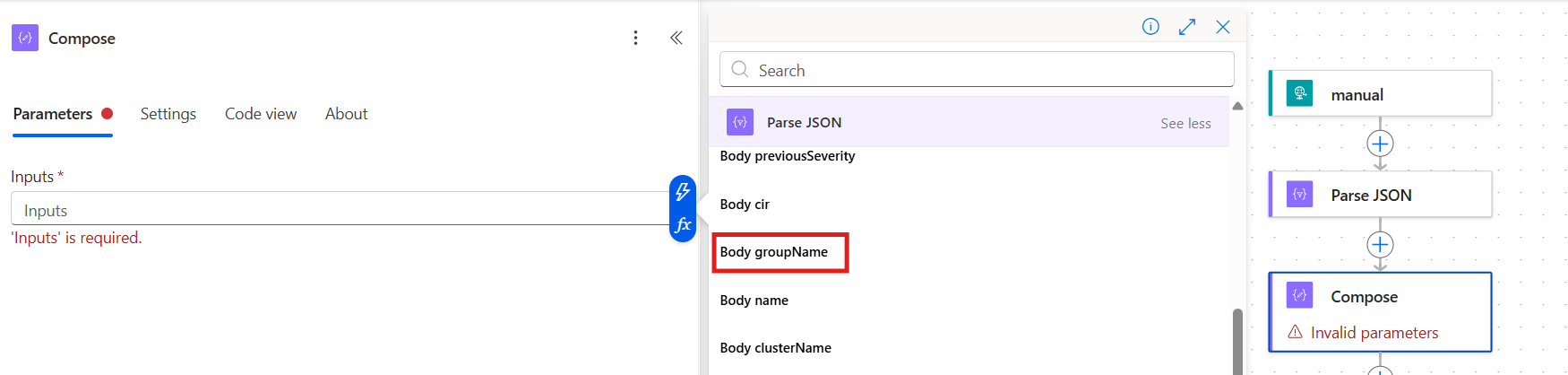
In the configuration pane for the Compose action, for the Input parameter, type / to access Insert dynamic content > Body groupName. This allows the action to extract just the groupName property from the previous action (Parse JSON).
For every alert notification, we now have access to a string representing the Group to which the server belongs in Redgate Monitor (e.g. 1 - Production, 2 - Test, 3 - Development).
4. Add Switch logic to route the alerts to different Microsoft Teams channels
In the workflow, add an action after the Parse and Compose steps. Select the action type Control → Switch.
In the configuration pane for the Switch action, for the On parameter, type / to access Insert dynamic content > Outputs. This allows the action to switch subsequent flow paths, depending on the output of the previous action (Compose).

Inside the Switch action, add cases for each possible value from your compose step (in our case we only have three Groups in Redgate Monitor: 1 - Production, 2 - Test, 3 - Development).
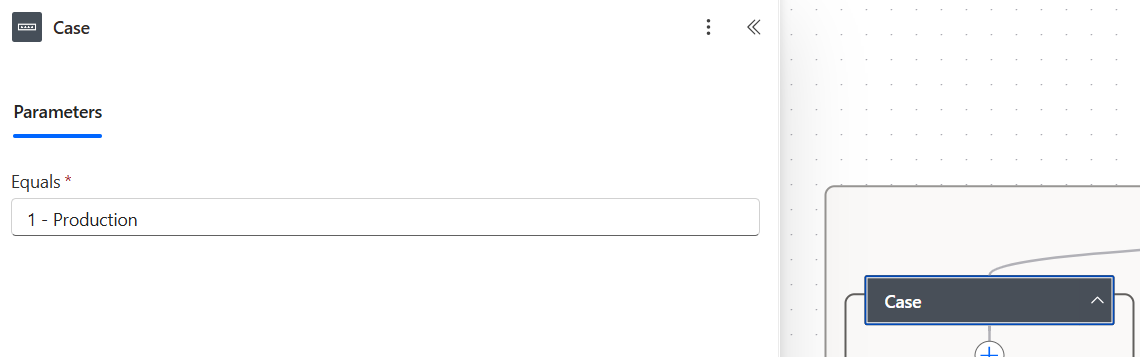
In the configuration pane for each case, type the exact string or value that matches one of your group names. In this example, the case is configured to match the group called `1 - Production`:
It is recommended to also configure a Default case, which will run when the value does not match any of the specified cases.
Inside each case, add an action to post a message into the relevant Microsoft Teams channel.
Select action type Microsoft Teams → Post message in a chat or channel
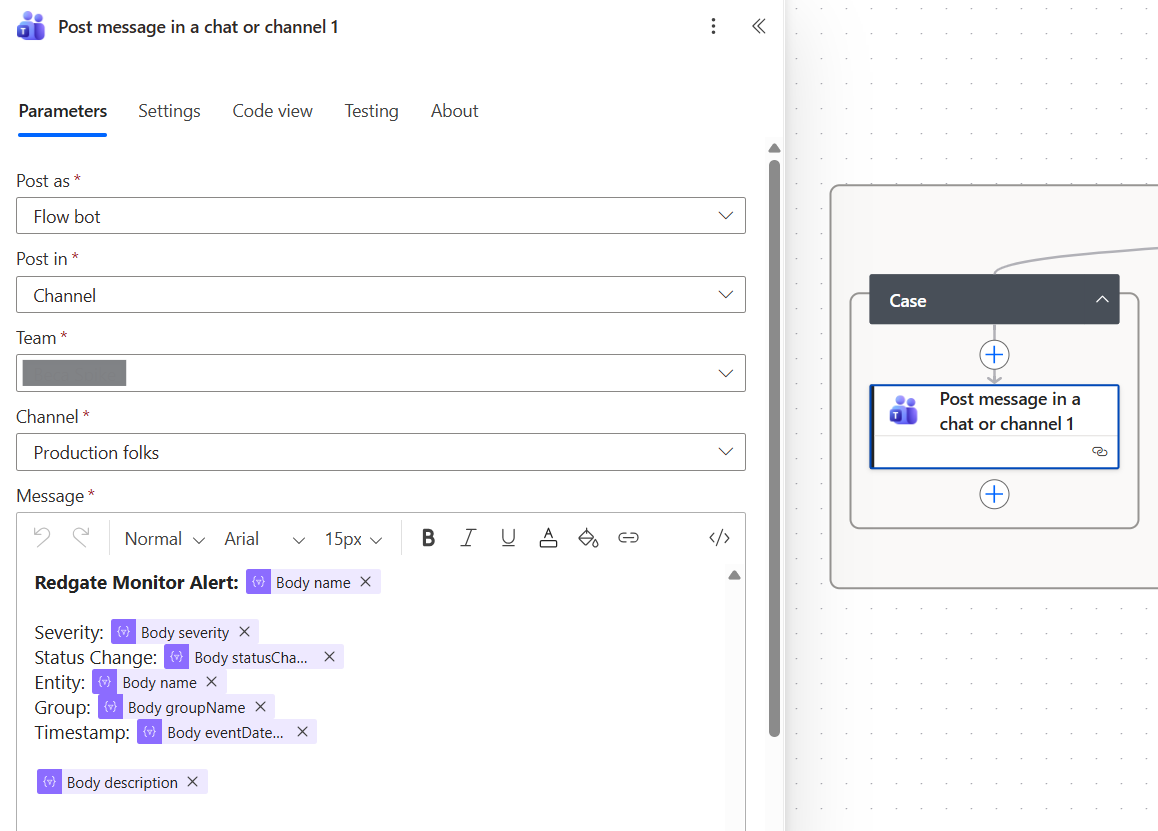
In the configuration pane for each action, configure the following parameters:
- Post as: Flow bot
- Post in: Channel
- Team: choose your team
- Channel: the channel relevant for the server group
- Message content (toggle to code view): Insert message format using the code block example below to access properties from the Parse JSON action we defined earlier in the workflow.
Example syntax for message
**Redgate Monitor Alert:** @{body('Parse_JSON')?['name']}

**Severity:** @{body('Parse_JSON')?['severity']}

**Status Change:** @{body('Parse_JSON')?['statusChange']}

**Entity:** @{body('Parse_JSON')?['monitoredEntity']?['name']}

**Group:** @{body('Parse_JSON')?['monitoredEntity']?['groupName']}

**Timestamp:** @{body('Parse_JSON')?['eventDateTime']}

@{body('Parse_JSON')?['description']}

[View Details](@{body('Parse_JSON')?['detailsUrl']})
4. Configure Redgate Monitor to send webhook messages the Power Automate workflow
In Redgate Monitor, Configuration > Notification settings, in the Webhook notifications section:
- Enable the Send Webhook messages when alerts are raised or ended checkbox.
- Select Default message (not custom).
- Enter the Webhook URL from your Power Automate trigger into the URL box.
To find the URL of your Power Automate trigger, open your flow in make.powerautomate.com, click on the When an HTTP request is received trigger action. The URL will be displayed in the configuration pane. Note the URL is only generated once the flow is saved.
This documentation contains proprietary information and is protected by copyright law.
Copyright © 2026 Red Gate Software Limited. All rights reserved


