Sending email notifications to Microsoft Teams and Slack channels
Published 08 April 2026
Redgate Monitor can send alerts to any destination that accepts email, including Microsoft Teams and Slack channels.
By configuring a channel to receive email, you can use Redgate Monitor's email notifications to route alerts directly to multiple relevant Microsoft Teams or Slack channels.
Each alert appears as a new email post in the Microsoft Teams or Slack channel.
Posting to Microsoft Teams in other formats
For other Redgate Monitor notification types allowing posts to Microsoft Teams, see also Setting up Microsoft Teams notifications (Adaptive card format), and Setting up webhook notifications.
Setting channels as default email recipients in Redgate Monitor
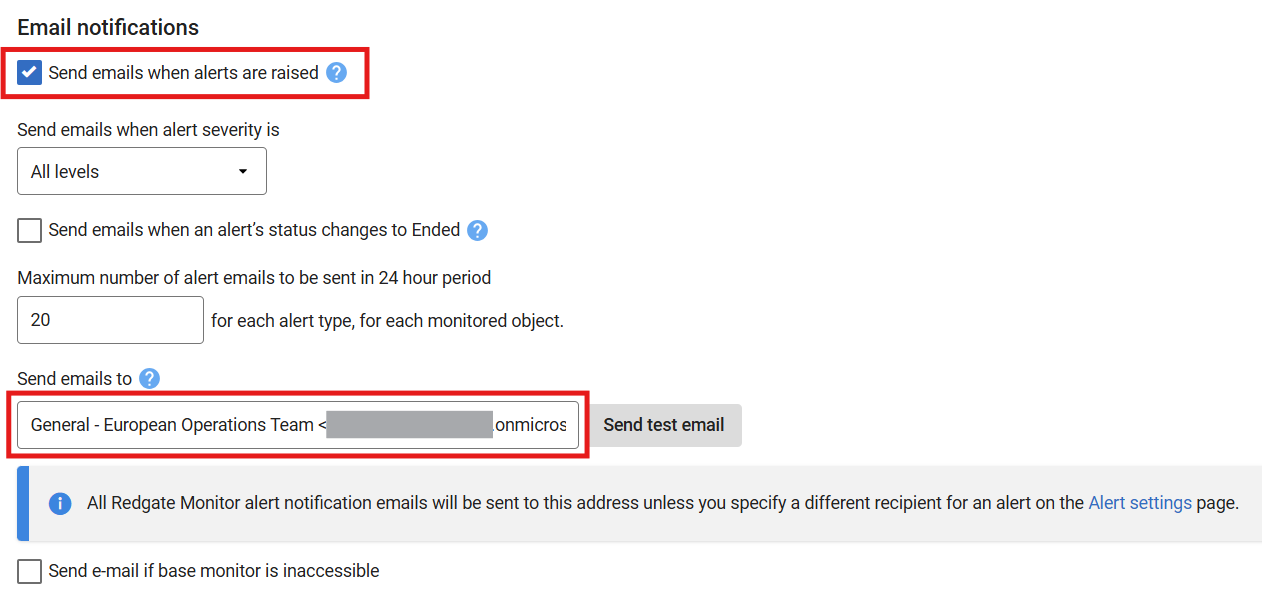
In Redgate Monitor, go to Configuration > Notification settings.
Select the Send emails when alerts are raised checkbox, and paste the channel's email address into the Send emails to input field.
To add multiple channels, separate each email address with a comma.
For more help, see Setting up email notification.
Routing notifications about selected servers or alert types to a relevant Microsoft Teams or Slack channel via email
1. In Redgate Monitor, go to Configuration > Alert settings
2. Select the Redgate Monitor Group or server, and the alert types you want to route.
In this example, we are configuring all alert types for the Development group servers, so that the alert notifications will be sent to a relevant channel, overriding the default channel we configured in the previous example.
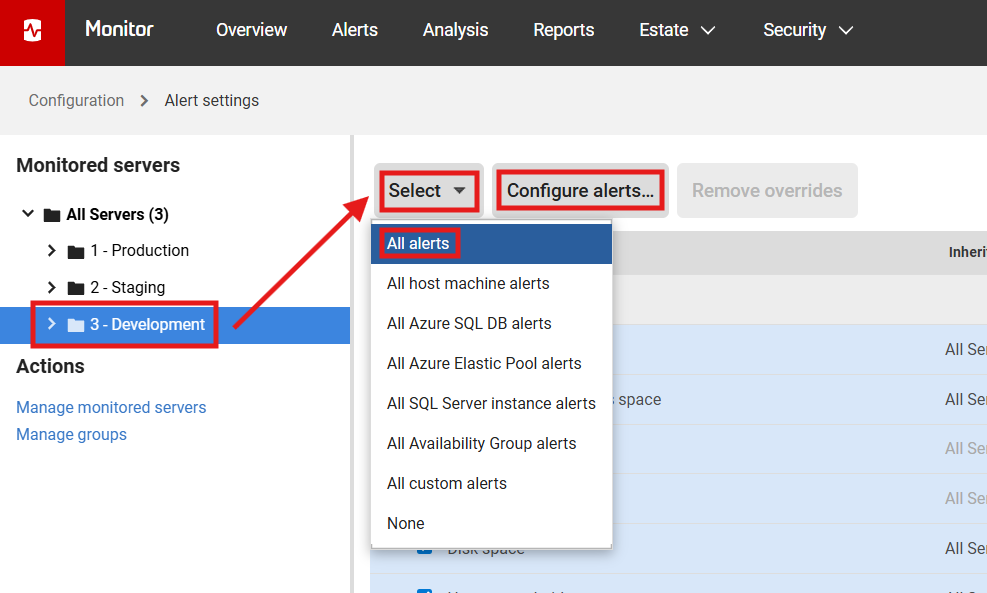
3. Continue by clicking the Configure alerts button.
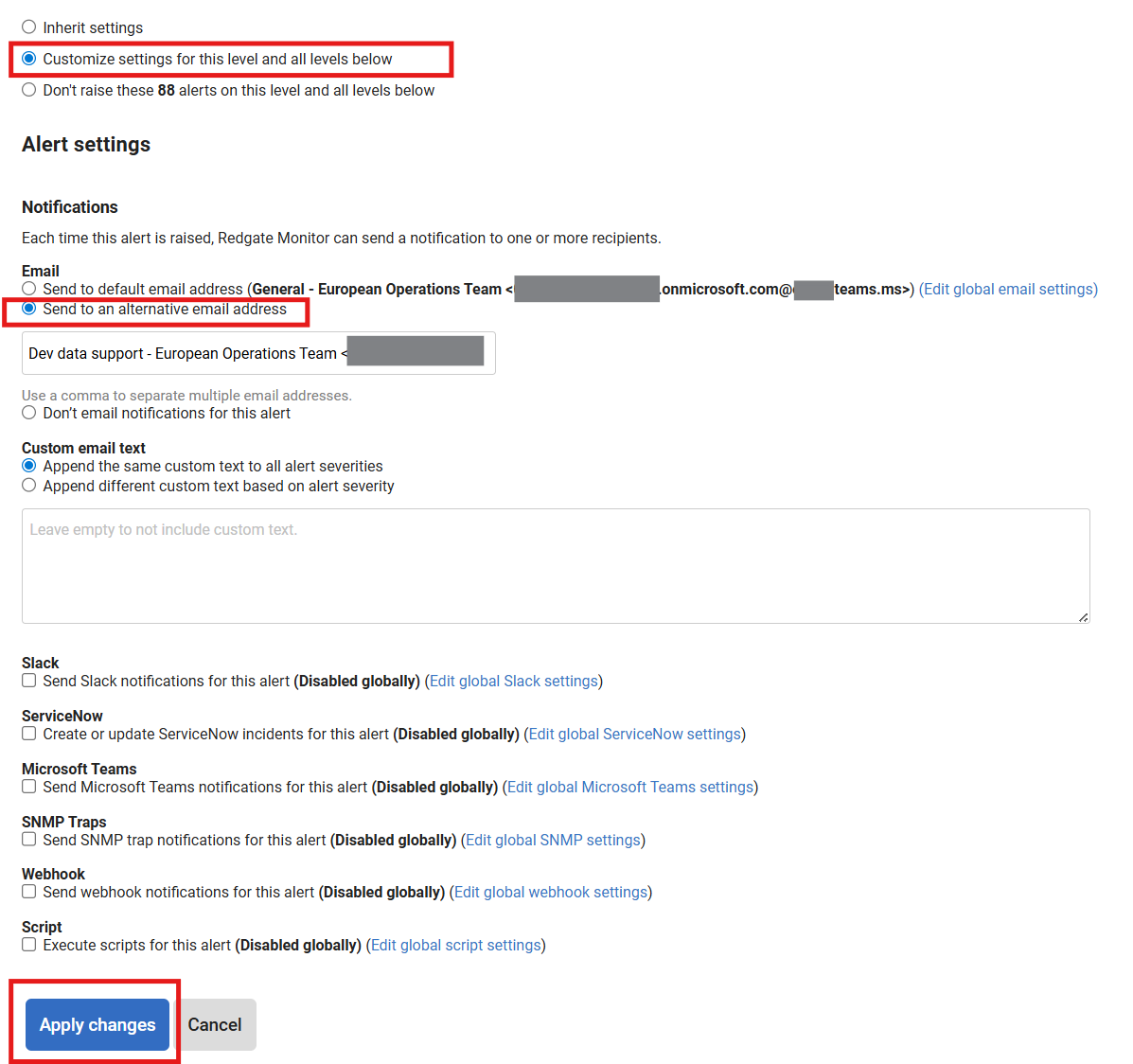
4. Select the Customize option and the Send to alternative email address option.
5. Paste the channel's email address into the input field. Use a comma to separate multiple email addresses.
6. Click the Apply changes button at the bottom of the screen.
For more help, see Customizing the alert settings.
Finding a channel's email address
Microsoft Teams
- In Microsoft Teams, go to the channel name, and select More options > Get email address. See Microsoft Teams documentation for more help.
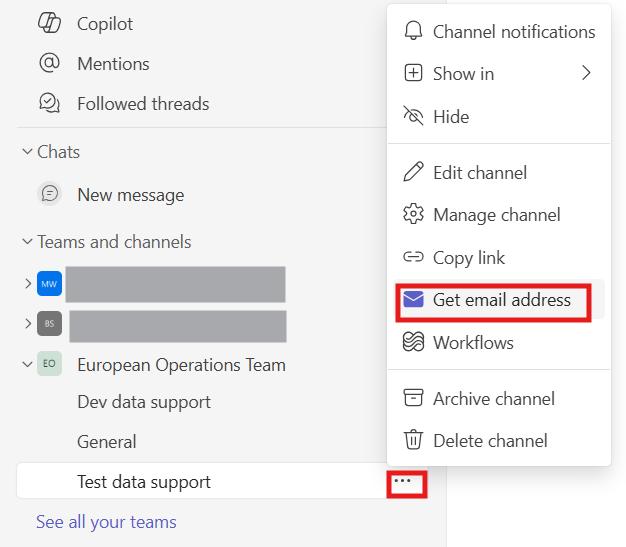
2. In the Get email address dialog of Microsoft Teams, expand Advanced settings.
Ensure the channel will allow emails from the mail server settings you have configured Redgate Monitor to send as. See Setting up email notifications.
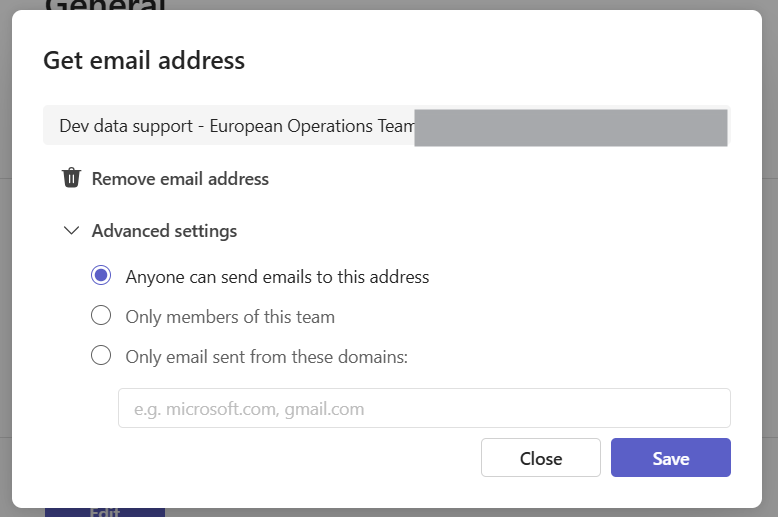
3. Copy the channel's email address for use as a destination address in your Redgate Monitor configuration.
Slack
See Slack's documentation on creating an email address for a Slack channel
This documentation contains proprietary information and is protected by copyright law.
Copyright © 2026 Red Gate Software Limited. All rights reserved


