The majority of SQL Clone installation issues occur because the OS does not have the latest updates.
Install the latest OS updates, and check the requirements and limitations pages to ensure your system is compatible before proceeding.
SQL Clone serves a web app accessible in your browser at: http://machinename.fullyqualifieddomain:14145
Someone in your organization should be able to tell you the relevant machine name where the SQL Clone Server is installed.
It's best to use the fully qualified name to avoid browsers applying compatibility modes designed for legacy intranet sites.
SQL Clone generally logs to the Windows Event Viewer. In addition, there are usually log files available.
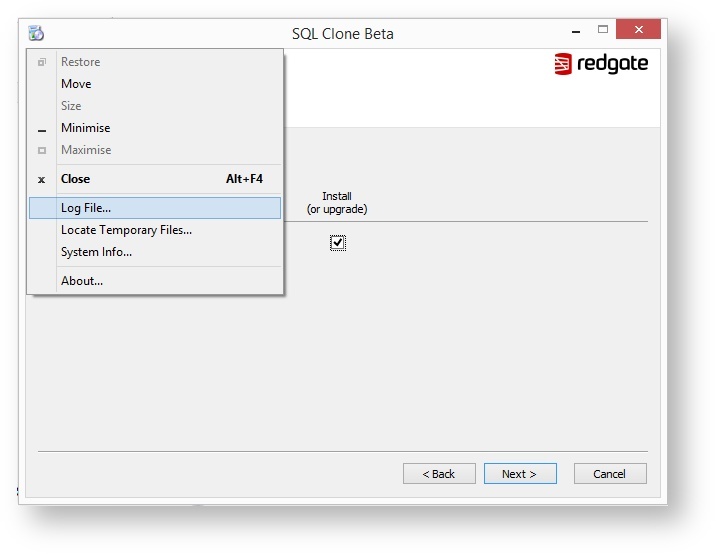
Installer: Click the icon in the top left corner of the installer when an error occurs and choose "Log file" to locate the log file in order to share it with us.
Service: Find the local app data folder for the user the the service runs as (e.g. C:\Users\your.service.account\AppData\Local). Within that folder, logs are under Red Gate\Logs\SQL Clone
Installer: If installation of the SQL Clone Agent fails, the installer will offer to open the logs. You can also check %LOCALAPPDATA%\Red Gate\Logs\SQL Clone\Installer for the agent installer logs in the event of failure.
Service: Find the local app data folder for the user the the service runs as (e.g. C:\Users\your.service.account\AppData\Local). Within Red Gate\Logs\SQL Clone, find Agent w.x.y.z where w.x.y.z is the installed agent version.