Locking objects
Published 05 January 2016
You can lock objects with the SQL Lock UI, or by running a SQL query.
Locking an object using the SQL Lock interface
- In the Object Explorer, right-click the object you want to lock, and select Lock object with SQL Lock:
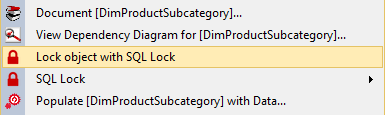
- The Reason dialog box opens:
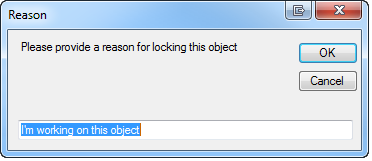
Type the reason you're locking the object and click OK.
The reason you give will be displayed when someone else tries to edit the object while it's locked.On the SQL Lock tab, to make sure the tab is up to date, click Refresh. If the SQL Lock tab isn't open, click SQL Lock in the Management Studio toolbar.
The SQL Lock tab lists all the locked objects on the server, including information about who locked them, when they were locked, the reason they were locked, and so on:

The object you locked is listed here. Other people can't edit the object until it's unlocked. They can always unlock your object if they need to.
Locking an object using SQL
To lock an object using SQL, run the following SQL, replacing each value with the relevant details:
SQL to lock an object
EXEC [tempdb].[dbo].[LockObject]
   @db_name = 'the database name'
  ,@schema_name ='dbo'
  ,@object_name ='the object name'
  ,@object_type = 'the type of object'
  ,@login_name = 'your login details'
  ,@reason ='your reason for locking the object'
This documentation contains proprietary information and is protected by copyright law.
Copyright © 2026 Red Gate Software Limited. All rights reserved


