Using SmartAssembly with ReadyToRun Images (.NET)
Published 27 March 2020
ReadyToRun (R2R) was originally introduced in .NET Core 3.0 and remains available in modern .NET releases, including .NET 10.
Normally, a .NET assembly contains Intermediate Language (IL), which is compiled to native code by the Just-In-Time (JIT) compiler when the application runs. A ReadyToRun assembly contains both IL and precompiled native code, reducing the work required by the JIT compiler during application startup.
ReadyToRun publishing requires a specific Runtime Identifier (RID), such as win-x64.
You can download a working example of protecting a ReadyToRun .NET application with SmartAssembly.
See our GitHub repository: https://github.com/red-gate/SmartAssembly-demos/tree/master/msbuild-integration-demos/net10-ready-to-run
Getting started
First, let's look at a typical .NET 10 application.
Suppose we have a .NET 10 application called ConsoleApp, defined by the following project file:
<Project Sdk="Microsoft.NET.Sdk">
  <PropertyGroup>
    <OutputType>Exe</OutputType>
    <TargetFramework>net10.0</TargetFramework>
  </PropertyGroup>
</Project>
To publish this application we would use the following command:
dotnet publish .\ConsoleApp.csproj -c Release -r win-x64 --self-contained true
The command builds the application in Release mode and publishes it for 64-bit Windows.
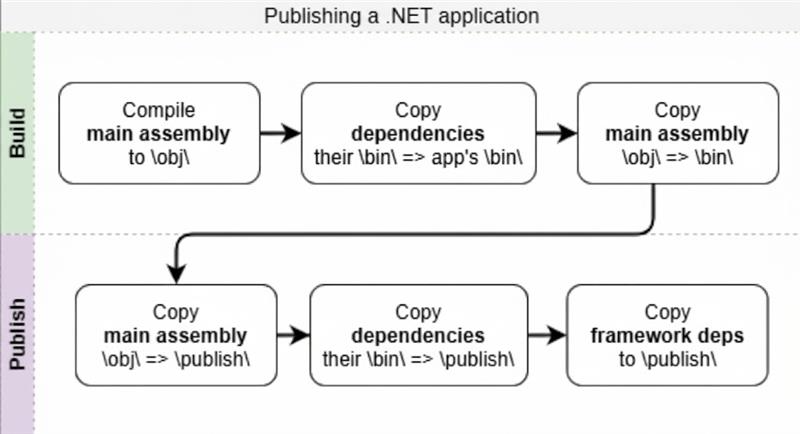
After publishing is complete, the output directory will typically be: ConsoleApp\bin\Release\net10.0\win-x64\publish\. Take note of the ConsoleApp.dll file.
The process of publishing the self-contained .NET application can be visualized as follows:
Using ReadyToRun
To publish the application as ReadyToRun, add the PublishReadyToRun property:
<Project Sdk="Microsoft.NET.Sdk">
  <PropertyGroup>
    <OutputType>Exe</OutputType>
    <TargetFramework>net10.0</TargetFramework>
    <RuntimeIdentifier>win-x64</RuntimeIdentifier>
    <SelfContained>true</SelfContained>
    <PublishReadyToRun>true</PublishReadyToRun>    <!-- add this line -->
  </PropertyGroup>
</Project>
Publish the application again:
dotnet publish .\ConsoleApp.csproj -c Release -r win-x64
After the process is done, navigate to the published directory (ConsoleApp\bin\Release\net10.0\win-x64\publish\).
Let's see how the publishing process has changed after enabling ReadyToRun:

ReadyToRun assemblies typically contain both IL and native code and may be larger than standard published assemblies.
Integrating SmartAssembly
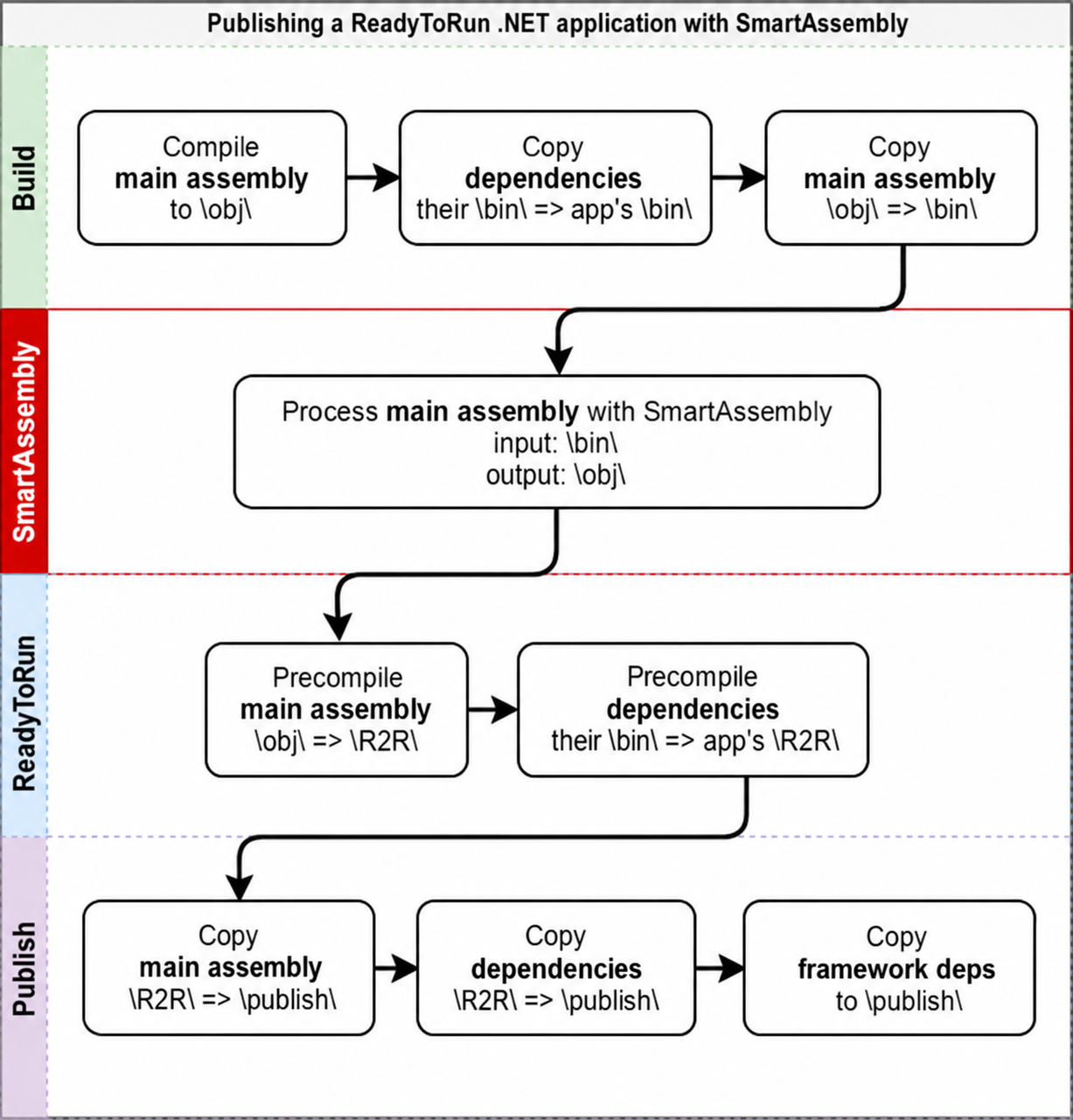
The final step is to protect the assembly before it is compiled into ReadyToRun format.
SmartAssembly runs after the managed assembly is built and before ReadyToRun compilation occurs. This is shown on the diagram below:
Step 1: Creating a SmartAssembly project
- Open SmartAssembly.
- Click New Project.
- Click Browse Assembly.
- Navigate to your application's output directory, choose the appropriate assembly (for the app above it'd be: ConsoleApp\bin\Release\net10.0\win-x64\ConsoleApp.dll) and Open.
- Click Set Destination.
- Navigate to your application's \obj\ directory (for the app above it'd be: ConsoleApp\obj\Release\net10.0\win-x64\ConsoleApp.dll) and Save. If the file already exists click Yes to overwrite.
- Configure the required SmartAssembly protection settings.
- Click Save to save the project. It's recommended to save the project in the same location as Visual Studio's project file, under the same name (for the app above it'd be: \ConsoleApp\ConsoleApp.saproj).
"Dependencies Merging" and "Dependencies Embedding" should not be used when protecting a ReadyToRun assembly. Merging or embedding assemblies can result in unexpected behavior and isn't recommended for this type of applications.
Step 2: Integrating SmartAssembly into the publish process
- Open your application's project in Visual Studio.
- Right-click the project name and select Manage NuGet packages...
- Switch to the Browse tab.
- Type RedGate.SmartAssembly.MSBuild and click Install next to it.
That's it! After performing the steps above, your project file should look like the following:
<Project Sdk="Microsoft.NET.Sdk">
  <PropertyGroup>
    <OutputType>Exe</OutputType>
    <TargetFramework>net10.0</TargetFramework>
    <RuntimeIdentifier>win-x64</RuntimeIdentifier>
    <SelfContained>true</SelfContained>
    <PublishReadyToRun>true</PublishReadyToRun>
  </PropertyGroup>

  <ItemGroup>
    <PackageReference Include="RedGate.SmartAssembly.MSBuild" Version="8.*">
      <PrivateAssets>all</PrivateAssets>
      <IncludeAssets>runtime; build; buildTransitive; native; contentfiles; analyzers</IncludeAssets>
    </PackageReference>
  </ItemGroup>
</Project>
Now let's issue the publish command once again:
dotnet publish .\ConsoleApp.csproj -c Release -r win-x64
If the publish process succeeds, SmartAssembly protects the assembly before the ReadyToRun compilation and publish steps complete.
If you're running multiple consecutive builds of the same project you should clean the project before or after each build. Because SmartAssembly obfuscates the assembly into \obj\ directory, the obfuscated version might be picked up by the build command next time leading to double-obfuscation and other unexpected results.
To clean the project either manually remove the \obj\ directory or issue the following command (using the same configuration and runtime identifier used for publish):
dotnet clean .\ConsoleApp.csproj -c Release -r win-x64
If everything went well, you should see additional output messages in the command line confirming that SmartAssembly has successfully protected your application (paths were shortened for clarity):
ConsoleApp -> C:\[..]\ConsoleApp\bin\Release\net10.0\win-x64\ConsoleApp.dll
C:\PROGRA~1\Red Gate\SmartAssembly 8\SmartAssembly.com
"C:\[..]\ConsoleApp\ConsoleApp.saproj" /msbuildSmartAssembly v8.4.12.7302 Professional
Copyright c Red Gate Software Ltd 2005-2026
Loading project
C:\[..]\ConsoleApp\ConsoleApp.saprojInput=C:\[..]\ConsoleApp\bin\Release\net10.0\win-x64\ConsoleApp.dll
Loading...
Starting...
Analyzing...
Preparing...
Creating assembly...
Copying additional files...
OK
The output confirms that SmartAssembly protected the managed assembly before the ReadyToRun compilation and publish process completed.
This documentation contains proprietary information and is protected by copyright law.
Copyright © 2026 Red Gate Software Limited. All rights reserved


