Using Azure Interactive Authentication (Microsoft Entra ID)
Published 10 December 2025
Requirements
- To use Azure Active Directory (Microsoft Entra ID) with an Azure SQL Database server, the server needs to be assigned an Azure Active Directory admin
Note: If you are using a version older than 14.8.0 please refer to here.
Setting up SQL Compare
In the connection dialog, select Active Directory universal with MFA authentication (Azure) in the Authentication dropdown.
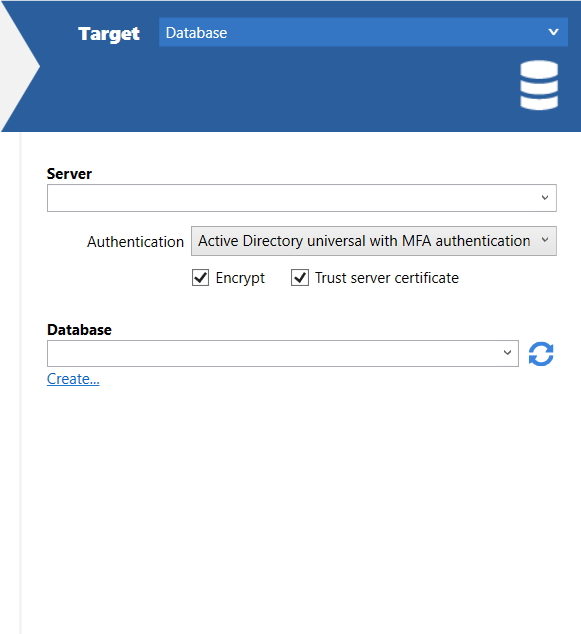
When you click the database refresh button, a popup will open asking you to pick an account to sign in with. Proceed with the sign in process.
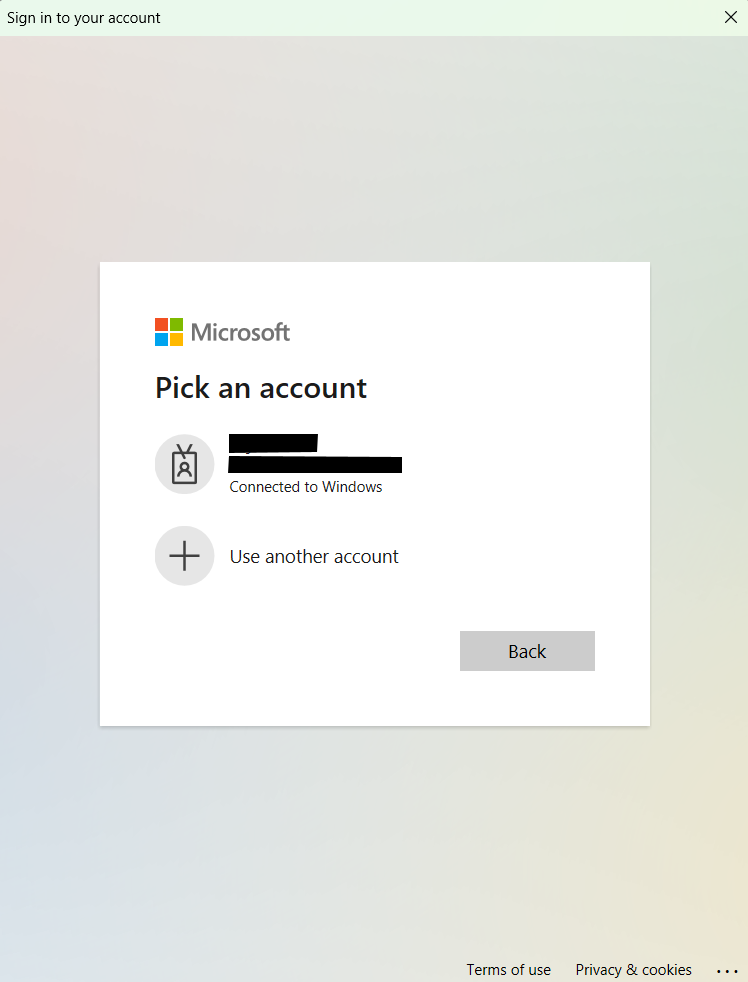
Once signed in, you can continue with your comparison.
NOTE: if using Entra ID MFA for authentication, you may encounter this interactive popup multiple times within a single SQL Compare session. Entra will ask for permission either only for this app, or all apps and websites on this device. Choosing "All apps and websites" allows the sign-in token to be cached and reused between comparisons, which should reduce how often you're prompted. If you initially chose "Only this app" and are seeing frequent prompts, try signing in again and selecting the broader option instead.
This documentation contains proprietary information and is protected by copyright law.
Copyright © 2026 Red Gate Software Limited. All rights reserved


