Reviewing and editing masking rules
Published 27 November 2025
The Summary Tab
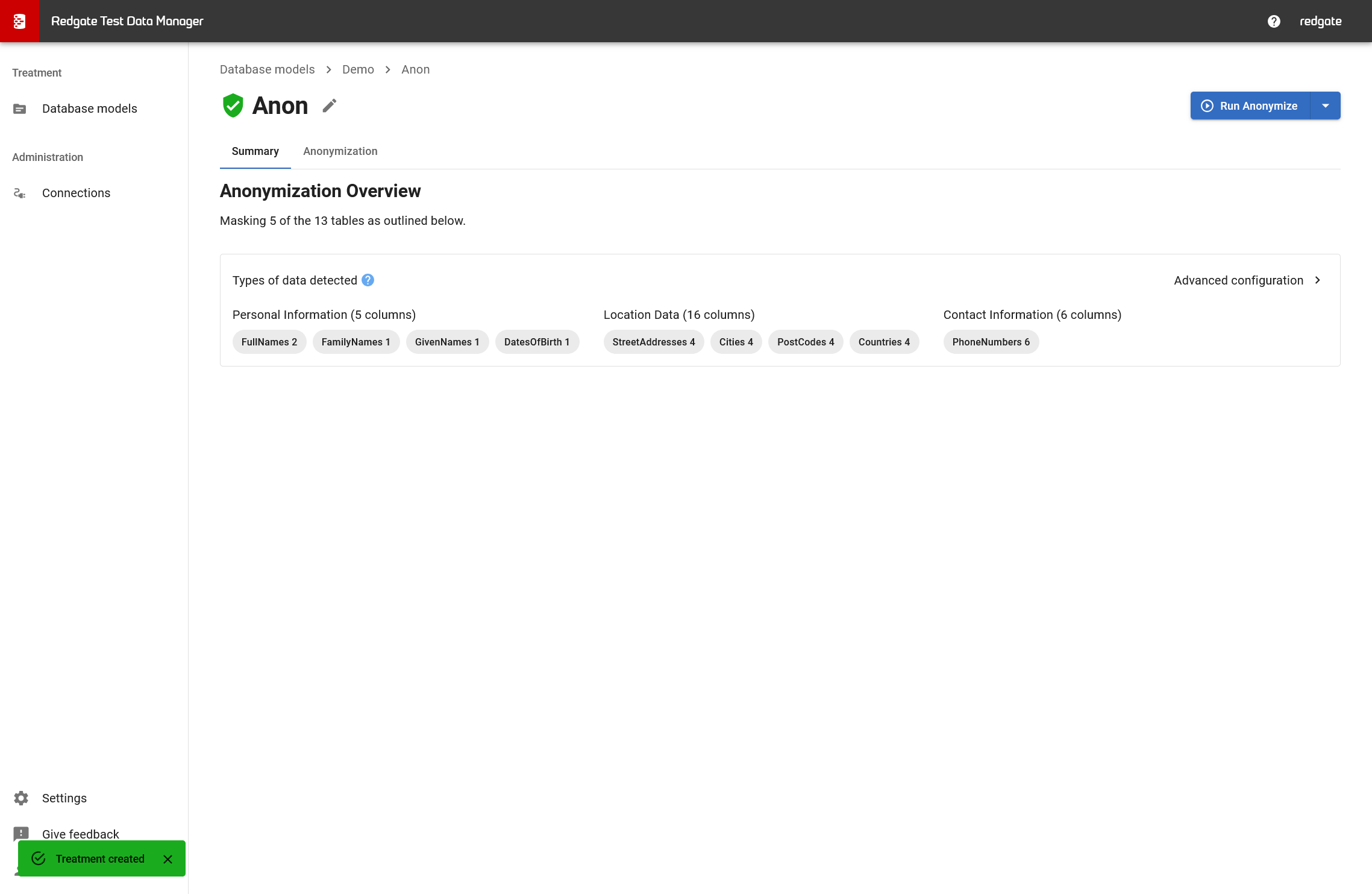
The Summary tab provides a high-level overview of your treatment:
- Tables being masked: "Masking 5 of the 13 tables"
- Types of data detected: Categorized by data type (Personal Information, Location Data, Contact Information, etc.)
- Affected columns: Pills showing datasets and column counts (e.g., "FullNames 2", "StreetAddresses 4")
Using the Summary tab:
- Click on a data type or dataset pill to jump to those columns in the Anonymization tab
- Use the Advanced configuration link to edit and review masking rules
Reviewing and Editing Masking Rules
Once initialization completes, you'll see two tabs:
- Summary: Overview of detected data types and affected tables
- Anonymization: Detailed list of columns and their masking rules
The Anonymization Tab
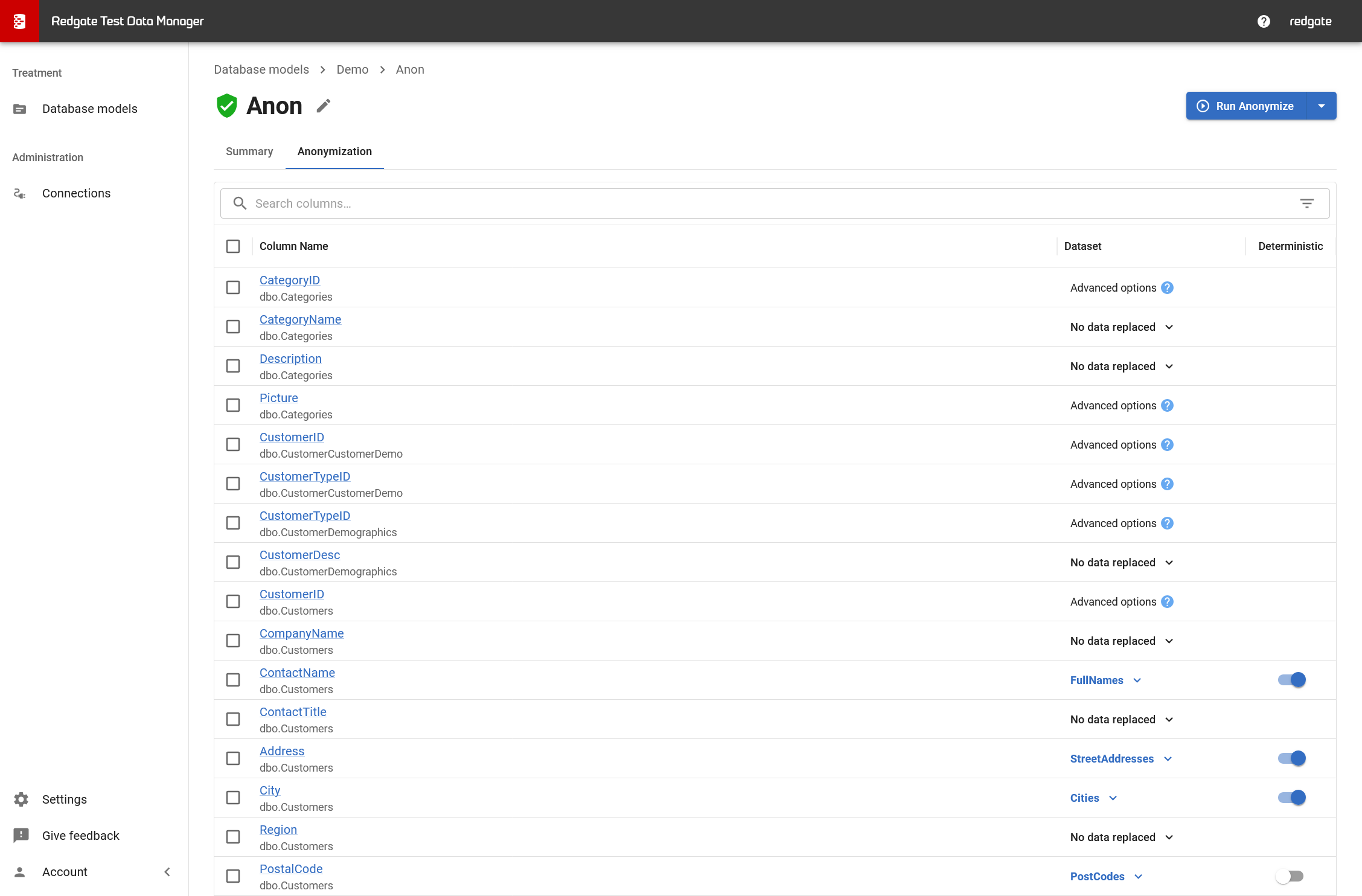
The Anonymization tab shows all columns Test Data Manager identified as containing sensitive data:
- Column Name: The table and column (e.g.,
dbo.Customers.ContactName) - Dataset: The masking dataset assigned (e.g.,
FullNames,StreetAddresses) - Deterministic: Toggle to control whether the same input always produces the same output
Column states:
- Dataset assigned (e.g., "FullNames"): Column will be masked using the specified dataset
- "Advanced options": Column cannot be automatically masked (see columns that cannot be masked below)
- "No data replaced": Column was not automatically classified
Searching and Filtering Columns
Use the search bar to find specific columns:
- Search by column name:
ContactName - Search by schema:
schema:dbo - Search by table:
table:Customers - Search by dataset:
dataset:FullNames - Search by determinism:
deterministic:true
Customizing Masking Rules
Changing a Dataset
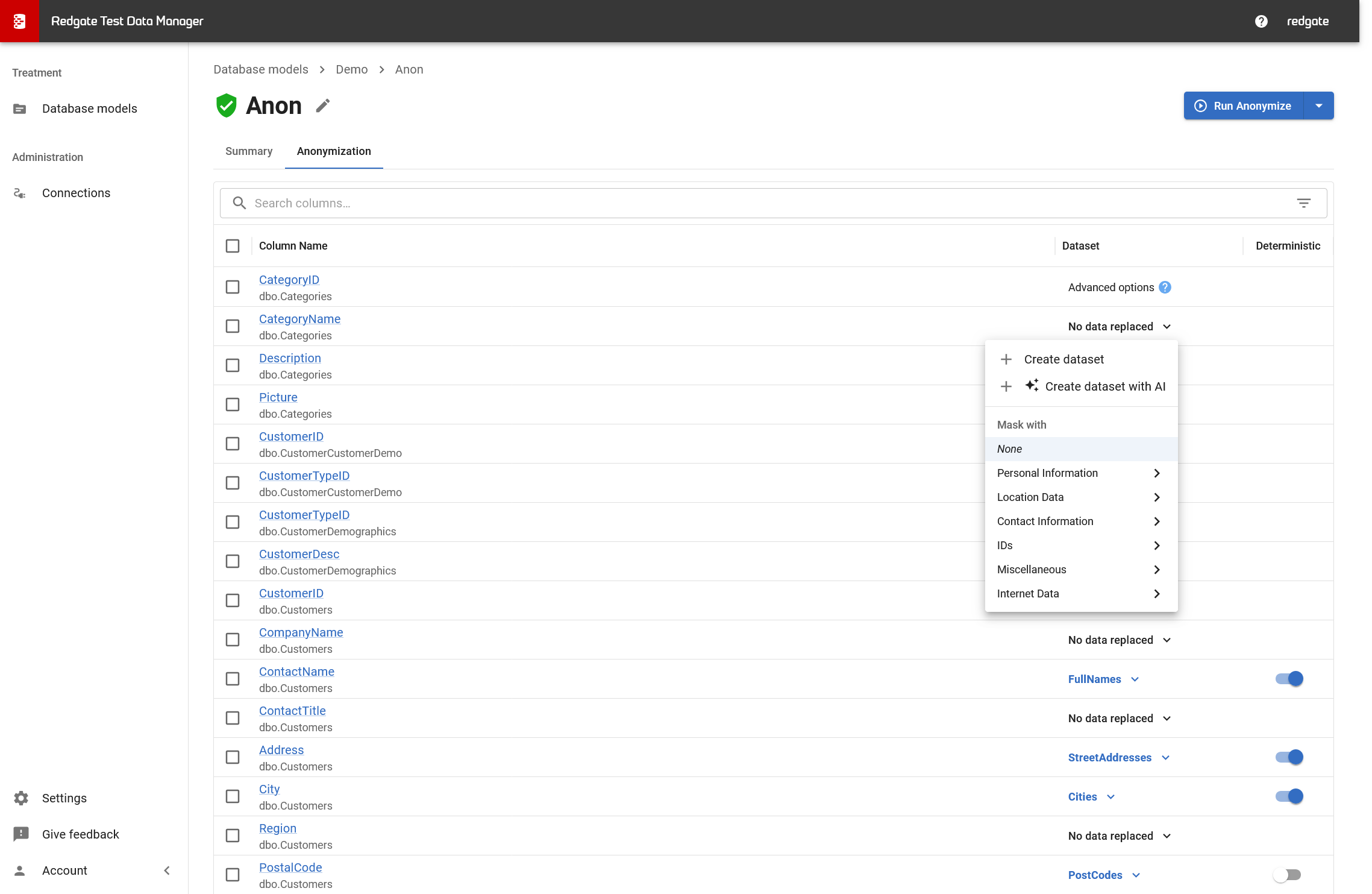
To change the dataset for a column:
- Click the Dataset dropdown for the column
- Browse datasets by category:
- Personal Information: Names, dates of birth
- Location Data: Addresses, cities, postal codes, countries
- Contact Information: Email addresses, phone numbers
- IDs: Social security numbers, passport numbers
- Internet Data: Domains, Top Level Domains
- Miscellaneous: Other datasets
- Select a dataset from the list
Creating Custom Datasets
If the built-in datasets don't meet your needs, you can create custom datasets:
Option 1: Create dataset manually
- Click + Create dataset in the dataset dropdown
- Define your custom values or patterns
- Apply to the column
Option 2: Create dataset with AI
- Click + Create dataset with AI
- Describe the type of data you need
- AI generates realistic sample data
- Review and apply to the column
For more information, see Custom datasets with AI.
Setting Determinism
Deterministic masking ensures that the same original value is always replaced with the same masked value. This is useful when:
- The same data appears in multiple tables
- You need referential integrity across denormalized data
- Multiple treatments need to produce consistent results
To enable or disable determinism:
- Find the column in the Anonymization tab
- Toggle the Deterministic switch on or off
FullNames, Cities, StreetAddresses). See Default classifications and datasets for which datasets use determinism by default.Bulk Editing Columns
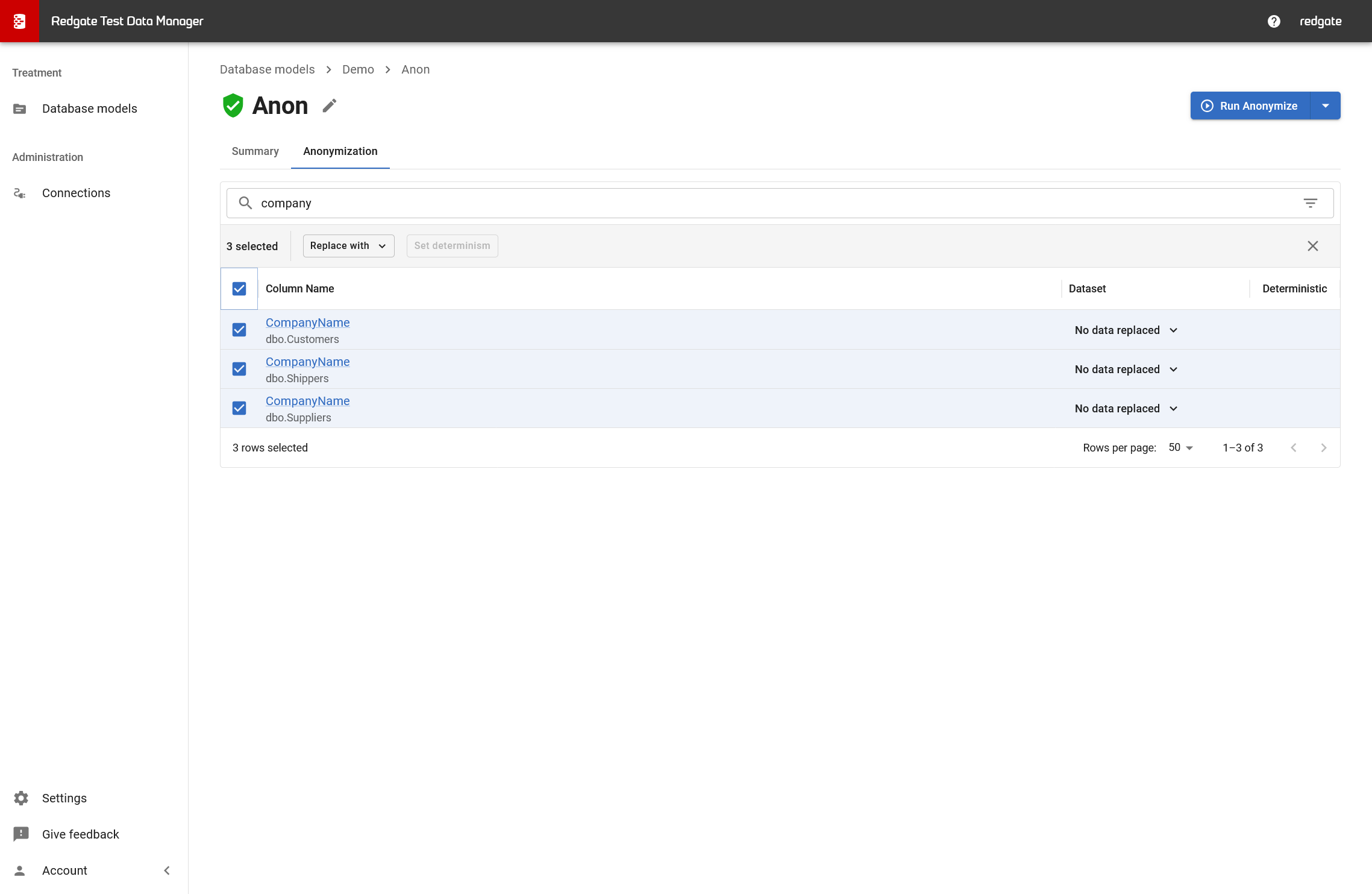
To edit multiple columns at once:
- Select the checkboxes next to the columns you want to edit
- Click Replace with to assign a dataset to all selected columns
- Click Set determinism to enable or disable deterministic masking for all selected columns
Tips and tricks:
- Use search filters (e.g.,
table:Customers) to narrow down columns before bulk selecting - Bulk actions save time when applying the same dataset across multiple similar columns
- You can select columns from different tables for bulk operations
Columns That Cannot Be Masked
Some columns show "Advanced options" instead of a dataset assignment. This means Test Data Manager cannot automatically mask them. Common reasons include:
- Primary keys
- Unique identifiers in tables without primary keys
- Unsupported data types
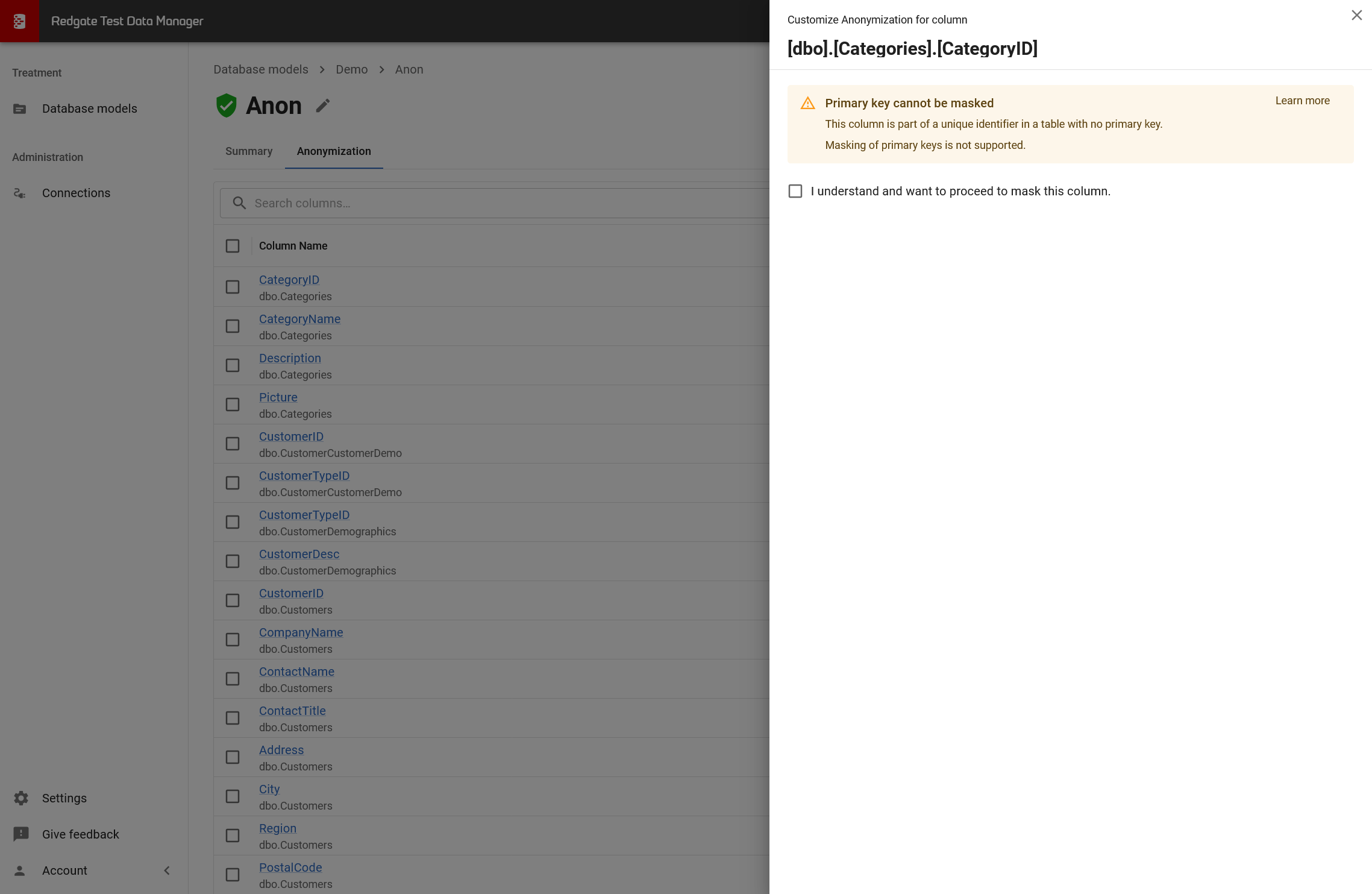
Overriding the Restriction
If you understand the risks and want to mask a restricted column:
- Click on the row showing "Advanced options"
- Review the warning message explaining why masking is restricted
- Check "I understand and want to proceed to mask this column"
- Select a dataset and configure masking rules
For more details on limitations, see Anonymization validation errors.
Next Steps
Once you've reviewed and customized your rules...
→ Running an Anonymization Treatment
Related Pages
← Back to Creating an Anonymization Treatment
→ Running an Anonymization Treatment
→ Default classifications and datasets
→ Custom datasets with AI
→ Anonymization validation errors
This documentation contains proprietary information and is protected by copyright law.
Copyright © 2026 Red Gate Software Limited. All rights reserved


