These pages cover SQL Backup Pro 8.0. Help for older versions is also available.

Scheduling backup jobs > Specify SQL Server > Select backup type and database > Create backup schedules > File settings > Processing and encryption settings > Verification options > Review summary
On step 2 of the wizard, select the types of backup you want to perform and the databases that you want to back up.
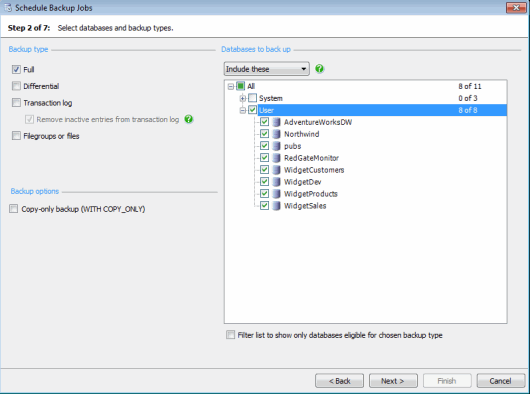
Backup type
Select the type of backup you require:
- Full creates a complete copy of the selected database.
- Differential creates a partial copy of the selected database.Only the changes since the last full backup was made are copied. You must create a full backup of the database before you can perform a differential backup.
Transaction log copies all the log records that have been written to the live transaction log since the first full or differential backup and the last transaction log backup.You can back up the live transaction log only if the database uses the FULL or BULK LOGGED recovery model, and you have previously created a full backup. To truncate the live transaction log, select the Remove inactive entries from transaction log check box. The space reserved for the transaction log can then be reused by new transactions.
Truncating the transaction log does not reduce the size of the log file on disk; for this, refer to the SQL Server documentation on Shrinking a File.- Filegroups or files creates a backup of selected files and filegroups.For example, you may want to back up a file or filegroup when the database size makes a full database backup impractical. You can create a filegroup or files backup for only one database at a time. The database must use the FULL or BULK LOGGED recovery model. You will be prompted to select the files and filegroups when you click Next.
Backup options
You can take a copy-only full backup of any database. A copy-only full backup is independent of the sequence of backups and will not affect the differential base LSN. A copy-only full backup cannot be used as a base for restoring a differential backup.
You can take a copy-only log backup of databases using the FULL or BULK-LOGGED recovery model. A copy-only log backup is independent of the sequence of regular log backups and does not change the log archive point. Therefore, taking a copy-only log backup will not affect log shipping operations.
Databases to back up
For full, differential, or transaction log backups:
- To select the databases that you want to back up, click Include these, and then select the check box next to each database that you want to back up.Selecting System or User selects all databases within that group. Included databases are marked with

- To back up all databases except for individual specified databases, click Exclude these and select the check box next to each database that you do not want to back up.Excluded databases are marked with

For filegroups or files, you can select only one database; click the database in the list.
By default, all databases are displayed in the list, and those that are not available for selection given the selected backup type are displayed in gray. If you are using Exclude these, databases that are not available are automatically excluded. To see the reason why a database is not available, move your mouse pointer over the database name. In the example below, the Filegroups or files backup type has been selected.
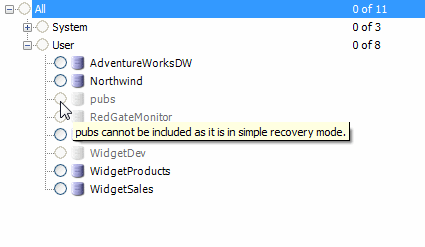
You can filter the list so that only available databases are displayed in the list by selecting the Filter list to show only databases eligible for chosen backup type check box.
Click Next when you have selected the databases.
If you have chosen to back up files or filegroups, the wizard displays a page for you to select the files. The files and filegroups for the database you selected are displayed in a hierarchy. To select a file, select the appropriate check box. If you select the check box for a folder, all files and filegroups within that folder are automatically selected. When you have made your selection, click Next.
- Printed by Atlassian Confluence 8.5.31