These pages cover SQL Clone 1, which is not the latest version. Help for other versions is also available.

This example shows how to schedule a SQL Clone task using PowerShell and Windows Task Scheduler. It shows how to create a new task that'll run daily and remove any images older than a week that have no clones.
This example assumes the following have already been completed:
- The SQL Clone PowerShell cmdlets have been installed (these can be downloaded from the settings page in SQL Clone)
- The PowerShell script you'd like to schedule has been saved to a file. In this example we'll be using the script from Purge old images which don't have clones, which has been saved as D:\SQL Clone scripts\RemoveOldImages.ps1
1. Start Windows Task Scheduler by opening the start menu and type Task Scheduler
Task Scheduler can also be opened using the Control Panel under System and Security > Administrative Tools > Task Scheduler
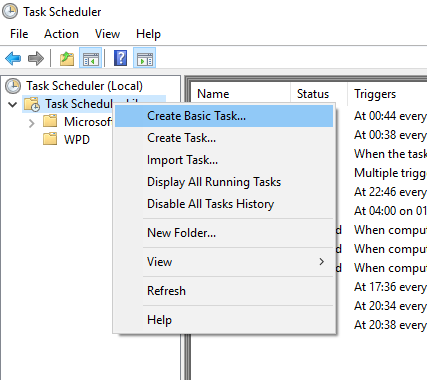
2. Right click on the Task Scheduler Library and select Create Basic Task…:
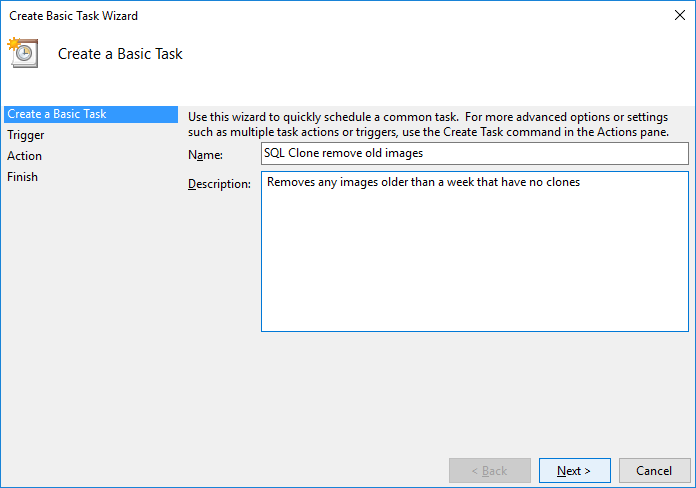
3. Enter a name and optional description and click Next:
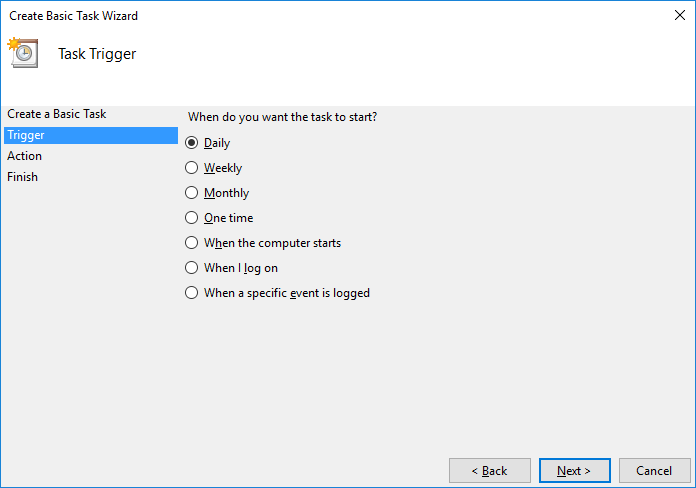
4. Leave the default as Daily and click Next:
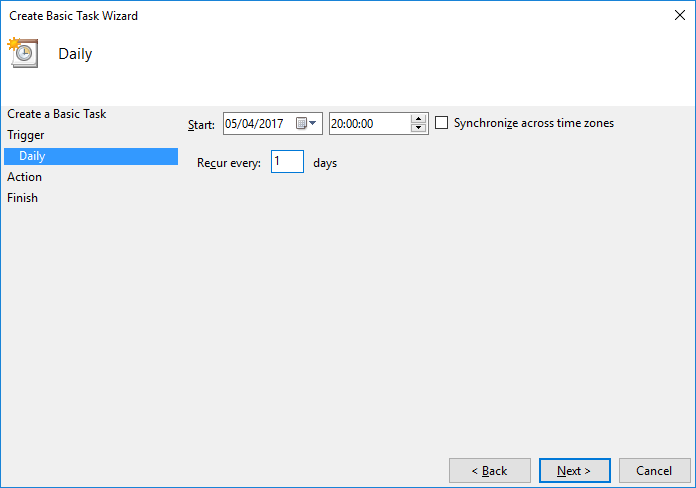
5. Select the time when you'd like to run the task and click Next:
6. Leave the default as Start a program and click Next:
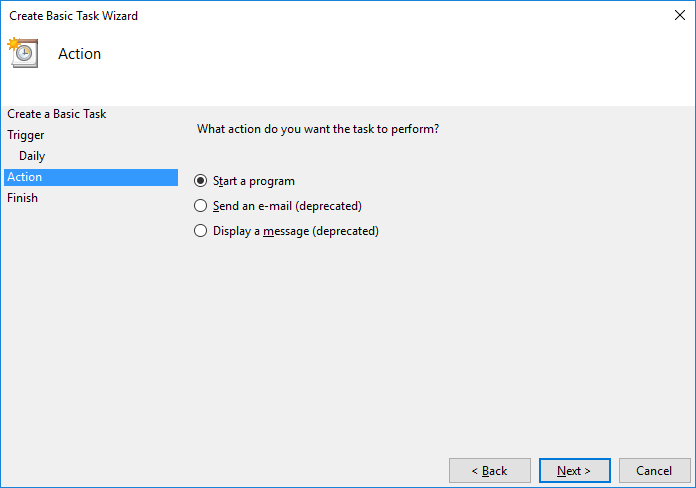
7. Enter PowerShell as the Program/script and enter the path to the saved PowerShell script under Add arguments and click Next:
If the path to the PowerShell file contains any spaces, make sure the path is enclosed in quotation marks
8. Check the Open the Properties dialog for this task when I click Finish check box and click Finish
9. In the properties window under Security options:
- verify that the user listed has permission to use SQL Clone
- select the option to Run whether user is logged on or not
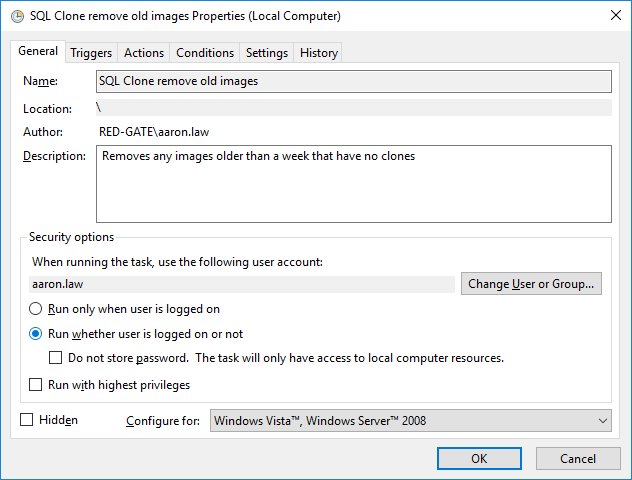
10. Press OK and enter the password for the user when prompted.
- Printed by Atlassian Confluence 8.5.31