These pages cover SQL Backup Pro 8.0. Help for older versions is also available.

-
Created by
 Administrator on May 28, 2013
3 minute read
Administrator on May 28, 2013
3 minute read
Scheduling restore jobs > Select destination server and backups to restore > Select destination database > Specify file locations > Specify verification options > Configure restore options > Create restore schedule > Review summary
On step 5 of the wizard, configure the settings to be used when you restore the database.
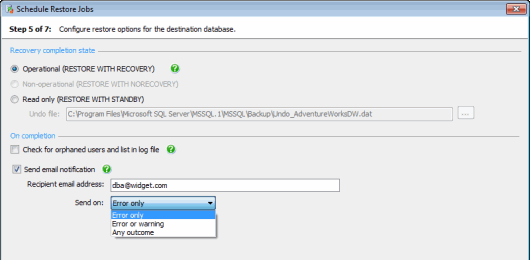
Recovery completion state
Select the state in which you want the database to be left on completion of the restore operation.
- Operational The database is restored from the backup, and recovery is completed. Incomplete transactions are rolled back. The database is fully usable. Additional transaction logs or differential backups cannot be restored. This is equivalent to using the SQL Server
RESTORE WITH RECOVERYoption. - Non-operational The database is restored but not recovered. Incomplete transactions are not rolled back. The database is not usable, but differential backups and transaction log backups can be restored to it. This is equivalent to using the SQL Server
RESTORE WITH NORECOVERYoption.
This option is not available if you have selected Run database integrity check following restore on step 4 of the wizard. - Read only The database is restored and recovered. Incomplete transactions are rolled back, but recorded in the Undo file. The data in the database can be read, but not modified. Differential backups and transaction log backups can be restored to it. This is equivalent to using the SQL Server
RESTORE WITH STANDBYoption.
To change the location of the Undo file, in the Undo file box, type the full path on the standby server for the file, or click and specify the file using the File Browser. Note that the file path is relative to the selected SQL Server. For example, if you are restoring a database on a remote SQL Server instance called ServerA and you specify a local path such as C:\Undo, the backup files will be created on the C: drive on ServerA, not on the local server.
On completion
These options are applied once the restore process has completed.
Checking for orphaned users
If you are restoring a database onto a different SQL Server instance, it is possible that some of the restored database user accounts will not have an associated server login on that instance. These database user accounts are known as orphaned users, and will be unable to provide access to the database unless you create their associated logins.
Select Check for orphaned users and list in log file to run a check for orphaned users when the restore job has completed. If any orphaned users are found, a warning is included in the SQL Backup Pro log file, along with a list of the orphaned users.
This option is not available if any of the following are true:
- Drop database following restore is selected
- The recovery completion state is set to non-operational
- You are restoring a filegroup backup
SQL Backup Pro does not fix orphaned users automatically. If orphaned users are reported, you should consider creating the required logins on the SQL Server instance that you are restoring to.
For more information about database user accounts, logins, and fixing orphaned users, refer to your SQL Server documentation.
Email notification
If you want to receive an email with a copy of the completion log, select Send email notification and enter the recipient's email address. This option is available only if you have entered your email settings in the Server Options. For more information about setting up email notification, see Email settings.
To send the log to multiple email addresses, type each address separated with a semi-colon (;). For example:
dba01@myco.com;dba02@myco.com
- By default, email notifications are sent only when there are errors during the restore process (Error only).
- If you want to receive an email when either an error or warning occurs, select Error or warning.
- To always receive an email on completion of the restore process (on success or failure), select Any outcome.
- Printed by Atlassian Confluence 10.2.19