[SQL Clone home]
These pages cover SQL Clone Technical Preview 0.2 to 0.3, which is not the latest version. Help for other versions is also available.

-
Created by
 Jason Crease, last updated by Graham Helliwell on Aug 22, 2016
4 minute read
Jason Crease, last updated by Graham Helliwell on Aug 22, 2016
4 minute read
Configuring SQL Clone for first use
Launch the app, which should appear in your Start Menu, or can be found at %programfiles(x86)%\Red Gate\SQL Clone Preview\RedGate.SqlClone.Desktop.exe
When you first launch the app, you'll be prompted to perform some initial configuration.
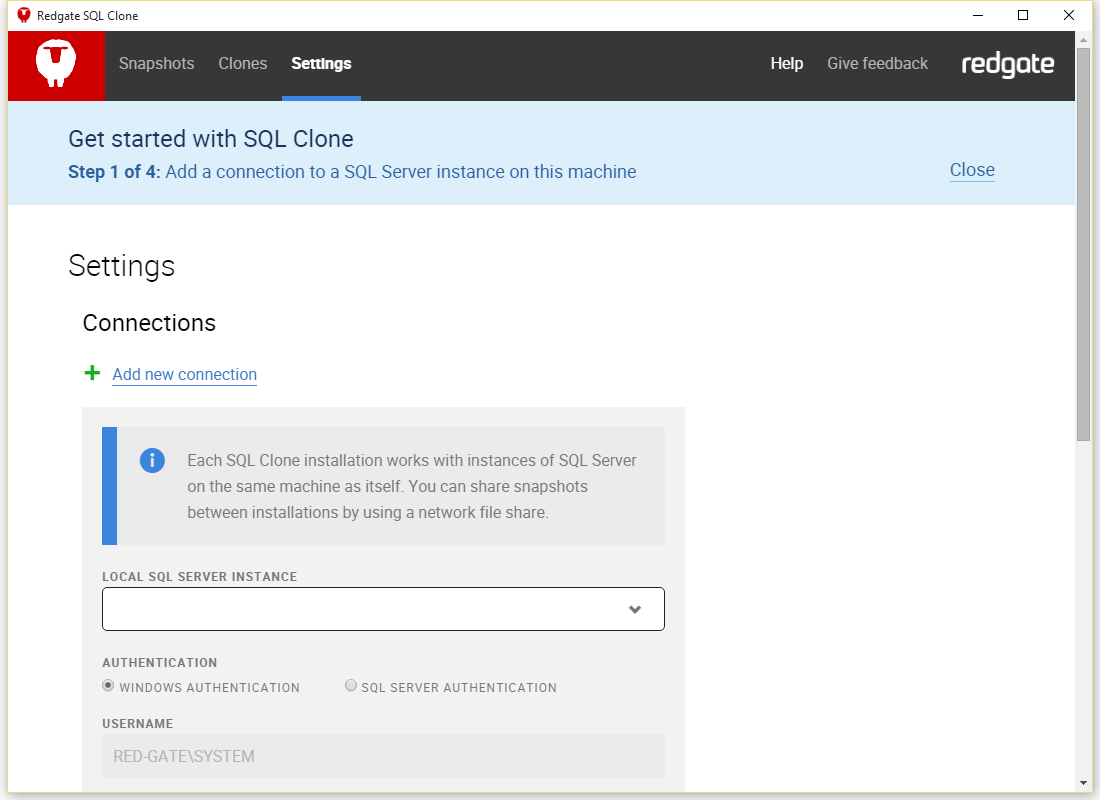
Select a local SQL Server instance that you can connect to, using the drop-down menu. SQL Clone will try to connect using Windows Authentication, under the credentials of the service account that you chose during installation.
Alternatively, you can switch to SQL Server Authentication. The account requires rights to ATTACH DATABASE and VIEW ANY DEFINITION.
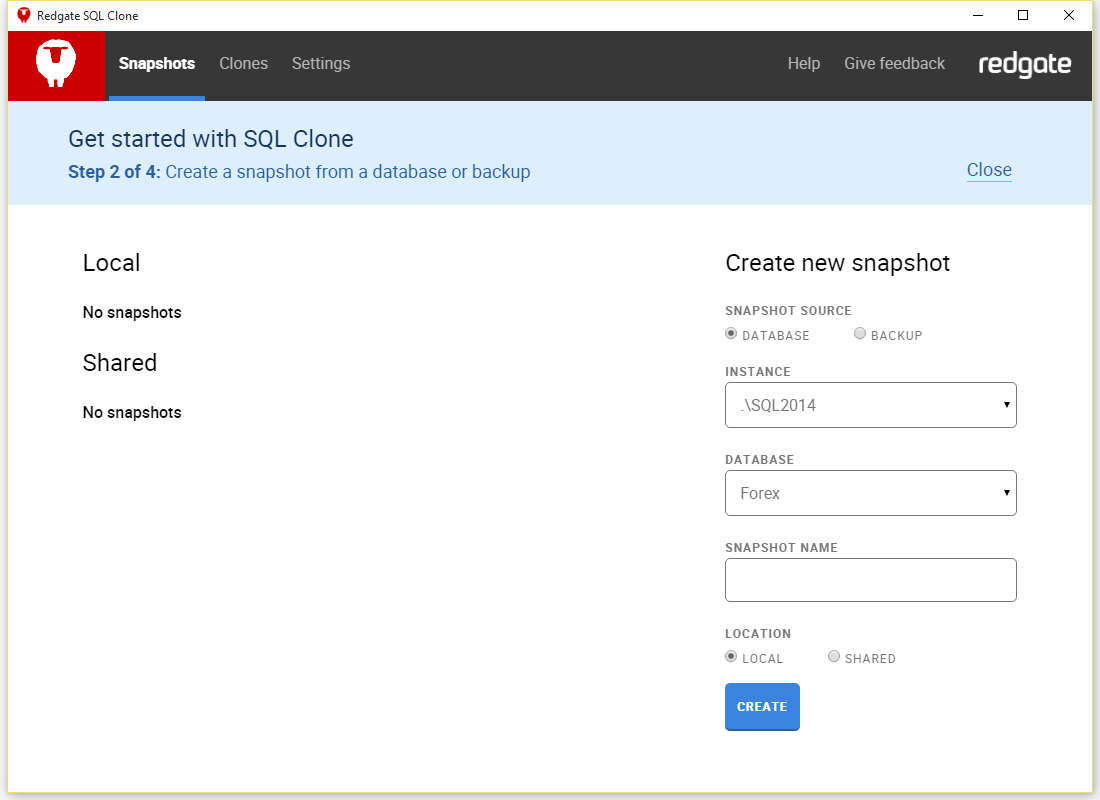
Next, you'll be prompted to take a snapshot. Select a database from the drop-down menu, choose a name for the snapshot, and click Create.
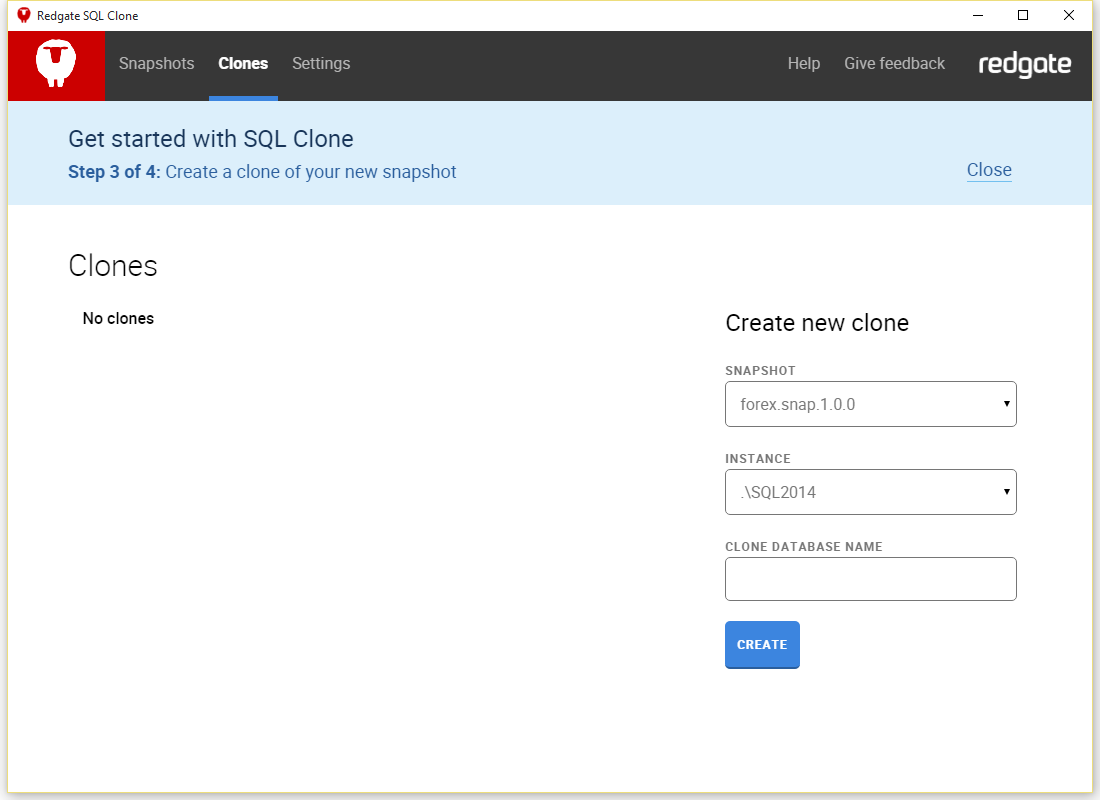
And next, to create a clone. Select a snapshot from the drop-down menu, choose a name for the cloned database, and click Create.
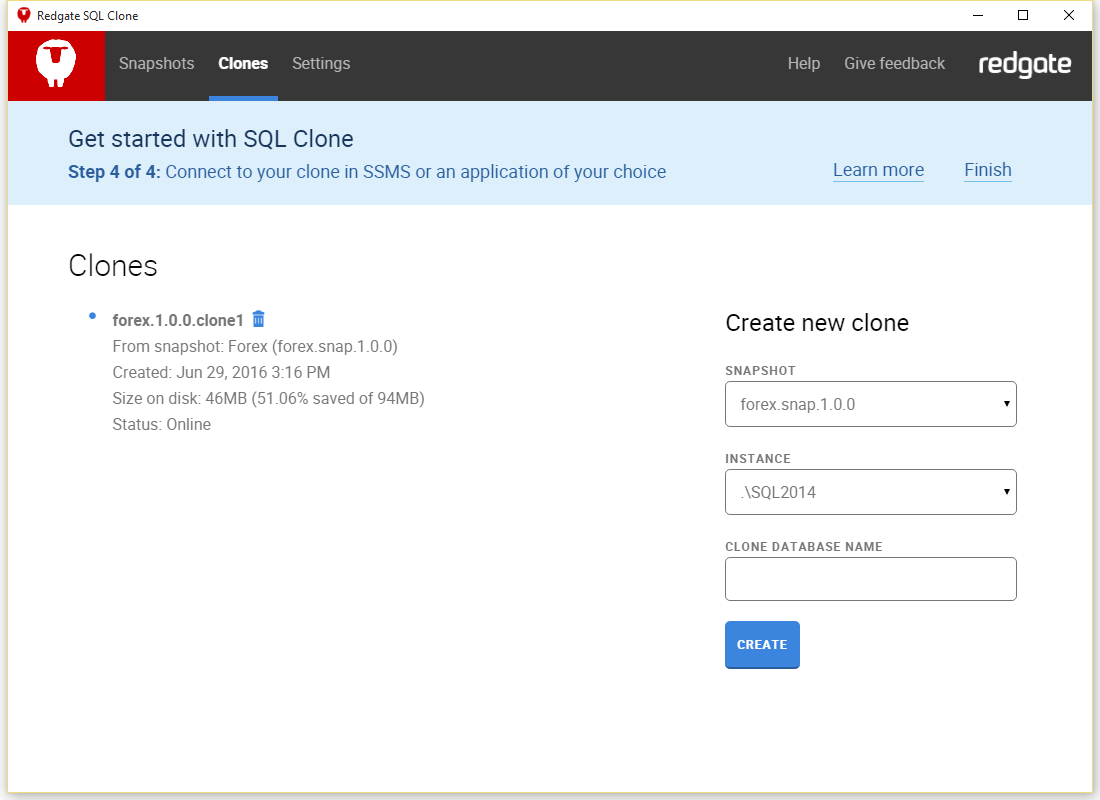
That's it! You've created an SQL Clone snapshot, then a clone, and can now try using it in the usual way.
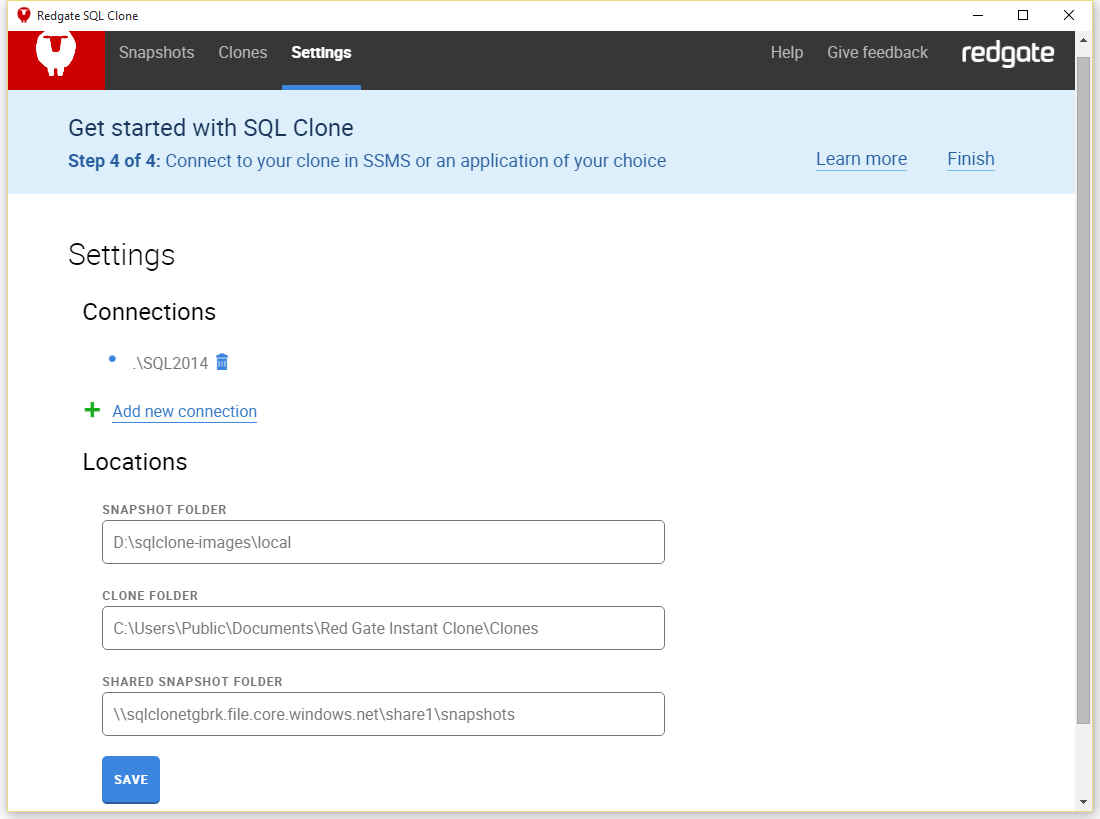
Now that you've seen how SQL Clone works, you may want to consider some of the other settings.
The snapshot and clone folders can probably be left as-is, depending on your disk space.
If, for example, you have a large hard drive mounted on d:\ or e:\ you might want your snapshots to be held there (don't set these to be UNC paths).
For the shared snapshot folder, you'll want an SMB share that other members of your team can connect to if you want to share snapshots.
Basic Operations
Creating a local snapshot from a database
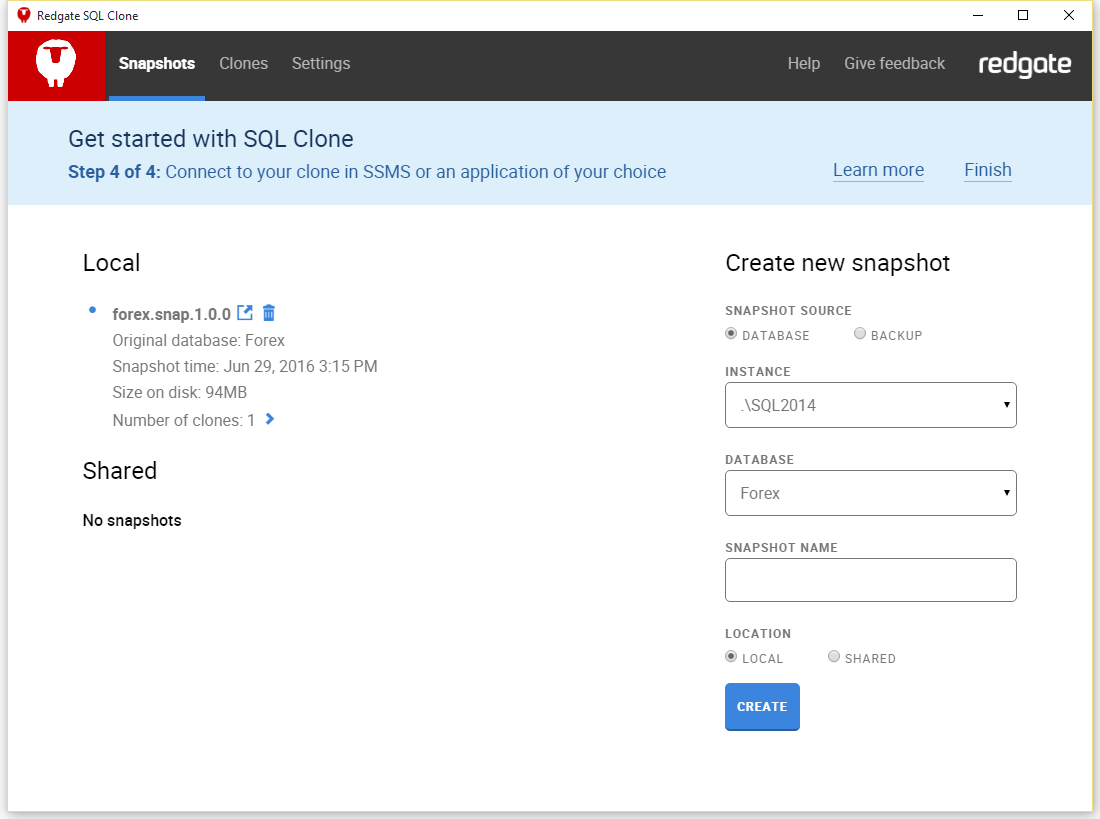
If the settings are correct, you should now be able to select the Snapshots tab, and browse the databases from the drop-down on the right.
Select one, enter a snapshot name and click Create. The snapshot will take about as long as a backup to create, and use a similar amount of diskspace to the database.
Once you have a snapshot, you can start creating clones.
Creating a local clone from a snapshot
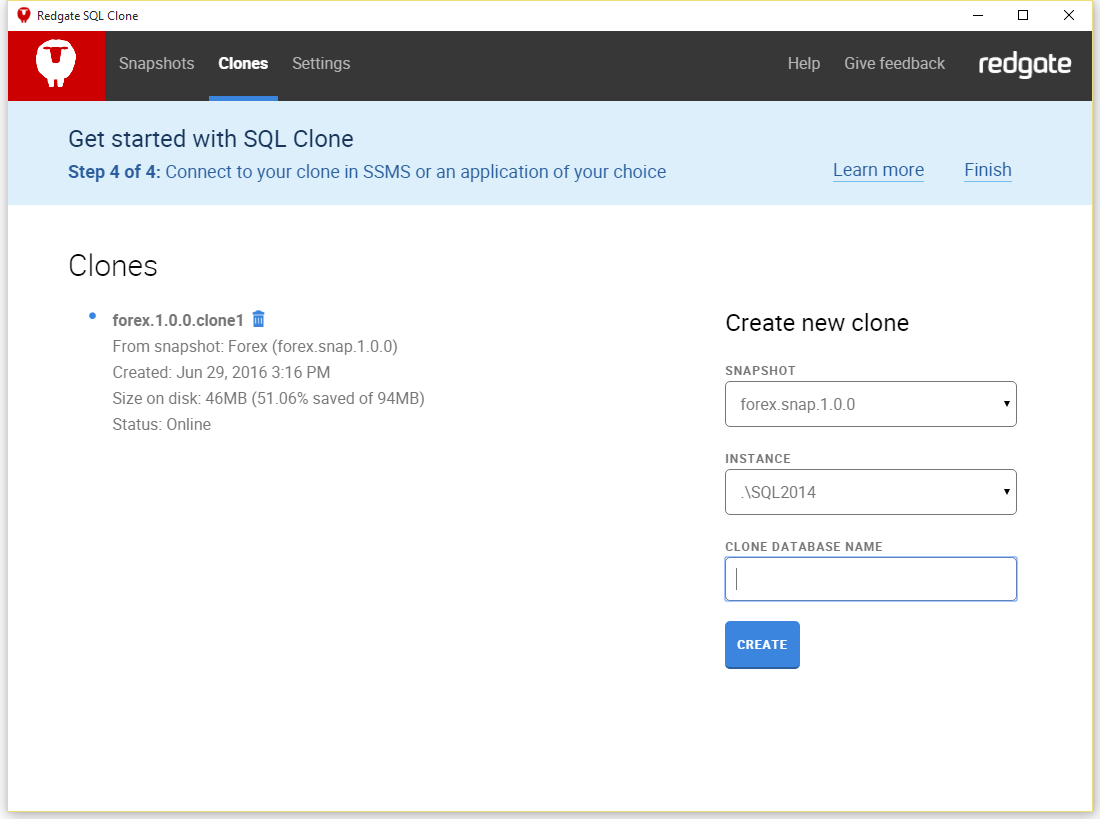
On the Clones tab, you should now be able to select a Snapshot from the drop-down on the right, supply a Clone Database Name, and hit Create to create a new Clone on the target instance.
This should only take a few seconds, regardless of the size of the Snapshot and source database (SQL Clone is creating a small diff disk, then mounting on SQL Server the union of that and the Snapshot).
When you restart the SQL Server hosting the clones, or the SQL Server service, you may need to run the Restore-InstantClone command in PowerShell if clones are not accessible.
When the snapshot is created, it is ready to connect to using SSMS, your application, or any other program. If you are using SSMS, you will need to refresh the list of databases to see the clone.
Sharing a Snapshot for Cloning
Hopefully, you're ready to start sharing SQL Clone with your team by now.
All you need to do is
- Install SQL Clone on their workstations as above, and make sure you have the same SMB file share in the Shared Snapshot Folder on the Settings tab (to which you all have rights).
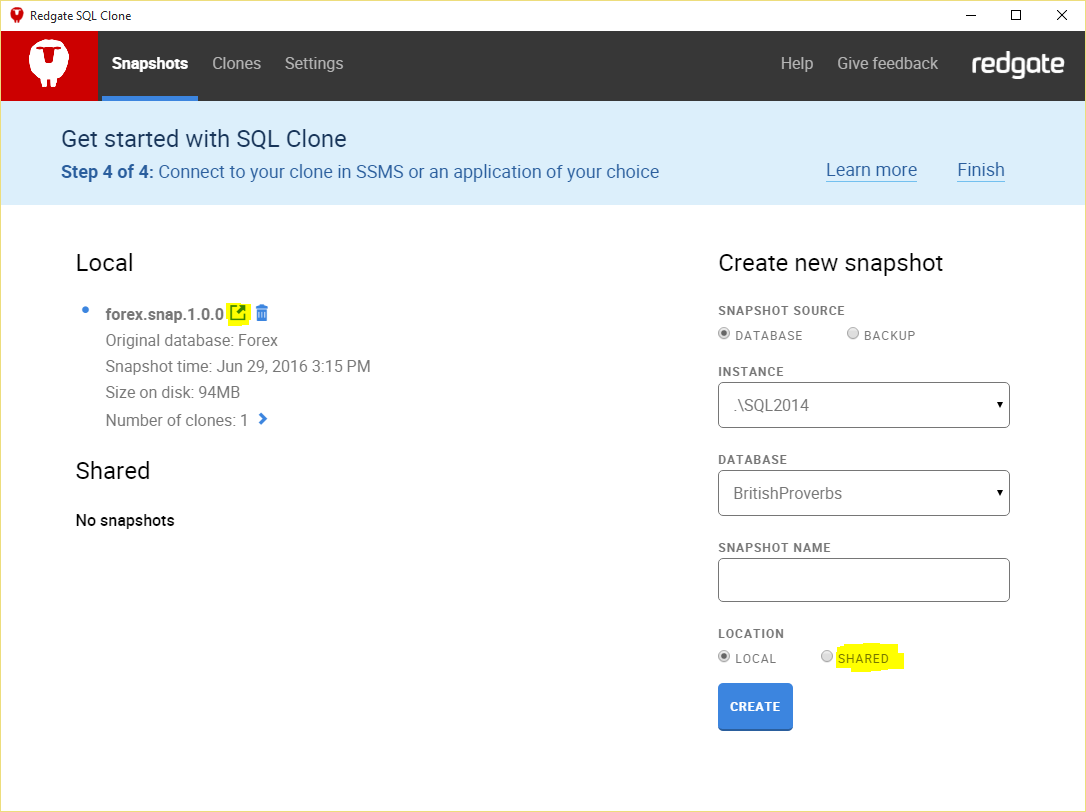
- Share a local snapshot by using the share icon next to its name, or create a new snapshot with the Shared button selected.
- A team member can now set their shared location in settings, and create a clone from the shared snapshot
Let us know how you're getting on!
We really want your feedback to help shape the product direction; just drop us a line to SQLClone@red-gate.com
Overview
Content Tools
- Printed by Atlassian Confluence 10.2.19