These pages cover SQL Backup Pro 8.0. Help for older versions is also available.

-
Created by
 Administrator, last updated by David Connell on Jul 06, 2016
6 minute read
Administrator, last updated by David Connell on Jul 06, 2016
6 minute read
The SQL Backup Pro graphical user interface (GUI) and server components are upgraded separately:
- You can upgrade to the latest version of the GUI using Check for Updates on the Help menu. For more information, see Using Check for Updates.
- Once the GUI has been upgraded, the upgrade server components icon
 is displayed next to each of the SQL Server instances listed in the Registered SQL Servers pane.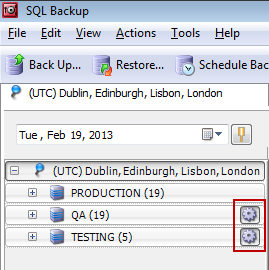
To upgrade the server components:- Click the icon, or from the Actions menu, select Install or upgrade server components. The Upgrade Server Components wizard is displayed.
If you are upgrading the server components on a remote machine, specify a domain or built-in account for SQL Backup Pro to access the machine running the SQL Server instance and upgrade the server components (SQL Backup Pro 7.4 and later). The account must be an administrator on that machine.
It's not possible to install the server components on a remote machine using a local administrator account that is not a built-in account.- Click Finish to confirm that you want to upgrade. The existing login and authentication credentials for the SQL Backup Agent service will continue to be used after upgrading. For information on changing these credentials, see Changing the SQL Backup Agent service credentials.
If your SQL Server security does not allow you to upgrade remotely, you can upgrade the server components manually by copying SQBServerSetup.exe to the server and running it. By default SQBServerSetup.exe is located in:
- %ProgramFiles%\Red Gate\SQL Backup 8 on 32-bit servers
- %ProgramFiles(x86)%\Red Gate\SQL Backup 8 on 64-bit servers
If you have upgraded to a new major version (for example, from version 6 to 8) and had previously activated SQL Backup Pro on the SQL Server with a current support and upgrades contract, SQL Backup Pro will remain activated with the same serial number. Otherwise, a 14 day trial of SQL Backup Pro will begin, indicated by the trial license icon  . When the trial expires, this is indicated by the trial expired icon
  ; you must purchase a license to continue using SQL Backup Pro on that SQL Server. For information about licensing SQL Backup Pro on a SQL Server, see Licensing.
Upgrading from SQL Backup version 5, 6 or 7
If you are upgrading from SQL Backup version 5, 6 or 7, you do not need to import SQL Servers that you previously added to the SQL Backup GUI. Your servers will be added automatically to the SQL Backup GUI Registered SQL Servers pane. If you have not yet upgraded to the SQL Backup Pro 8 server components, the upgrade server components icon is displayed to the right of the SQL Server name in the Registered SQL Servers pane. Upgrade the server components as described above.
The upgrade server components icon may be shown in various locations within the GUI when you are working with a SQL Server instance that still has version 5, 6 or 7 server components installed. This indicates that certain features are unavailable until you upgrade the server components to version 8.
The scripts and jobs you created using version 5, 6 or 7 are supported in version 8, and will work in the same way.
Upgrading the activity cache
The activity cache speeds up the display of backup and restore history in the SQL Backup Pro GUI by storing a copy of the backup and restore history for your registered SQL Servers.
By default, the cache data is located on the same computer as the SQL Backup Pro GUI in:
- %LOCALAPPDATA%\Red Gate\SQL Backup\Server Data (on Windows Vista, Windows 2008 and later) or
- %USERPROFILE%\Local Settings\Application Data\Red Gate\SQL Backup\Server Data (on Windows XP and Windows 2003)
When you start the GUI for the first time, you may be prompted to upgrade the activity cache. This will only happen if an activity cache from SQL Backup version 5, 6 or 7 is found on your computer.
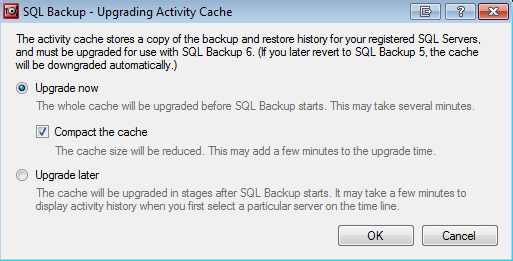
This may take several minutes, but happens only once.
Upgrading from SQL Backup version 4
If you are upgrading the SQL Backup GUI from version 4, you can import all your registered SQL Servers into SQL Backup 8; you do not have to register them all again. For details, see Importing SQL Server instances
When you add or import a SQL Server, if you have not yet installed the SQL Backup 8 server components on it,  is displayed to the right of the SQL Server name in the Registered SQL Servers pane. Click the icon to upgrade the server components.
You must then activate the SQL Server. If you have purchased a support contract, you can use the same license key as you used in version 4 (SQL Backup will remember this for you). Otherwise, you can use a trial version of SQL Backup 8 for 14 days, but then you must purchase a license. For more information, see Licensing.
If you do not upgrade the server components, SQL Backup retrieves the details of activities and jobs on these SQL Servers when you first start SQL Backup. The information is displayed in the Time Line, the Activity History, and the Jobs tab. However, this information cannot be refreshed while SQL Backup is running.
Note the following changes from version 4:
- Any options you set in version 4 are imported into version 8. However, note that backup alerts are no longer available; instead you can now use the Time Line or create a report of backup activity to see overdue backups. For more information about the options available, see File management options.
- The scripts and jobs you created using version 4 are supported in version 8, and will work in the same way.
- If you saved any backup settings in version 4, you can use them in version 8. However, in version 8 they are called templates.
- Some features are restricted for activities and jobs from a previous version of SQL Backup. For example, you cannot display the properties of a backup performed by SQL Backup version 4.
- Printed by Atlassian Confluence 10.2.19