Adding PostgreSQL on Windows
Published 28 September 2026
Additional configuration required
Make sure you've prepared PostgreSQL for monitoring before you add a PostgreSQL instance to Redgate Monitor.
You can monitor supported PostgreSQL servers with Redgate Monitor. This page explains how to add PostgreSQL instances running on self-managed Windows machines, including Windows virtual machines in the cloud, such as Amazon EC2 or Azure VMs.
You can only monitor PostgreSQL on Windows from a Base Monitor running on Windows. If your Base Monitor runs on Linux, the Windows option is shown but you can't select it.
Adding an instance
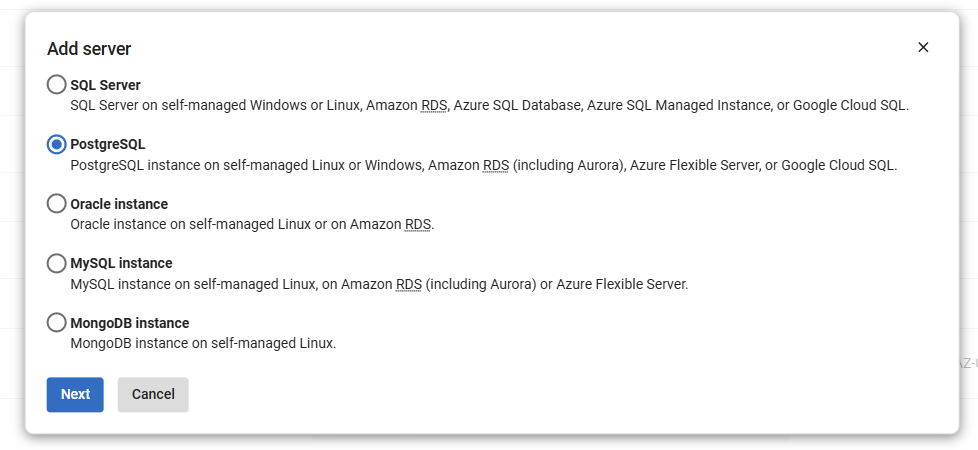
- Go to Configuration → Monitored servers → Add → PostgreSQL.
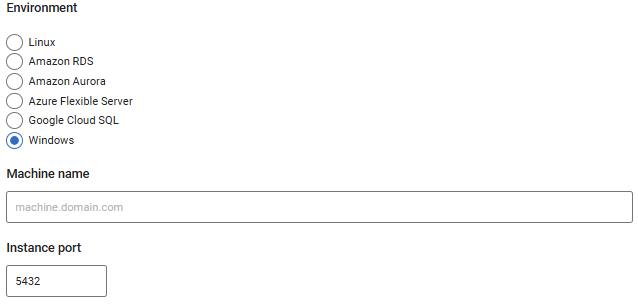
- Under Environment, select Windows.
- In the Machine name field, enter the name of the Windows machine that hosts the instance, for example machine.domain.com.
- In the Instance port field, enter the port the instance listens on. The default is 5432.
- Select a group to add the instance to. Select Uncategorized if you don't want to put it in a group.
Providing connection details
You need to provide two sets of credentials:
- The host Windows machine the instance runs on.
- The PostgreSQL instance.
Machine
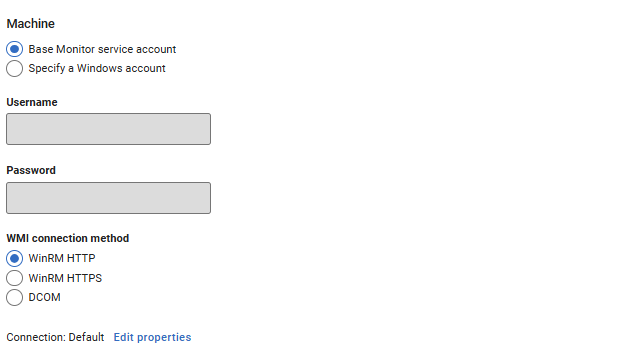
Redgate Monitor connects to the Windows machine using WMI to collect machine metrics.
By default, it uses the Base Monitor service account. This is the Windows account you specified during installation. To use a different account, select Specify a Windows account and enter a username and password.
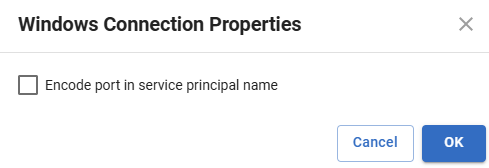
Under WMI connection method, select WinRM HTTP, WinRM HTTPS or DCOM. The default is WinRM HTTP. For WinRM connections, you can click Edit properties to change the connection properties. For more information, see WMI over WinRM.
PostgreSQL instance
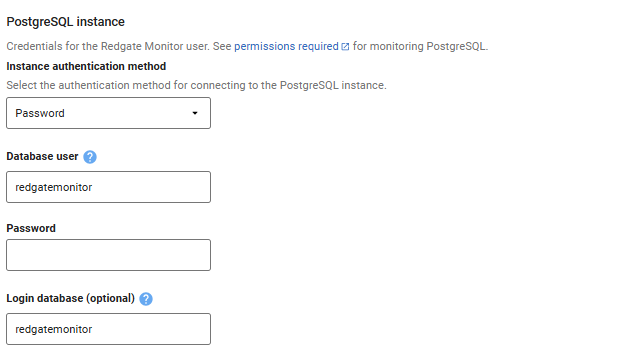
Under Instance authentication method, select Password or SSL Certificate.
For Password, enter the username and password of the Redgate Monitor user you created when you prepared PostgreSQL for monitoring. The default Database user is redgatemonitor.
For SSL Certificate, enter the certificate's common name as the Database user (common name). You don't need a password.
For both methods, you can change the Login database (optional). The default is redgatemonitor.
All credentials are stored securely in the Base Monitor database.
Testing and adding the instance
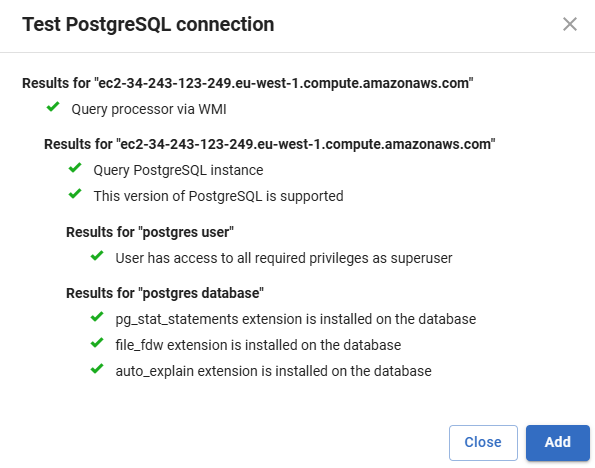
- Click Test PostgreSQL connection to check that Redgate Monitor can reach the Windows machine and the instance. It tests the machine first, then the instance.
- Click Add. Redgate Monitor adds the host machine and the instance to the list of monitored servers.
If the Windows machine is already monitored (for example, because it also hosts SQL Server), Redgate Monitor adds the instance to that machine. The machine stays in its current group.
You can't edit the server name after you add it. If you enter the name incorrectly, the server shows the status Connection failed (Unreachable). To fix this, remove the server and add it again.
When the connection works and data collection succeeds, the status shows as Monitoring (Connected). If you see a different status, see Monitoring status explained.
Editing the credentials or properties of monitored servers
See Managing monitored servers.
This documentation contains proprietary information and is protected by copyright law.
Copyright © 2026 Red Gate Software Limited. All rights reserved


