Cloud migration
Published 02 September 2026
Recommendations target Amazon RDS for SQL Server, and Amazon EC2 machines. Other targets, cloud providers, and database engines aren't covered yet.
The cloud migration page helps you plan a move of your SQL Server estate to the cloud. It sizes a target instance for each of your monitored virtual machines from the performance data Redgate Monitor has already collected, tells you whether that machine is ready to move, and compares what it costs you today against what the recommended target costs on AWS.
Before you start
In order for Monitor to produce a recommendation, you need to add an AWS credential with the required migration permissions and cost explorer access (see Managing cloud services).
Your monitored machines don't have to be in the cloud already. The analysis sizes on-premises virtual machines too, though the cost comparison only has a "today" figure for machines Monitor can match to cloud costs.
Understanding the cloud migration tab
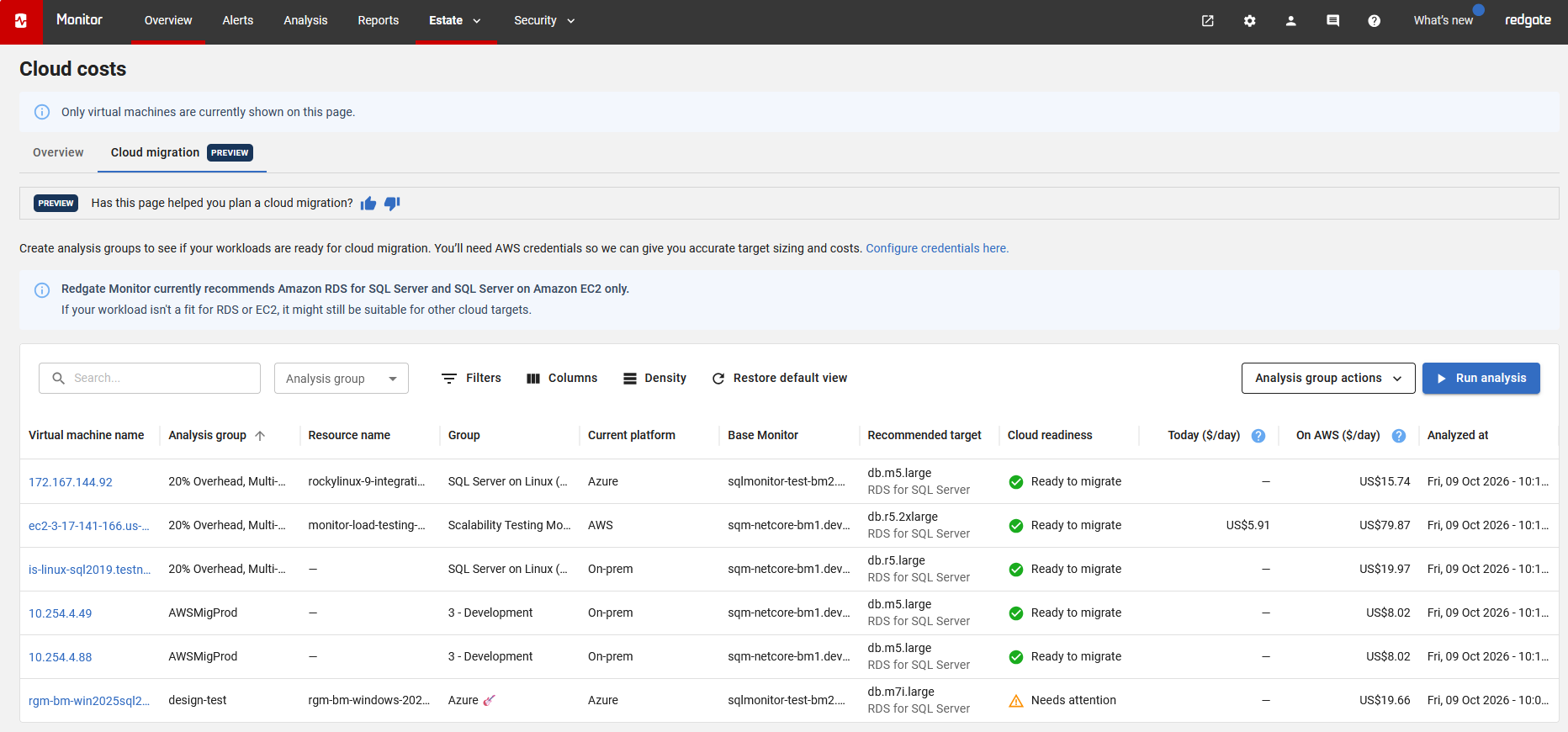
Table columns
| Column | Description |
|---|---|
| Virtual machine name | The name of the virtual machine. Select it to open the recommendation details. |
| Analysis group | The analysis group this row belongs to. Select it to edit the group's machines or context. |
| Resource name | The name of the cloud resource behind the machine, where it has one. |
| Group | The group the machine belongs to in Redgate Monitor. |
| Current platform | The provider hosting the machine, if it's already in the cloud. |
| Base Monitor | The Base Monitor that monitors the machine. |
| Recommended target | The primary recommendation the analysis chose. Shows Awaiting data while there isn't enough performance data, No recommendation when nothing suitable was found, and Failed to analyze if the run failed. |
| Cloud readiness | Whether the machine can move as it stands. See the statuses below. |
| Today ($/day) | The mean daily effective cost of the machine over the group's lookback period, taken from your cloud provider. The period ends at the close of the previous day, and the most recent three days can take time to finalize, so recent data may be partial. |
| On AWS ($/day) | An estimate of the AWS on-demand price for the recommended target based on the offerings available to your account, as a daily rate. Reserved instances and savings plans aren't reflected here (yet) and could reduce your actual cost. |
| Analyzed at | When the machine was last analysed for cloud readiness. Click Run Analysis to refresh. |
Cloud readiness statuses
| Status | What it means |
|---|---|
| Ready to migrate | A target was found, with nothing to do first and nothing to review. |
| Needs attention | A target was found, but there are warnings worth reading before you commit. |
| Not ready to migrate | Either nothing suitable was found, or there's work to complete before the machine can move. |
| Not enough data yet | Monitor is still collecting performance data for the machine. Leave it monitored for a few days and run the analysis again, or try a shorter lookback window. |
| No data for this machine | Monitor has no hardware details for the machine, so it can't be sized. Check it's still monitored and collecting data. |
Creating an analysis group
Select Create analysis group to open the wizard.
Group details
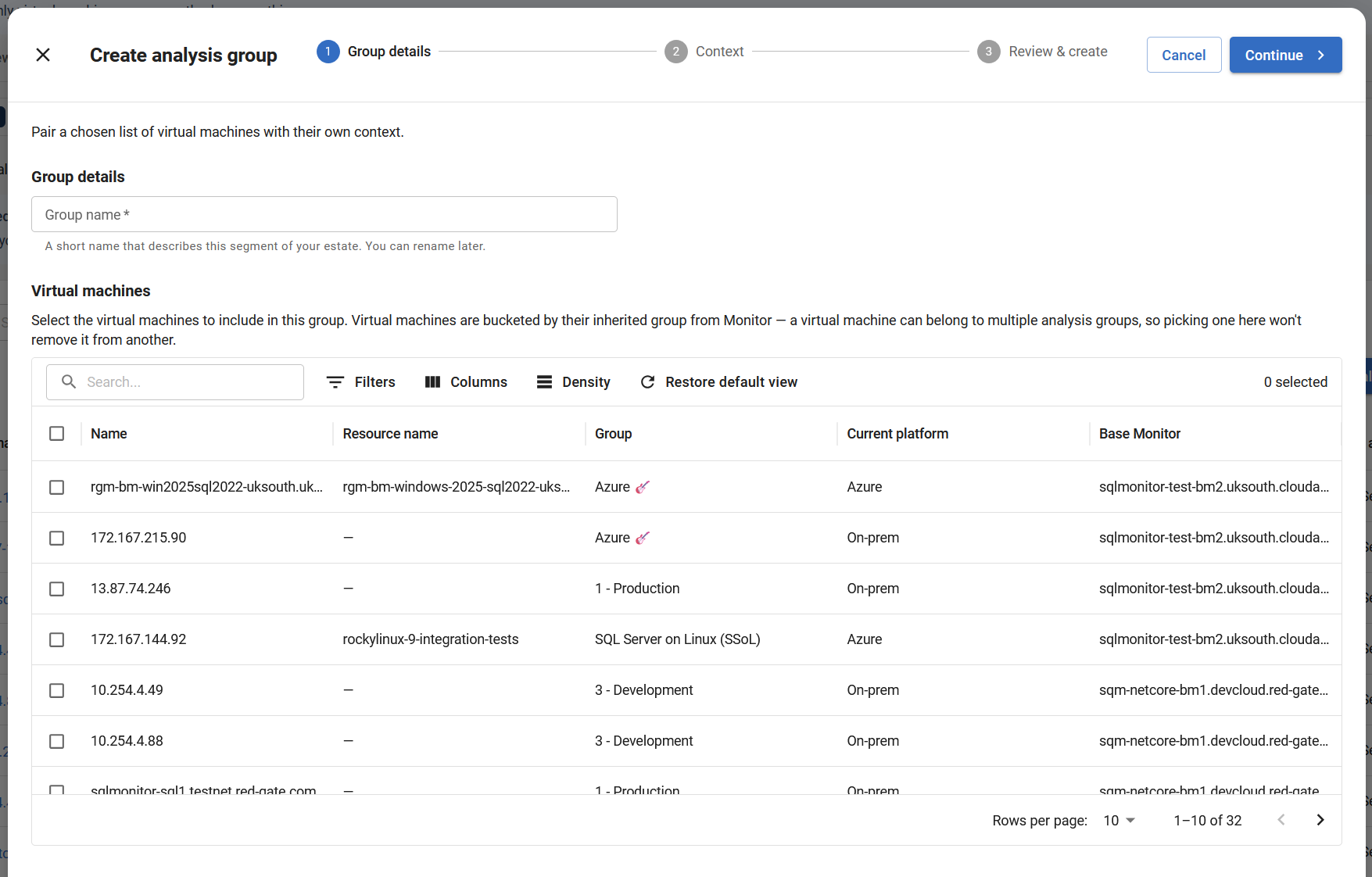
Name the group and pick the virtual machines to include. Give it a name that describes that segment of your estate in a way that you will recognise at a glance, such as "Production, Europe" or "Dev and test". You can rename it later.
Grouping matters because the right assumptions are rarely the same across a whole estate: your production servers and your test servers probably don't require the same edition, the same high availability, or the same amount of spare capacity.
The list shows your SQL Server virtual machines. Selecting a machine here doesn't remove it from any other analysis group.
Context
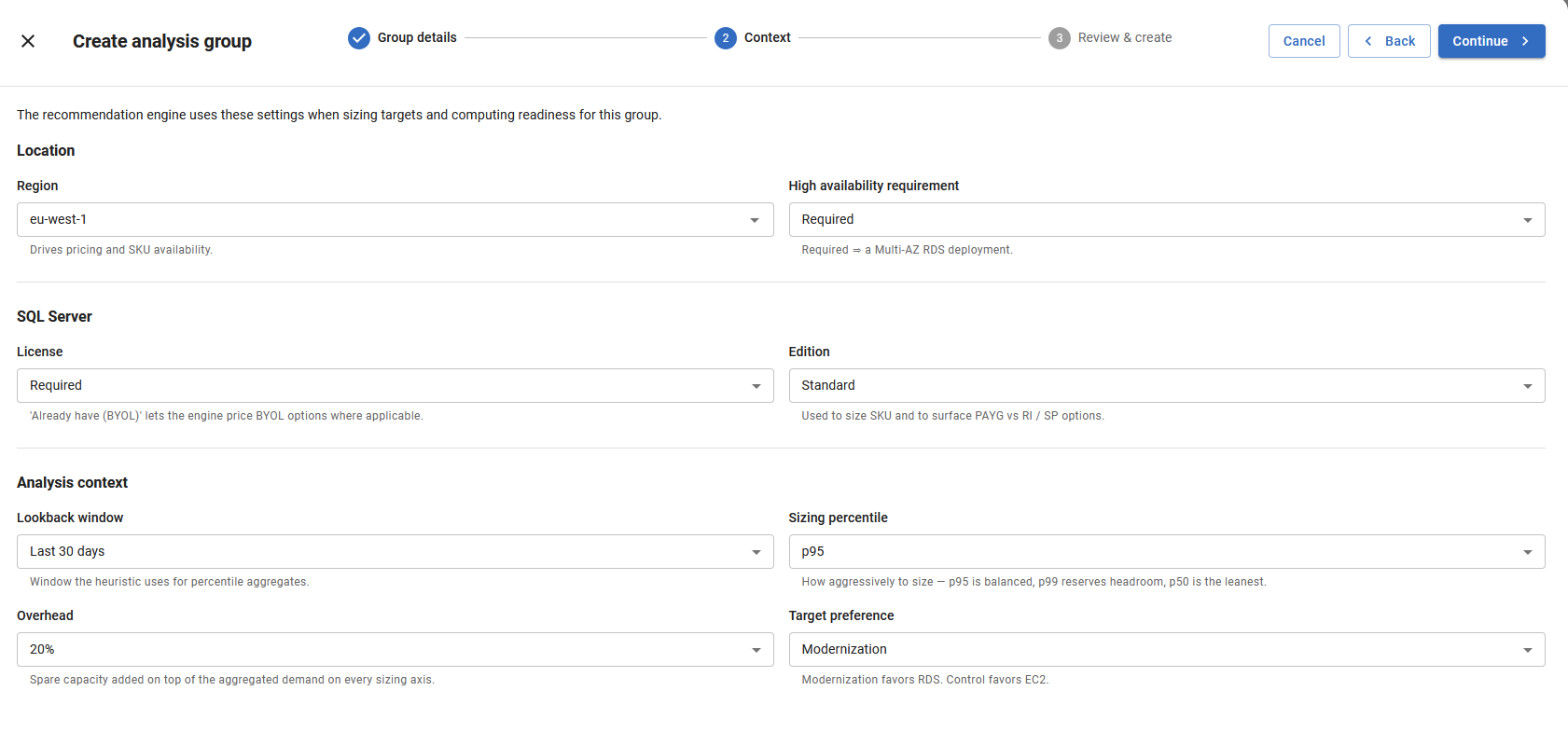
These settings are the assumptions the recommendation engine sizes against.
| Setting | What it does | Default |
|---|---|---|
| Region | The AWS region to size and price for. This drives both pricing and which instance classes are available. The options come from the catalog collected from your monitored AWS accounts. | None. You have to choose one. |
| High availability requirement | Required targets a Multi-AZ deployment on RDS. | Required |
| License | Required prices license-included instances, where AWS bundles the SQL Server license into the instance price. Already have (BYOL) prices bring-your-own-license options where they exist (using the custom RDS engine). | Required |
| Edition | The SQL Server edition to target. License-included supports Standard, Enterprise, Express, and Web. BYOL supports Standard, Enterprise, and Developer, because Developer has no license to include. | Standard |
| Lookback window | How much collected history the sizing is based on: the last 7, 30, or 90 days. | Last 30 days |
| Sizing percentile | How aggressively to size. p95 is balanced, p99 reserves more headroom, p50 is the leanest. | p95 |
| Overhead | Spare capacity added on top of the aggregated demand on every sizing axis. | 20% |
| Target preference | Whether the recommendations for machines in the group should prioritise modernization (Amazon RDS) or control (Amazon EC2) | Modernization |
If no region is offered, the AWS catalog hasn't been collected yet. It's collected once a day or after a credential is added, so check back after the next collection.
Review and create
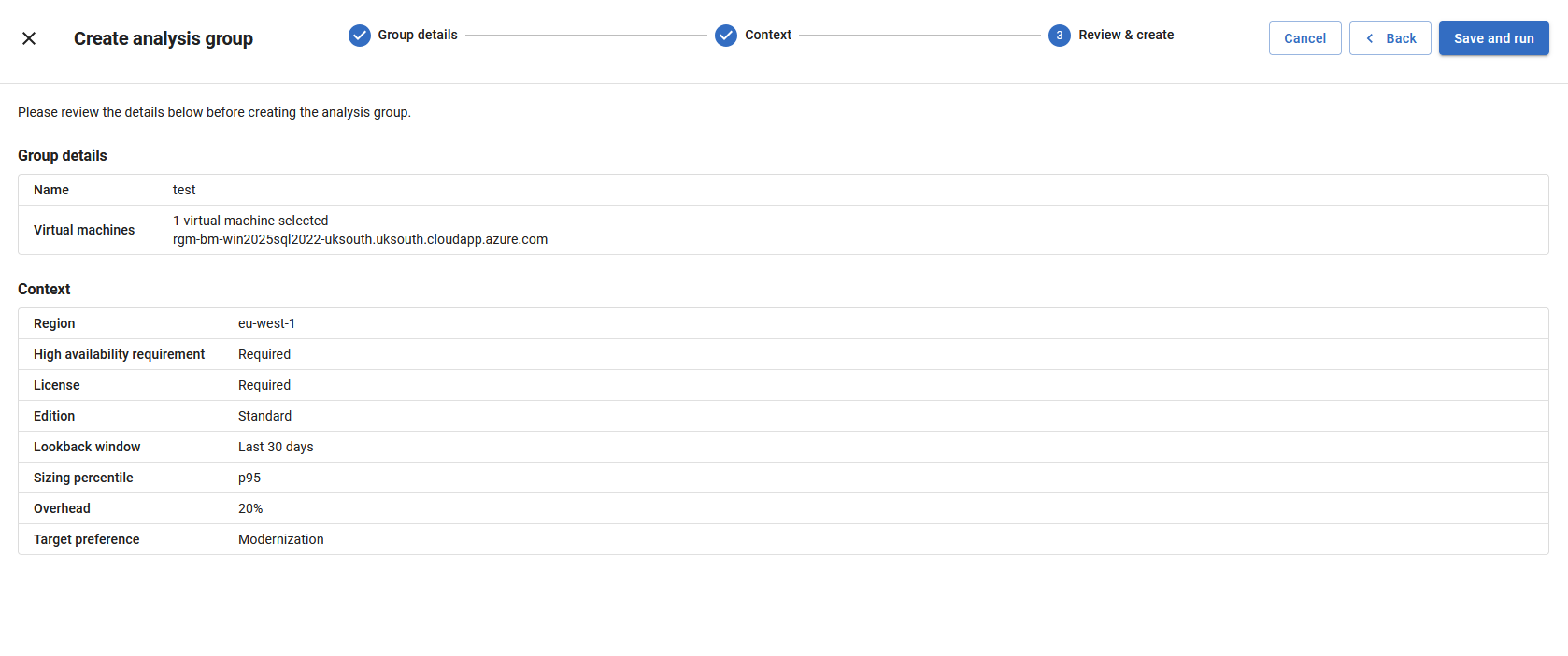
Check the group, then select Save and run. The group is saved and the analysis runs immediately, once the wizard closes you will be able to see the recommendation in the grid.
Editing and deleting a group
Toggle Edit analysis groups on.

Click the pencil icon next to a group name in the grid to reopen the wizard. From there you can change the machines or the context and save, which re-runs the analysis, or delete the group.
Deleting a group removes its rows and results, and can't be undone.
Viewing a recommendation for each virtual machine
Select a virtual machine name to open its full recommendation.
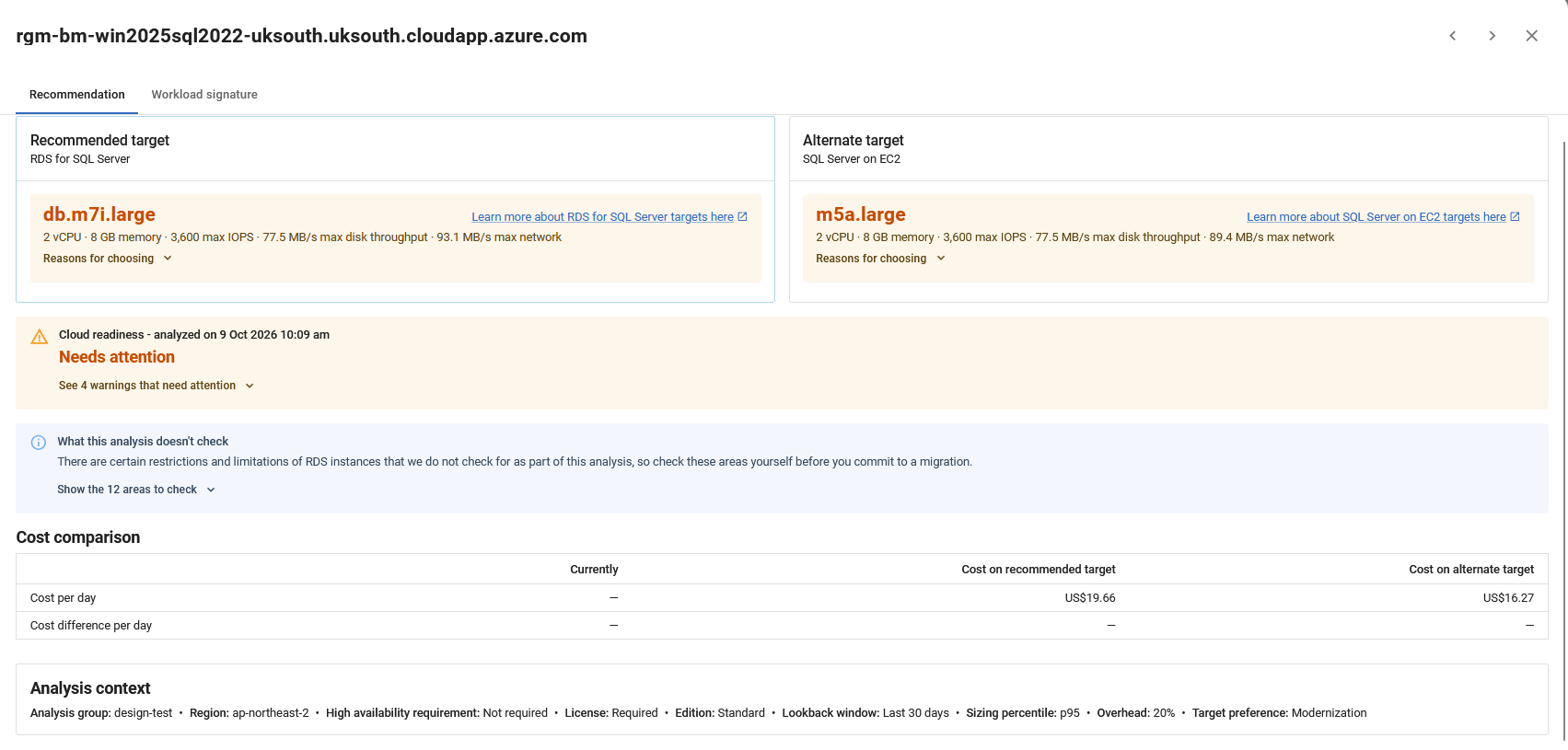
Recommendation Tab
Recommended targets
The RDS instance class and EC2 virtual machine that were chosen by the analysis, along with the reasons they were chosen.
Which target is the primary recommendation and which is the alternative target depends on whether the analysis group is configured to prioritise modernization or control.
Clicking a recommendation will select it, updating the content of the Cloud readiness section to reflect that target.
Cloud readiness
A summary of the status of the selected recommendation: whether the machine is ready to be moved, and how much stands in the way.
you may see any of three kinds of finding:
- Blockers mean no target could be found at all. Examples include RDS not offering the edition the workload runs, no instance being large enough for the measured demand, no Multi-AZ option meeting the high availability requirement, the disk space in use exceeding what RDS can provide, or the source instance holding more databases than RDS supports.
- Required actions mean a target was found, but there's work to do first. Examples include upgrading SQL Server to a version the target offers, moving off a discontinued edition, consolidating more source disks than the target supports, or splitting a disk that exceeds the single-volume IOPS or throughput ceiling.
- Warnings mean you can move, but something is worth knowing. Examples include the current SQL Server build not being offered on RDS (so you'd land on a different build) or the host running several SQL Server instances.
What this analysis doesn't check
Targets are sized from collected metrics, which do not currently include a compete inspection of the instance, so there are RDS limits the analysis can't see. Every recommendation carries a collapsed list of areas to check yourself before you commit to a migration, grouped under five headings:
- No sysadmin or OS access, covering the fixed server roles, OS-level dependencies, extended stored procedures including xp_cmdshell, and trace flags.
- Authentication, covering Windows and Active Directory logins.
- SQL Agent and scheduled work, covering maintenance plans, Agent proxies and credentials, and Agent alerts, operators, and multiserver administration.
- Connections to other servers, covering linked servers and log shipping.
- Instance and storage configuration, covering tempdb and FILESTREAM.
Cost comparison
What the machine costs you today, what each of the recommended targets cost on AWS, and the difference between those costs and the current cost, all as daily figures in USD.
The costs used for "today" are effective costs averaged across the lookup period selected, shown in USD. Effective costs represent amortized costs after discounts, reduced rates, and applicable portions of prepaid purchases are applied. This follows the FOCUS™ Specification Effective Cost field.
Analysis context
a short summary of the various properties specified in the analysis group, giving insight into what the restrictions were factored into the analysis.
Workload signature tab
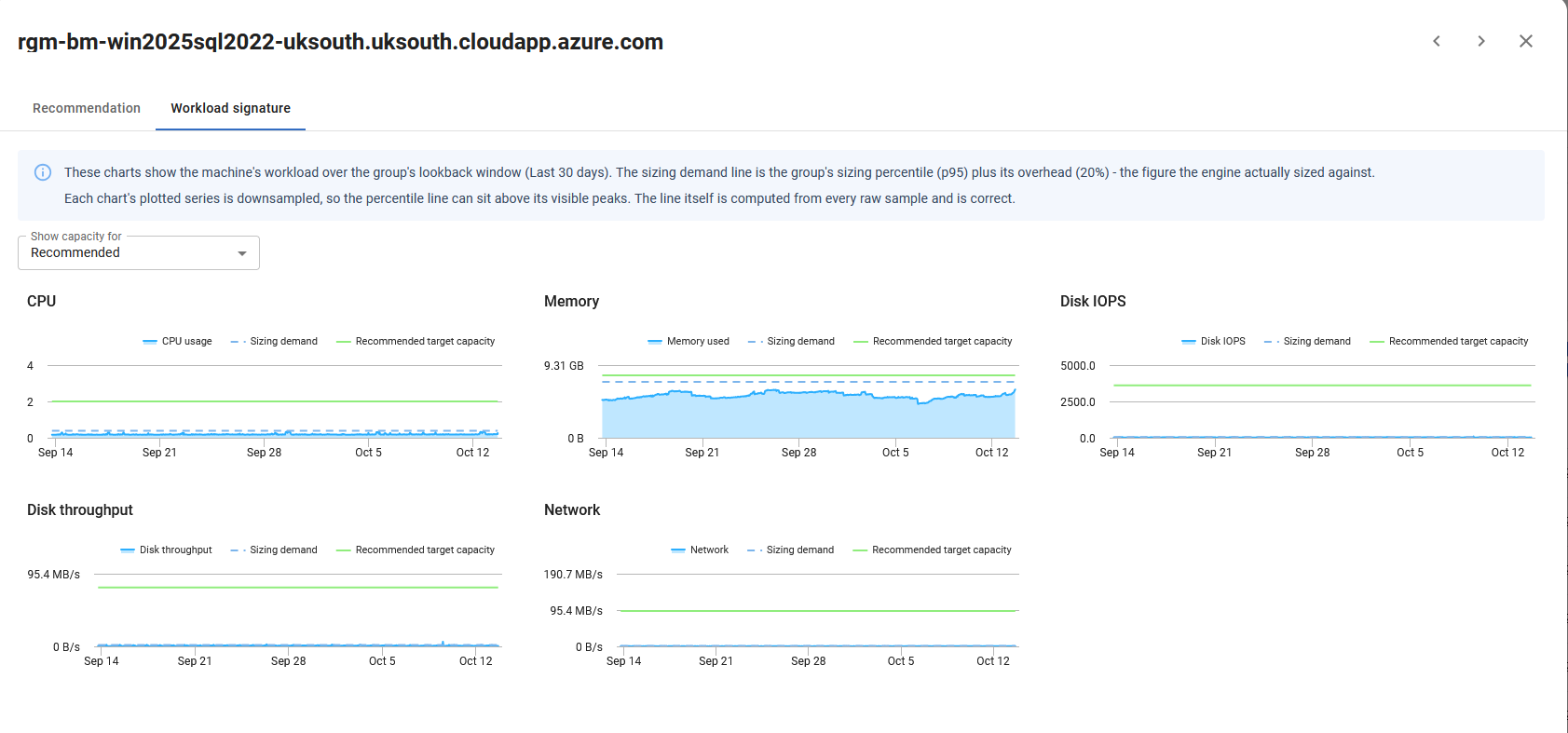
That tab shows the workload metrics for the selected virtual machine, and how those metrics compare to the capabilities of the targets; the capabilities of one or both targets can be shown using the drop down menu at the top of the tab.
one line shows the raw metric data over the last look back window (by default 30 Days), while another shows the combined value of the sizing percentile and the overhead (defaults of p95 and 20% respectively) giving a better overview of the machines requirements.
Limitations
- Recommendations currently target RDS for SQL Server and AWS EC2 virtual machines only.
- Burstable (t-series) instances are currently left out of the catalog, because the sizing assumes sustained vCPU capacity.
- Prices are AWS on-demand list prices in USD. Reserved instances, savings plans, and enterprise discounts aren't applied.
- Only SQL Server virtual machines can be added to an analysis group.
This documentation contains proprietary information and is protected by copyright law.
Copyright © 2026 Red Gate Software Limited. All rights reserved


