Compliance templates
Published 16 April 2024
A compliance template is a list of settings, and the value you expect each setting to have. Use the Compliance templates tab to add, edit, and customize your templates. Enable the ones you want to check your estate against.
For how Redgate Monitor reports the result, see Configuration compliance.
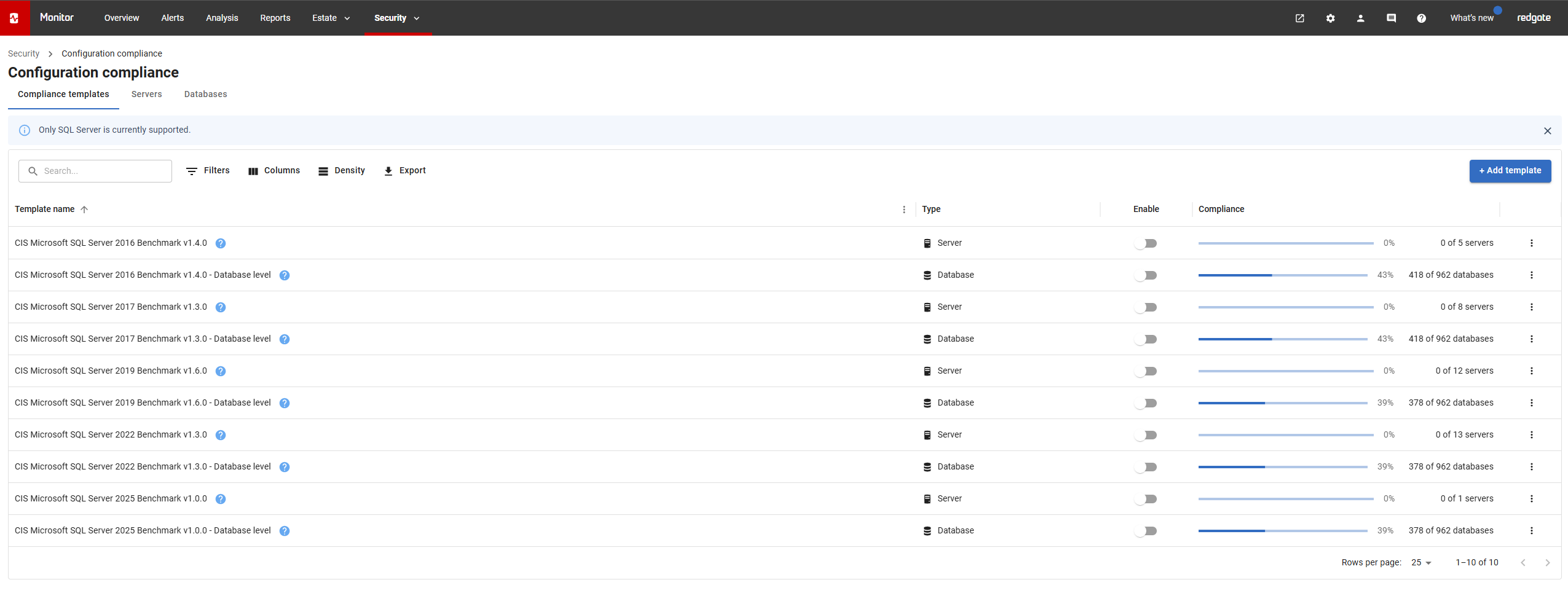
Viewing, editing, and deleting a template
Click on a row to open that template in a read-only window.
To change a template, select Edit in the actions menu in the last column of its row. You cannot change the name or the settings of a preset template, but you can change which servers it applies to.
To delete a template, select Delete in the same menu. It is there only for templates you added yourself. Deleting cannot be undone.
Adding a template
- Select + Add template
- Enter a Template name.
- Choose Server template or Database template.
- On the Select servers tab (if on the Server template), choose which servers the template applies to. See Choosing which servers a template applies to
- On the Template settings tab, choose the settings to check, and the value you expect for each.
- Select Save template.
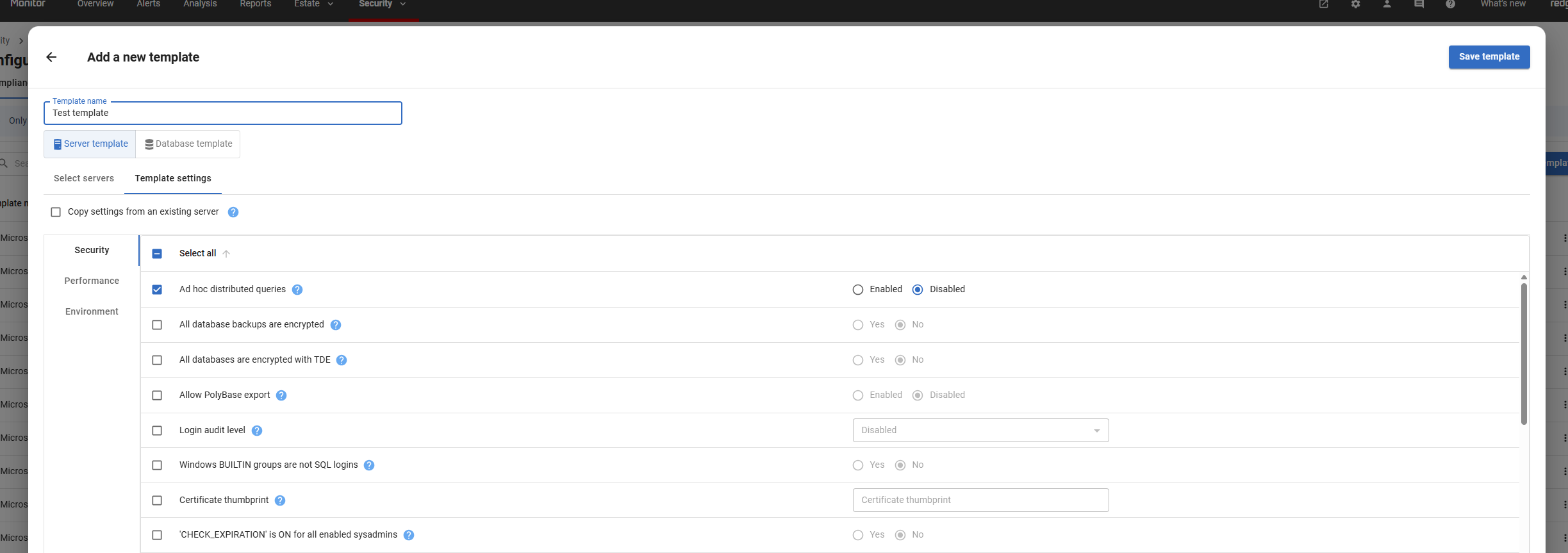
Copying the settings of a server or database you already monitor
You can build a template from a server or database you already monitor, instead of choosing each setting by hand.
- Go to the Template settings tab.
- Select the Copy settings from an existing server checkbox. For a database template, this reads Copy settings from an existing database.
- Choose the server or database to copy from.
Redgate Monitor fills the template with the current settings of that instance. This is useful when one instance is already configured the way you want, and you want to compare the rest of your estate against it.
Duplicating a template
You can also make a template by duplicating one. Use the actions menu in the last column of each row and select Duplicate to open the template editor.
It is prefilled with the source template's settings and server filters. The copy takes the source name with -Copy added.

Choosing which servers a template applies to
By default, a template applies to every SQL Server instance you monitor. You can narrow this down, so that a template applies only to the servers you want. There are two filters:
- Platform and version: for example, only SQL Server 2022 on Windows.
- Tags: for example, only servers tagged Production.
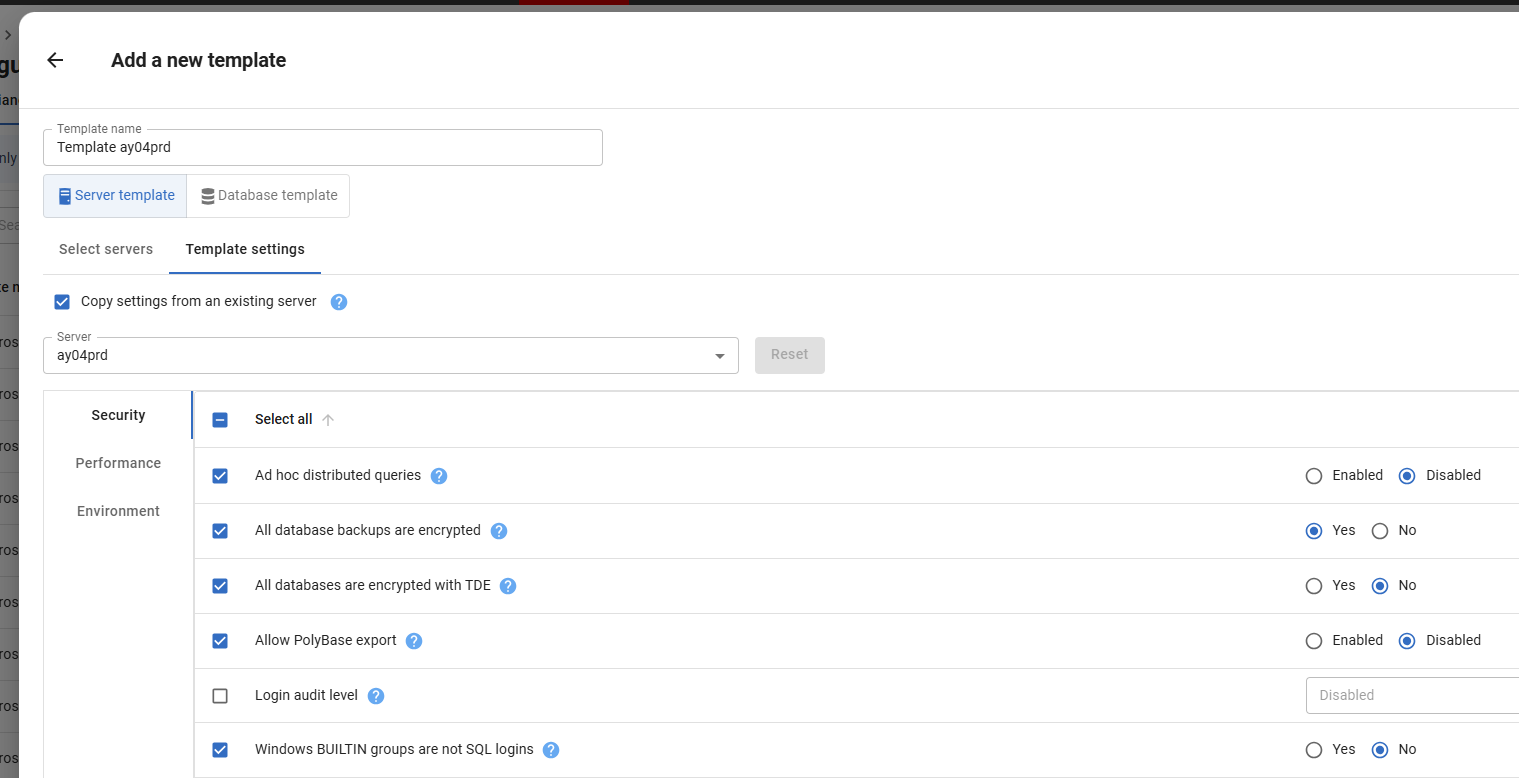
Both filters are on the Select servers tab of the template editor. Open a template with Edit, or select + Add template and choose Server template.
The Selected servers grid shows the effect of your filters immediately. A check mark in the first column marks each server the template applies to. The other servers stay in the grid, but they are grayed out. The grid also has a column for the platform, the version and tags of each server.
Applying a template to specific SQL Server versions
To filter a template by platform and version:
- Open the template and select the Select servers tab.
- Select the Select servers by platform/version field to open a menu.
- Selet the versions you want, in one or more of the platform groups.
- Select Save.
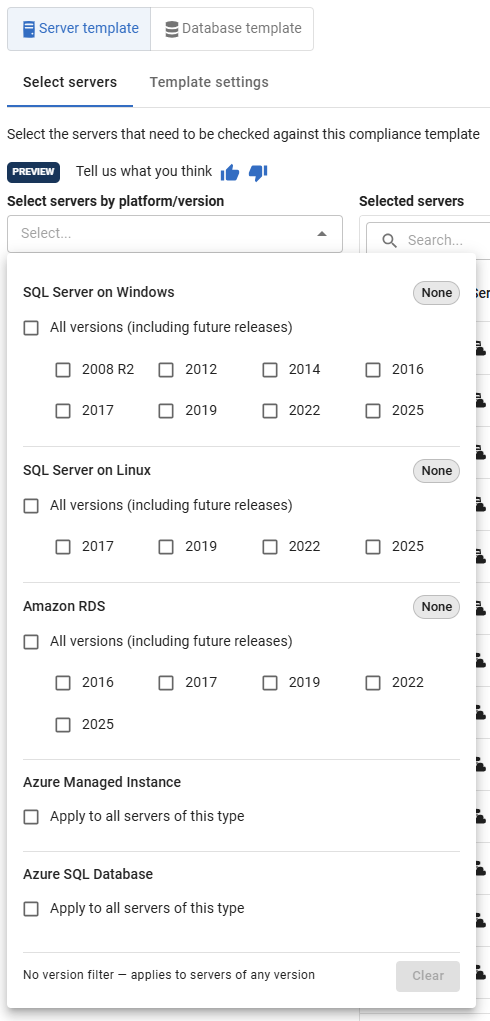
Applying a template to specific tags
Tags group the servers you monitor. To filter a template by tag:
- Open the template and select the Select servers tab.
- Open the Select servers by tag dropdown.
- Select one or more tags. To search the list, enter part of a tag name.
- Select Save.
A template applies to a server if the server has at least one of the tags you select. For example, if you select Staging and Production, the template applies to a server tagged Staging, a server tagged Production, and to a server tagged with both.
If you select no tags, the template applies to all servers.
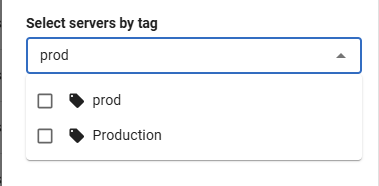
A template uses server tags only. Database tags have no effect on compliance templates.
How the two filters work together
The two filters combine such that a template applies to a server only when the server matches both of them.
For example, a template with SQL Server on Windows: 2022 and the tag Production applies to a server that runs SQL Server 2022 on Windows and is tagged Production. It does not apply to a SQL Server 2022 server without the tag, and it does not apply to a SQL Server 2019 server with the tag.
Where the filters take effect
Where | What you see |
Compliance templates tab | The Compliance column counts only the servers the template applies to. |
Servers tab | A server the template does not apply to shows a dash instead of a result, and sorts to the bottom of the grid. |
Template editor | The Selected servers grid marks the servers the template applies to, and grays out the rest. |
Preset compliance templates
Redgate Monitor includes preset templates for the SQL Server benchmarks from the Center for Internet Security (CIS). Each benchmark has a server-level template and a database-level template. For what a benchmark checks, see CIS Microsoft SQL Server benchmarks.
A preset template works differently from one you add yourself:
- You cannot change its name or its settings, and you cannot delete it.
- You can change which servers it applies to.
- Each server-level template already has a filter for the SQL Server version its benchmark covers, so a server running any other version shows a dash instead of a result. The database-level templates have no filter.
- To change the settings, duplicate the template and edit the copy.
- CIS no longer maintains the 2016 and 2017 benchmarks. Redgate Monitor shows a warning when you open one of those templates.
This documentation contains proprietary information and is protected by copyright law.
Copyright © 2026 Red Gate Software Limited. All rights reserved


