Enabling SSL certificate PostgreSQL authentication
Published 14 October 2025
Redgate Monitor versions later than 14.3.0 provide preview support for authenticating PostgreSQL instances hosted on Linux machines using SSL certificates.
This provides additional security enhancements including strong MTLS, no password transmission, and automatic encryption.
Before enabling SSL certificate authentication on your PostgreSQL instance, please ensure you have followed preparing PostgreSQL for monitoring.
Prerequisites
- Redgate Monitor version 14.3.0 or later
- A Base Monitor running on Windows with a user account (i.e not a service account or gMSA)
- A PostgreSQL instance you want to monitor, which is configured to accept client certificates
- A valid client certificate for the user that Redgate Monitor will connect as
Redgate Monitor uses verify-full mode for connection security, so the PostgreSQL instance must be set up with an SSL certificate that the server running the Base Monitor will be configured to trust.
Accessing a certificate authenticated PostgreSQL instance from the Base Monitor
After generating and configuring SSL authentication for your PostgreSQL instance, the base monitor must be configured for authenticated access.
- Create a
.pfxfrom your client certificate and key files for the user you want Redgate Monitor to login to (this is typically theredgatemonitoruser).This command will prompt you to create a password which will be required when importing the certificate.
openssl pkcs12 -export -out redgatemonitor.pfx -inkey redgatemonitor.key -in redgatemonitor.crt
- Import the
.pfxcertificate into the system certificate store of the Base Monitor machine that you intend to monitor the PostgreSQL instance from.Redgate Monitor does not currently support certificate authentication if you are running the Base Monitor service with a gMSA or service account.
It should be imported into the personal certificate store of the Windows user that is running the Base Monitor service, by first logging in as that user and then installing the certificate:
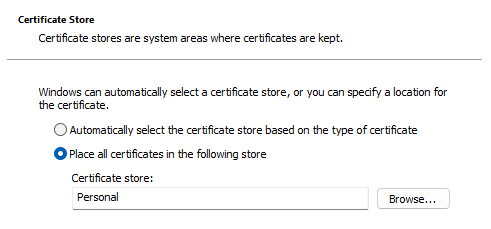
You can identify the user that is running the Base Monitor service by runningservices.mscin a command prompt, and looking for theRedgate Monitor Base Monitorservice. The user will be shown in the "Log on as" column. - Rename your CA certificate to
postgres-root.crtand place it in the default root certificate directory on your Base Monitor machine.
This can be found at %ProgramData%\Red Gate\Redgate Monitor\ServerCertificates, by default this will be C:\ProgramData\Red Gate\Redgate Monitor\ServerCertificates
If this directory does not exist on your Base Monitor machine, simply create the folder.
If you have multiple CA certificates for a number of servers, then the text contents of each file should be combined together into a singlepostgres-root.crtfile.
Certificate authentication on Linux Base Monitors is still in development and not yet supported.
Adding a PostgreSQL instance to Redgate Monitor with SSL certificate authentication
Once your base monitor is configured for authenticated access, the instance can be added into Redgate Monitor, see Adding PostgreSQL on Linux.
Make sure to select the "SSL certificate" instance authentication option from the dropdown, using the PostgreSQL user as the CN that matches your client certificate:
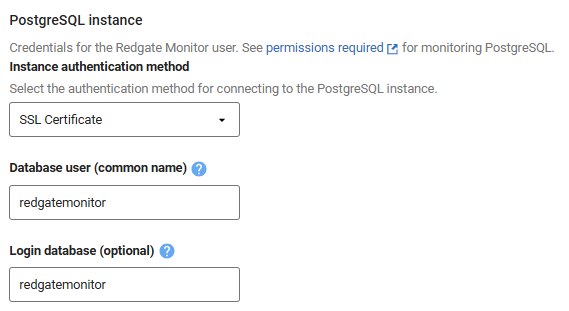
If you wish to add your instance using PowerShell instead, use the following command:
# Add PostgreSQL on Linux using SSL certificate authentication
$instance = New-RedgateMonitorPostgreSql `
    -FullName "ubuntu-linux-pg.hostname" `
    -BaseMonitor $BaseMonitor `
    -UserName "pg_username" `
    -Certificate
    -Port 5432
$server = New-RedgateMonitorLinuxHost `
    -HostName "ubuntu-linux-pg.hostname" `
    -BaseMonitor $BaseMonitor `
    -Group $Group `
    -SshUserName "ssh_user" `
    -SshPassword "ssh_pass"
$server, $instance | Add-RedgateMonitorMonitoredObject
For more information on the PowerShell API, check the example scripts in your Redgate Monitor installation, and the PowerShell documentation.
This documentation contains proprietary information and is protected by copyright law.
Copyright © 2026 Red Gate Software Limited. All rights reserved


