Redgate Assistant
Published 29 June 2026
Availability: Public preview. Self-hosted Redgate Monitor 14.28 or later & Redgate Monitor SaaS from 14.34.
Redgate Assistant (RGA) is an AI assistant built into Redgate Monitor. RGA is disabled by default, see Prerequisites to enabling RGA to enable it.
Ask a question in plain language about the health and performance of your estate, and RGA answers from Monitor's own data to help you find what's going on. It is currently available through the Global dashboard (Overview tab), Server overview and Alert details page.
To learn more about Redgate AI, visit our AI hub.
Prerequisites to enabling RGA
For administrators:
Ensure that each user's firewall doesn't block "ai.redgate.cloud" on port "443" (https).
Ensure Redgate Monitor is served over HTTPS. Redgate Assistant sign-in does not work if Monitor is accessed over a plain HTTP connection.
If you have created a Redgate organization before, ensure you have opted-in to use AI features in Redgate portal. To find out more about the Redgate organization authentication, refer to Creating a Redgate Organization.
If you have customized the Content-Security-Policy header in
%ProgramData%\Red Gate\Redgate Monitor\appsettings.json, ensure https://ai.redgate.cloud has been added to frame-src and that wss://ai.redgate.cloud has been added to connect-src. See Troubleshooting below.Navigate to Configuration > AI settings and enable the toggle switch under Redgate Assistant.
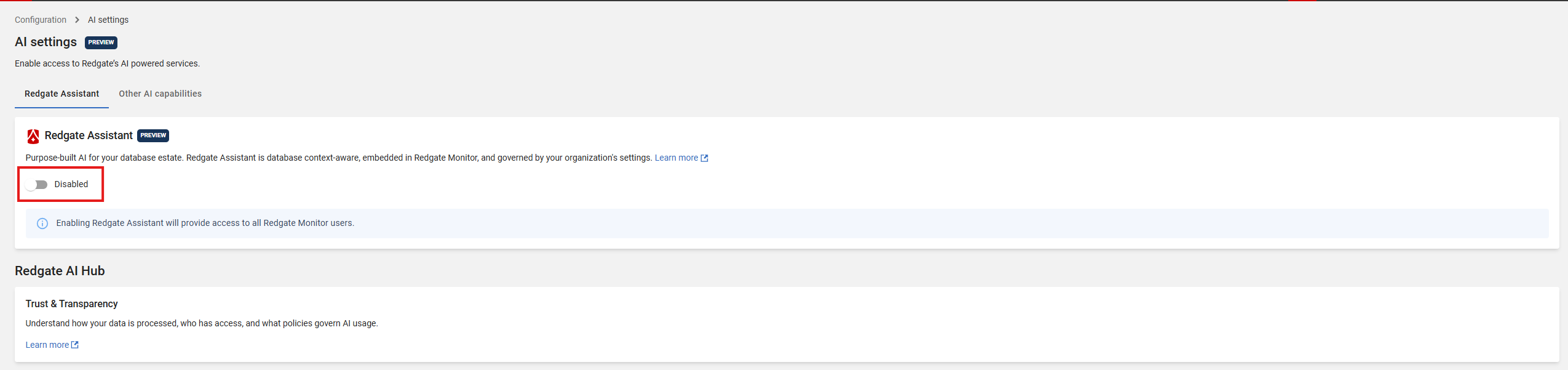
For other users (self-hosted only):
You will need to create your Redgate ID, follow instructions on how to Create and manage your Redgate ID. For SaaS, you can ignore these instructions - Redgate ID has already been created.
Disabling Redgate Assistant
To turn Redgate Assistant off for one Monitor installation, administrators can go to Configuration > AI settings and switch it off.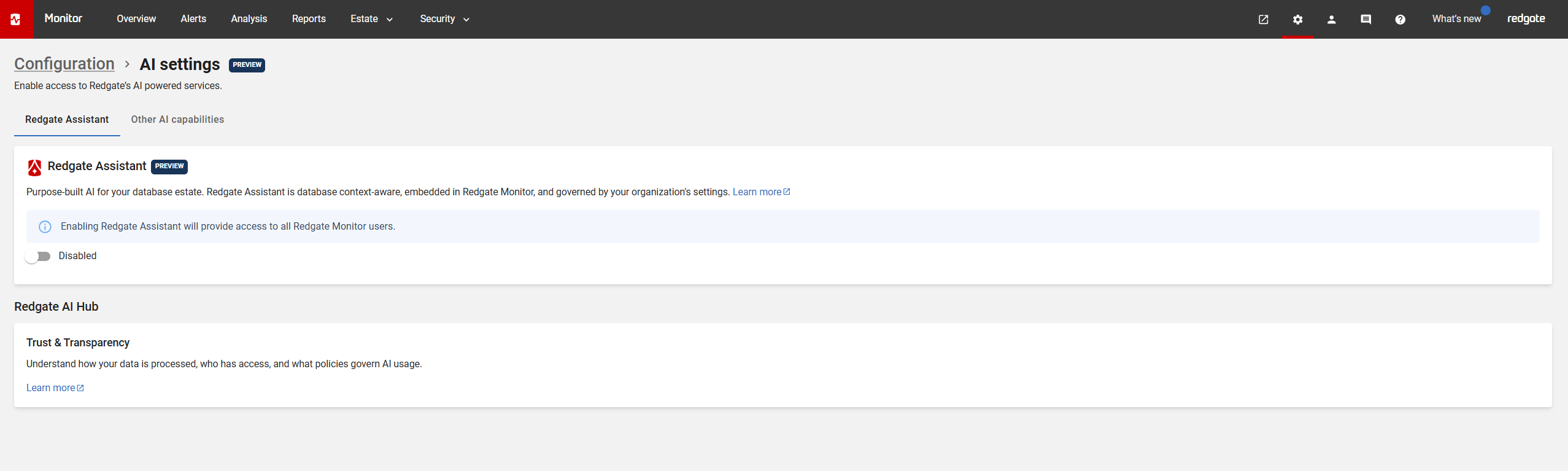
To turn AI features off for everyone in your organization — across Redgate Assistant and other Redgate products — see Managing AI features for your organization.
How to launch in Redgate Monitor
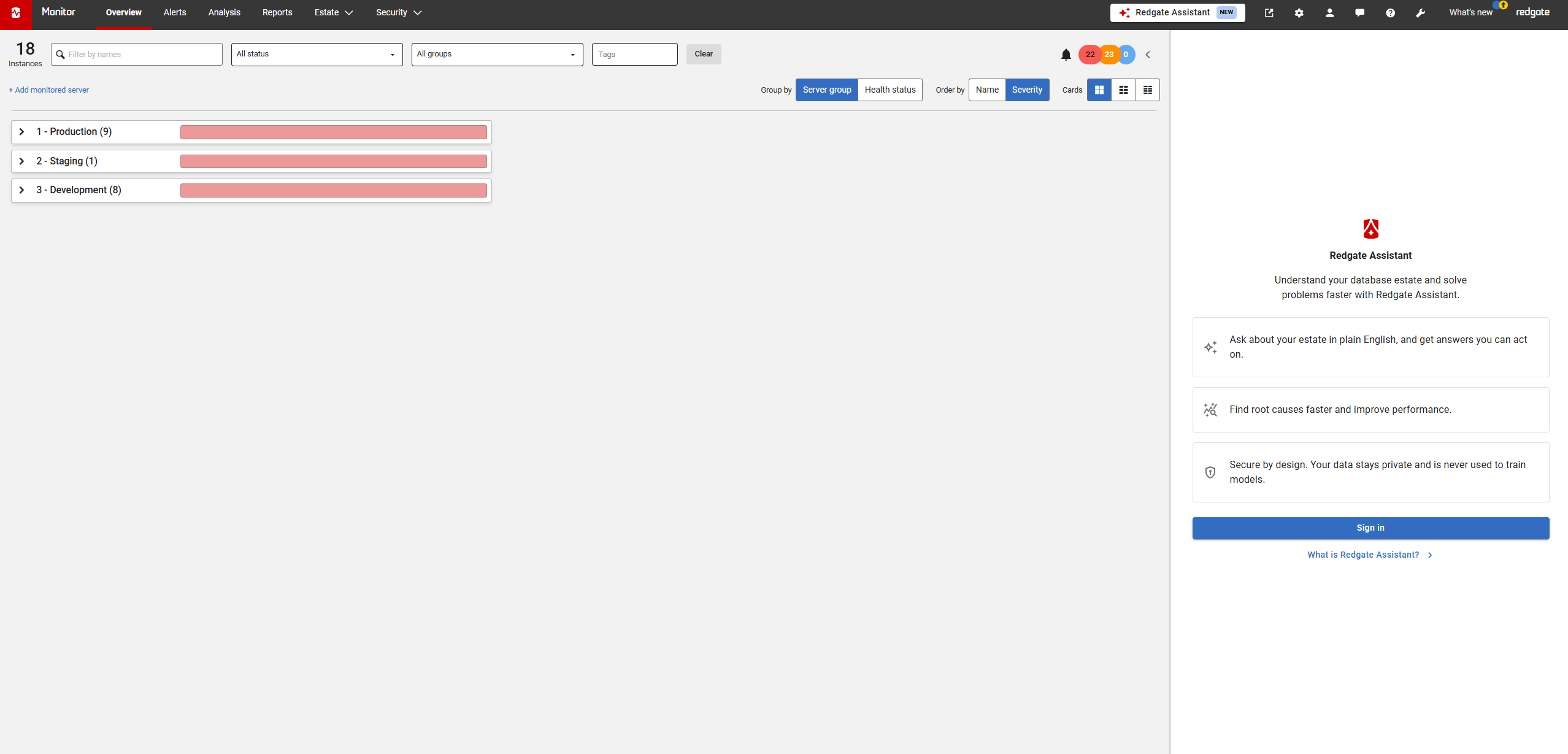
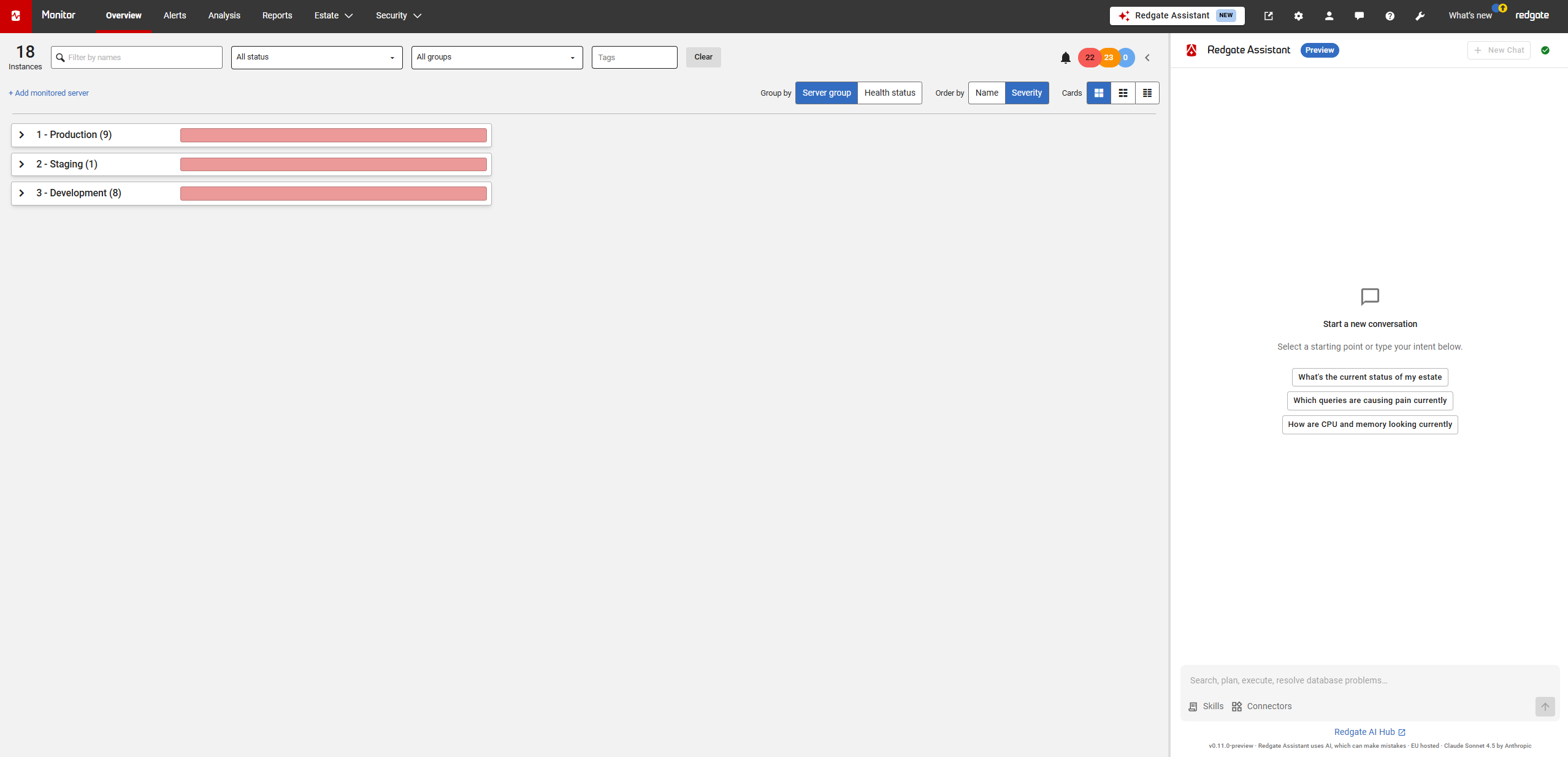
For example, navigate to the Overview page and click the Redgate Assistant button to launch.

Sign in
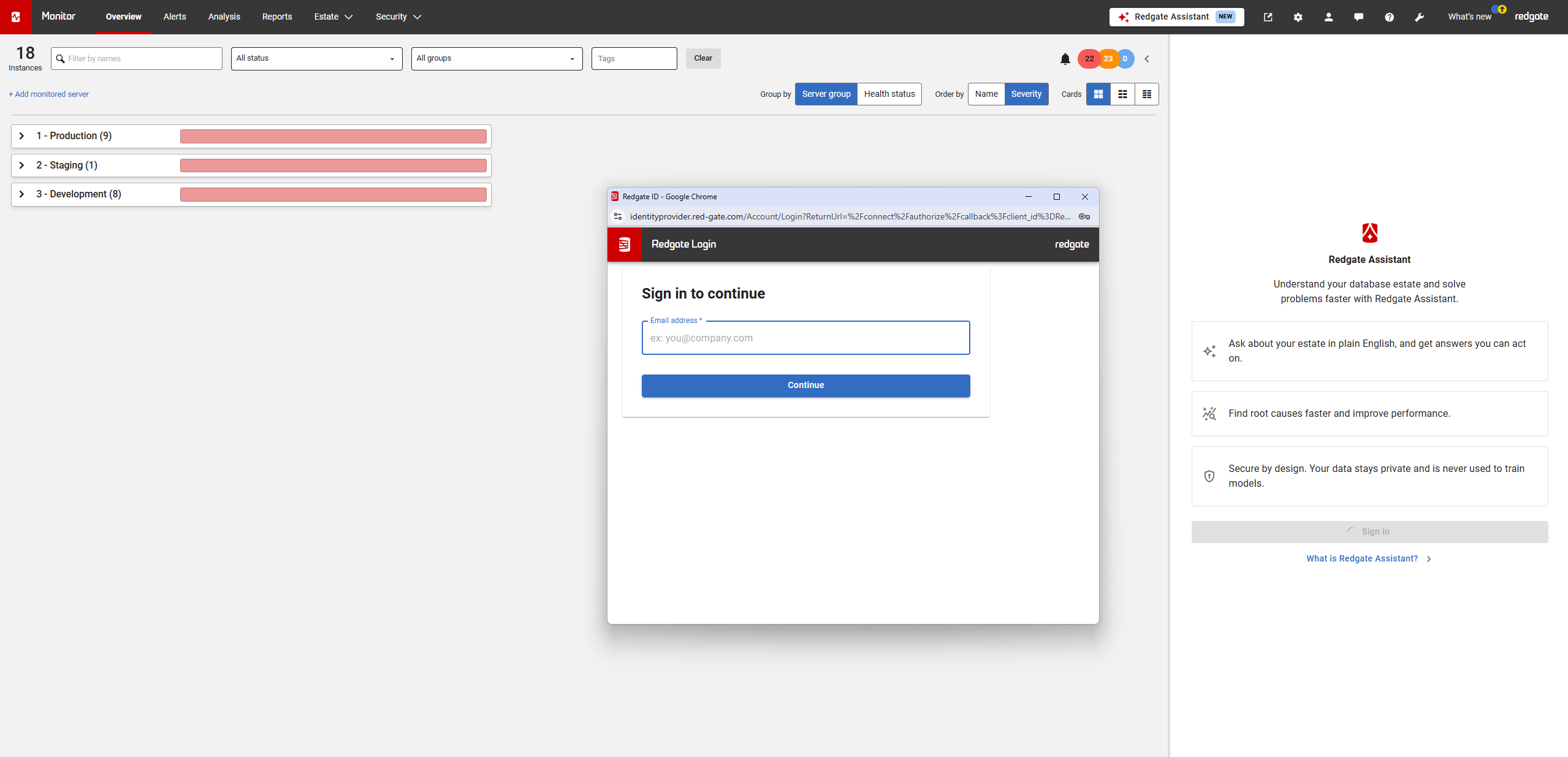
Type your Redgate ID credentials (self-hosted only)
Start chatting or click on one of our suggestions!
What can RGA do?
Currently RGA can do the following:
New set of database-agnostic tools were introduced from version 14.37.
Tool name | Tool description | Version introduced | SQL Server | Postgres | Oracle | MongoDb | MySQL | Scope |
|---|---|---|---|---|---|---|---|---|
get_base_monitors | Lists the connected base monitors in the installation. | 14.28 | n/a | n/a | n/a | n/a | n/a | |
get_monitored_servers | Lists monitored servers for a base monitor, with identifiers and monitoring status. | 14.28 |
|
|
|
|
| For SQL Server, currently fetches SQL Server on Windows, Linux, Amazon RDS, Azure SQL Server and Azure Managed Instance. |
get_metrics | Returns certain set of time-series metric data (for example CPU usage) for a monitored server. | 14.28 |
|
|
|
|
| For SQL Server, varies depending on the metric. |
get_top_queries | Returns the top queries by resource usage for a time range. | 14.37 |
|
|
|
|
| For SQL Server, supports SQL Server on Windows, Linux, Amazon RDS and Azure Managed Instance. |
get_top_waits | Returns the top wait types for a time range. | 14.37 |
|
|
|
|
| For SQL Server, supports SQL Server on Windows, Linux, Amazon RDS and Azure Managed Instance. |
get_queries_per_wait | Returns the queries contributing to a specific wait type for a time range. | 14.37 |
|
|
|
|
| For SQL Server, supports SQL Server on Windows, Linux, Amazon RDS and Azure Managed Instance. |
get_query_plan | Returns the query plan for a given query. | 14.37 |
|
|
|
|
| For SQL Server, supports SQL Server on Windows, Linux, Amazon RDS, and Azure Managed Instance. |
get_query_details | Returns the they query along with query plan. | 14.37 |
|
|
|
|
| For SQL Server, supports SQL Server on Windows, Linux, Amazon RDS and Azure Managed Instance. |
get_alerts | Returns alerts raised within a time window, including type, status, and severity. | 14.28 |
|
|
|
|
| For SQL Server, currently fetches SQL Server on Windows, Linux, Amazon RDS, Azure SQL Server and Azure Managed Instance. |
get_alert_details | Returns the full details of a single alert. | 14.28 |
|
|
|
|
| For SQL Server, currently fetches SQL Server on Windows, Linux, Amazon RDS, Azure SQL Server and Azure Managed Instance. |
get_monitor_documentation | Points the assistant at the Redgate Monitor documentation for questions the data tools can't answer. | 14.28 | n/a | n/a | n/a | n/a | n/a |
|
get_blocking_processes | Returns blocking processes within a time window. | 14.37 |
|
|
|
|
| For SQL Server, supports SQL Server on Windows, Linux, Amazon RDS and Azure Managed Instance. |
get_blocked_process | Returns information on a single blocked process. | 14.37 |
|
|
|
|
| For SQL Server, supports SQL Server on Windows, Linux, Amazon RDS and Azure Managed Instance. |
SQL Server-specific tools below are not longer available from version 14.37. Please use the new set of database-agnostic tools above.
Tool name | Tool description | Version introduced |
|---|---|---|
get_base_monitors | Lists the connected base monitors in the installation. | 14.28 |
get_monitored_servers | Lists monitored servers for a base monitor, with identifiers and monitoring status. | 14.28 |
get_metrics | Returns time-series metric data (for example CPU usage) for a monitored server. | 14.28 |
get_sql_server_top_queries | Returns the top SQL Server queries by resource usage for a time range. | 14.28 |
get_sql_server_top_waits | Returns the top SQL Server wait types for a time range. | 14.28 |
get_sql_server_queries_per_wait | Returns the queries contributing to a specific SQL Server wait type for a time range. | 14.28 |
get_sql_server_estimated_query_plan | Returns the estimated execution plan for a query. | 14.28 |
get_sql_server_actual_query_plan | Returns the most recent actual (post-execution) plan captured for a query. | 14.28 |
get_alerts | Returns alerts raised within a time window, including type, status, and severity. | 14.28 |
get_alert_details | Returns the full details of a single alert. | 14.28 |
get_monitor_documentation | Points the assistant at the Redgate Monitor documentation for questions the data tools can't answer. | 14.28 |
get_sql_server_blocking_processes | Returns blocking processes within a time window. | 14.30 |
get_sql_server_blocked_process | Returns information on a single blocked SQL Server process. | 14.30 |
FAQ
Are users and groups permissions reflected in RGA?
RGA works along with all authentication types in Monitor. User with restricted access to servers will only be permitted to query their allowed instances.
Troubleshooting
The following applies to self-hosted only
The Redgate Assistant panel is empty or does not load
Open the browser developer tools and check the Console tab. If you see a message that contains "violates the following Content Security Policy directive" and lists https://ai.redgate.cloud or wss://ai.redgate.cloud, your Redgate Monitor website is sending a Content-Security-Policy header that does not allow Redgate Assistant.
This may happen if you have set your own Content-Security-Policy value in the customHeaders section of %ProgramData%\Red Gate\Redgate Monitor\appsettings.json (Linux: /etc/opt/redgate/redgatemonitor/appsettings.json ). If your value replaces the default values that Redgate Monitor installs, it may not include the Redgate Assistant hosts.
To fix:
1. Open appsettings.json in %ProgramData%\Red Gate\Redgate Monitor .
2. In the Content-Security-Policy value, add https://ai.redgate.cloud to the frame-src directive and wss://ai.redgate.cloud to the connect-src directive.
3. Restart the Redgate Monitor Web Service.
Do not edit the appsettings.json file in the installation folder. Redgate Monitor replaces that file on every upgrade.
If the console shows a network error, check that the user's firewall and proxy allow HTTPS and WebSocket traffic to ai.redgate.cloud on port 443.
Clicking "Sign in" does nothing
If the Redgate Assistant panel loads normally, but clicking Sign in produces no popup and no visible error, check whether Redgate Monitor is being accessed over HTTPS. Redgate Assistant sign-in requires HTTPS; it does not work over a plain HTTP connection, and this failure does not produce a Content-Security-Policy or network error in the browser console.
This documentation contains proprietary information and is protected by copyright law.
Copyright © 2026 Red Gate Software Limited. All rights reserved


