Redgate Assistant (Preview)
Published 24 March 2026
This is a Preview feature available since SQL Prompt version 11.4. It may change, be removed, or stop working at any time. We encourage you to try it out and provide feedback.
Redgate licensing changes
The first time you install or upgrade to a SQL Prompt version compatible with Redgate Assistant (>=11.4), you will need to re-login by going to the SQL Prompt > Help > Manage License... main menu in SSMS/VS due to required Redgate licensing changes. This is a one-time operation.
Redgate Assistant is an AI chatbot with T-SQL expertise designed to help with database development tasks. Redgate Assistant is in preview mode and disabled by default, see How to enable Redgate Assistant to enable it.
Integrated directly into SSMS, it provides assistance in writing T-SQL queries, leveraging the functionality of SQL Prompt to provide a rich, chat-driven development experience. Redgate Assistant also integrates with other Redgate products, powering new workflows from a single interface.
Screenshots in this page were taken with SQL Prompt version 11.4.2.26116 (or above) and Redgate Assistant v0.11.2-preview (or above).
Contents
How to enable Redgate Assistant
Prerequisites
- You will need a SQL Prompt subscription license (or a SQL Toolbelt Essentials or SQL Toolbelt license one). Perpetual licenses are excluded.
- You may have to re-login to Redgate licensing if upgrading from an older version as explained in the note at the top of this document.
- The Redgate Assistant chat UI requires Microsoft WebView2 installed in your Windows machine.
- Windows 11 and some versions of Windows 10 ship with a preinstalled version of WebView2, but older versions of Windows 10 or Windows Server do not and require manual installation of the runtimes.
- Webview2 requires Windows Server 2016 or above, so older legacy OSes – like Windows Server 2012 or Windows Server 2012 R2 – while supported in SQL Prompt will not be able to run Redgate Assistant.
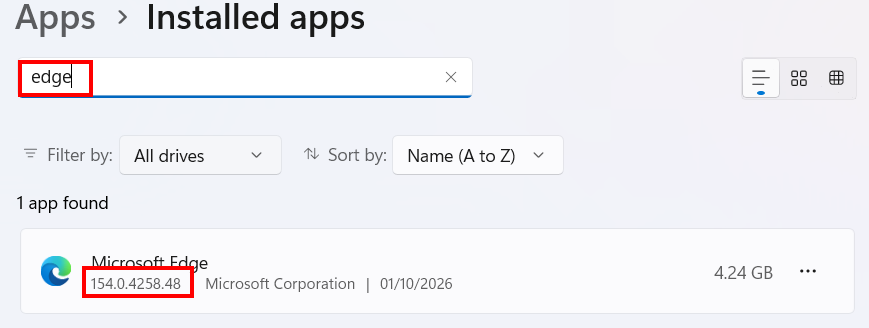
- For full API compatibility, the latest SQL Prompt requires WebView2 Runtime 150.0.4078.44 (Jul. 7, 2026) or later. You can confirm your current runtime version by checking your Edge browser version in
Add or remove Programs:
- Redgate Assistant makes all AI requests to *.redgate-platform.com and *.ai.redgate.cloud.
- If your organization enforces it, you will need to set these subdomains in your firewall rules and allow lists to enable Redgate Assistant in SQL Prompt.
- Please check our AI in SQL Prompt FAQ for further details.
- If you have created a Redgate organization before, ensure you have opted-in to use AI features in Redgate portal.
- To find out more about the Redgate organization authentication, refer to Creating a Redgate Organization.
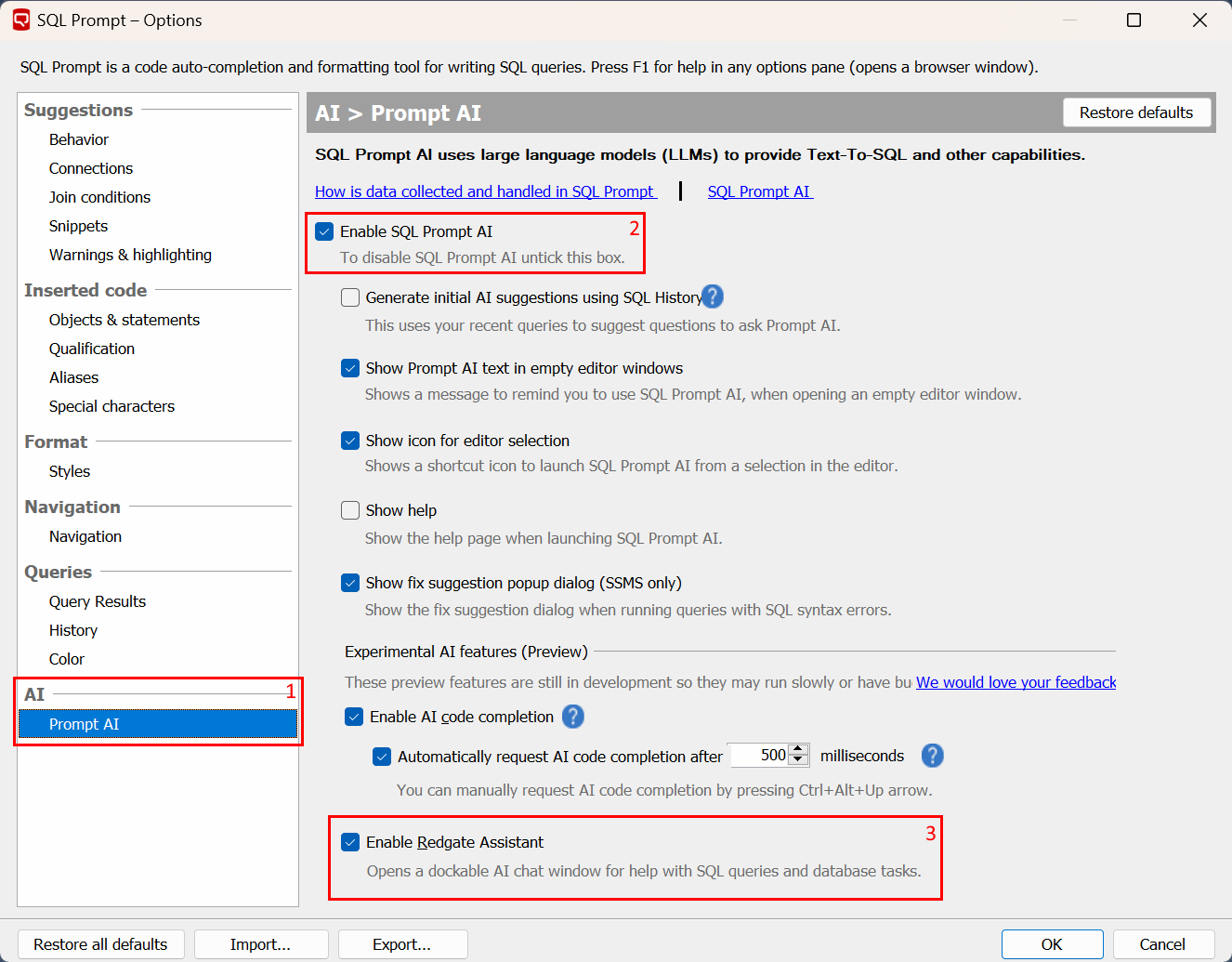
Configuring SQL Prompt for Redgate Assistant
Redgate Assistant is an opt-in feature, and can be enabled/disabled via the SQL Prompt options or main menu:
- Navigate to the
SQL PromptOptions menu (SQL Prompt > Options...). - Tick the checkbox for
Enable SQL Prompt AI(this setting is required to enable all AI features in SQL Prompt, including Prompt AI). - Tick the checkbox for
Enable Redgate Assistantat the bottom of the page.
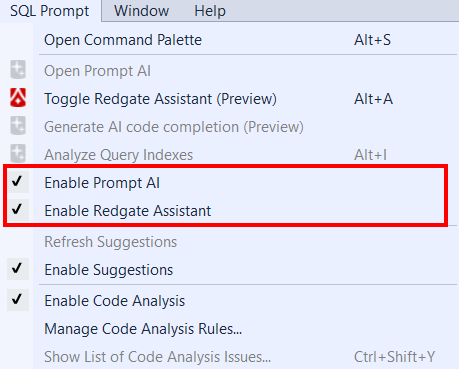
Alternatively, you can enable/disable AI functionality and Redgate Assistant directly from the main menu in SSMS:
Model details and data handling
Visit the SQL Prompt AI data handling page and Redgate AI trust hub to see how your data is handled in Redgate Assistant.
At the time of writing (October 2026), Redgate Assistant uses Claude Opus 5.5 by Anthropic.
Working with Redgate Assistant
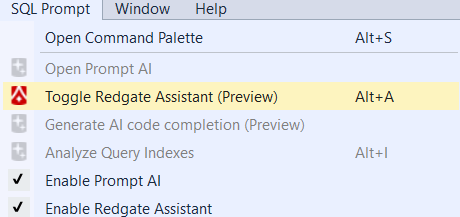
To work with Redgate Assistant, first you need to open the Redgate Assistant window. You can either:
- Use the
Alt + Akey bind - Select the
Toggle Redgate Assistant (Preview)Option from theSQL PromptOptions menu
Once you have the Redgate Assistant window open, you will be presented with the following screen.
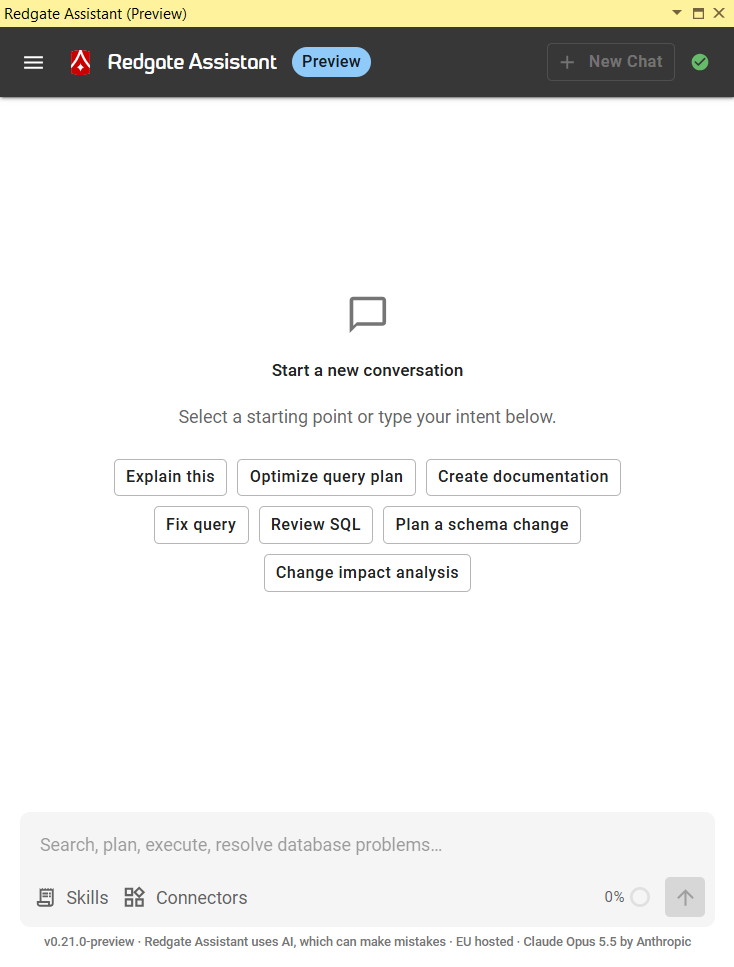
At the bottom of the window is a text box where you can ask your questions. Redgate Assistant is not limited to English - you can use any language you like in your conversations.
Your conversation persists between IDE sessions, so you can resume your earlier inquiries after restarting SSMS.
If you wish to start a new conversation with a fresh context, please click the New chat button in the top-right corner:

Supported IDE versions
Redgate Assistant is available in all supported SQL Server Management Studio versions (SSMS18+).
Visual Studio is not supported.
What can you do with Redgate Assistant?
Redgate Assistant is a general-purpose chatbot with SQL expertise designed to help with all aspects of database development. As such, it's capable of performing many tasks.
Additionally, it's enhanced with SQL Prompt functionality to further refine its skillset and capabilities.
You might ask Redgate Assistant to:
- Perform a code review on one of your queries.
- Write a new query from scratch based on your requirements.
- Give advice on how best to create an index for a table.
- Ask to explain how a certain script works.
- Fix errors in a given query.
- Optimize T-SQL for performance and effectiveness.
- Gather detailed information about a database schema and its purpose.
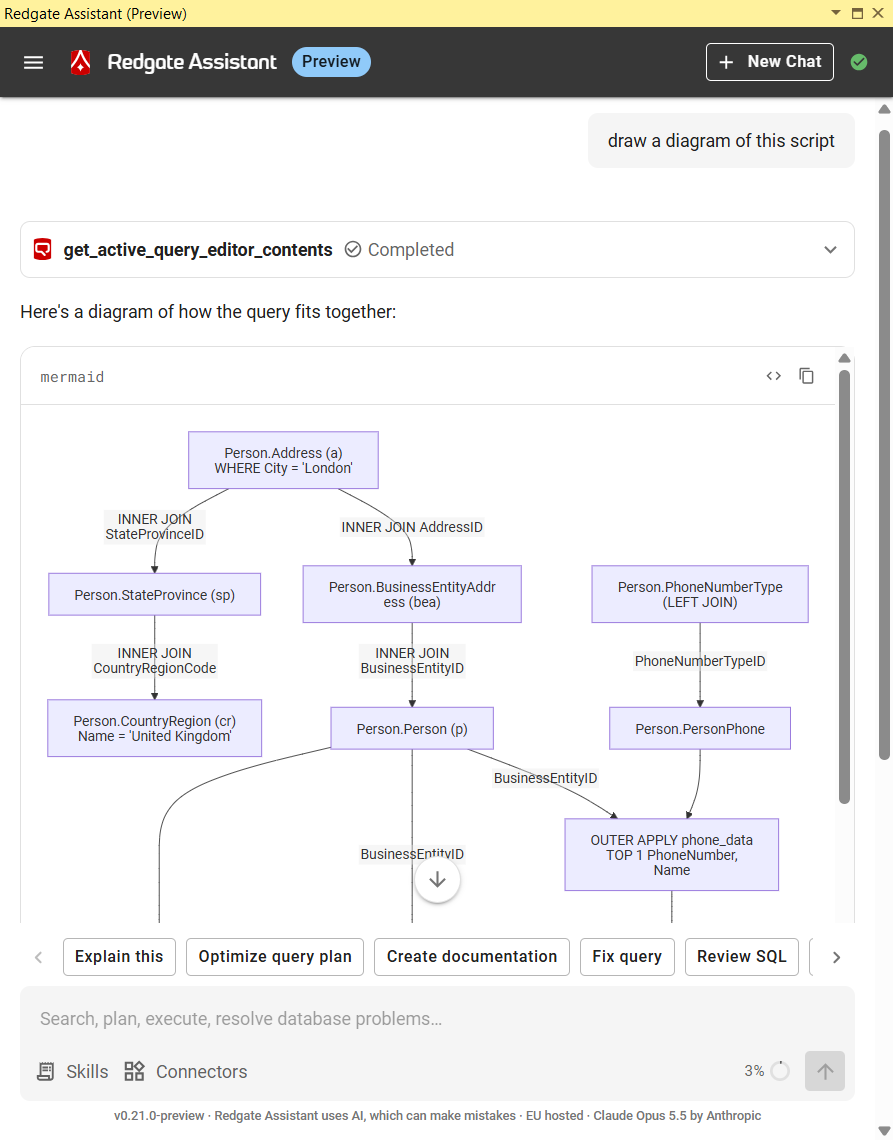
- Ask to draw diagrams to represent flowcharts of T-SQL query steps or a sequence of calls between services. These mermaid diagrams can be copy pasted to other locations as required (e.g. a markdown editor).
How does Redgate Assistant integrate with SQL Prompt?
Redgate Assistant works off your active query editor window. It can see the T-SQL in the editor, and can gather information about the database it's connected to.
SQL Prompt offers many tools and skills to perform various operations and refactorings, such as:
- Get the entire script or the active selection from the active query editor window.
- Obtain a list of T-SQL execution errors.
- Obtain a list of CodeSense (IntelliSense) T-SQL errors.
- Fetch database information, including schema details about DB objects (e.g. tables, views, stored procedures).
- Construct query execution plans to enable query optimization.
- Format the current T-SQL with your active formatting style.
- Run code analysis with your current set of rules.
As mentioned below in What's new in Redgate Assistant?, the list of features and tools will be constantly expanded. Keep checking this space for future developments.
Connections with other Redgate tools
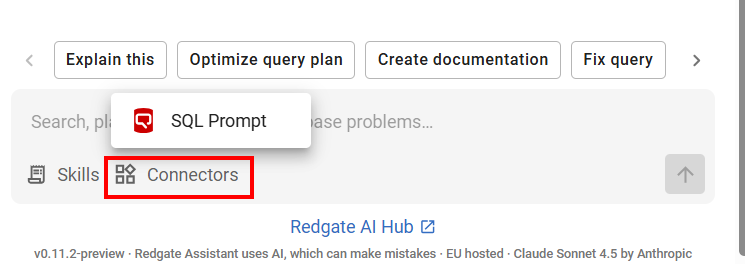
Redgate Assistant is a shared Redgate tool that integrates with several products in addition to SQL Prompt (e.g. Redgate Monitor).
This enables you to leverage the power of your entire Redgate portfolio within the same Redgate Assistant conversation.
You can check what is being used in your current chat session by clicking the Connectors button in your chat box:
Usage limits
As mentioned in the prerequisites section above, there are no additional costs when using Redgate Assistant if you are already on a SQL Prompt subscription license.
Fair usage limits are in play, but they are quite generous during the preview stage, and you will be notified in the UI if they are hit. You'll then just need to wait for a bit before trying again.
Conversation context limits
Additionally, each individual conversation has a context limit that corresponds to its memory of the ongoing chat. You can check the current usage percentage in the bottom right corner of the Redgate Assistant screen:

If you reach the limit, just start a new chat session in the top right corner:

Feedback
We would love to hear your feedback on Redgate Assistant.
Let us know what is working well, what could be improved, and what you'd like to see next.
- Take the survey to let us know how it's working out for you.
- Suggest AI improvements and new features in our SQL Prompt UserVoice.
What's new in Redgate Assistant?
There are two ways Redgate Assistant receives updates to its functionality:
- Updates to the client side of Redgate Assistant (e.g. SQL Prompt MCP tools, integration with SSMS, etc.) will be provided in regular SQL Prompt updates and can be checked in our release notes.
- Updates to the server side of Redgate Assistant (e.g. chat UI, LLM models, skills, etc) are done regularly and don't typically require SQL Prompt itself to be updated. You can find the changelog in the AI trust hub.
As this tool is in preview state, it will be receiving regular updates. Check back often.
This documentation contains proprietary information and is protected by copyright law.
Copyright © 2026 Red Gate Software Limited. All rights reserved


