Working with SQL Prompt AI
Published 22 August 2025
Contents
Open Prompt AI
To begin working with Prompt AI, first you need to open the Prompt AI window, which can be done through several different methods:
- Use the
Alt + Zkey bind. You can use this key binding on either an empty query, or you can select a portion of SQL and use it on that. - Select a portion of T-SQL or an entire query, right click, and select the
Open Prompt AIOption. - Select a portion of T-SQL, and click on the Prompt AI icon that pops up under the selection.
Please note that this icon will only pop up if you have theShow icon for editor selectionoption checked in the options menu. This is enabled by default. - Click on the
SQL Promptmenu option, and pressOpen Prompt AI. This option does not require a SQL selection to be made.
Please note, if you only select a portion of a query, the Prompt AI window will only edit the selected portion. You will know when Prompt AI is able to work with a selection of SQL as it will be highlighted in orange.
Interact with Prompt AI
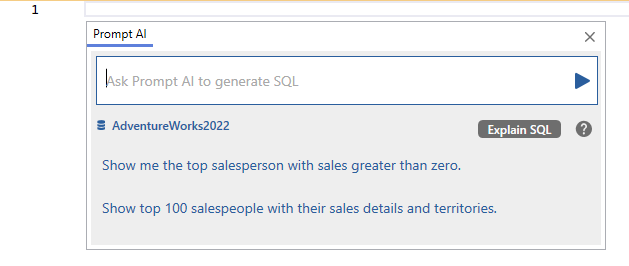
Once you have the Prompt AI window open, you will be presented with the following screen. The main portion of the window is the free text box, that you can use to tell Prompt AI what to do, be this to generate or tweak a script, or explain what a selected script is doing.
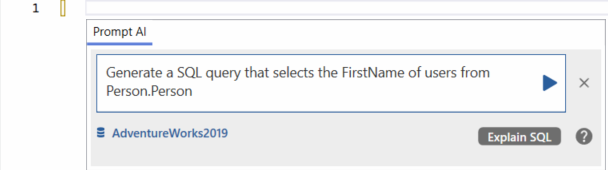
You can use this free text window in your natural language, it is not limited only to English.
Prompt AI results
Auto formatting and code analysis check
Whenever Prompt AI generates T-SQL in the active query editor window, it automatically invokes SQL Prompt's formatting feature (provided it's enabled in SQL Prompt options), so the generated SQL is formatted using your active style.
Likewise, Prompt AI will also check for SQL Code Analysis issues (provided code analysis is enabled in SQL Prompt options) and attempt to auto-fix any in the Prompt AI response to match your current rule settings.
Only rules that can be automatically fixed in bulk will be applied – with the sole exception of BP005 (Asterisk in select list).
Regeneration
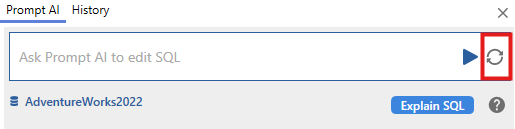
If you are unhappy with the result that Prompt AI gave you, you can either decline the changes, which will revert the query back to its state before Prompt AI was used, or you can press the regenerate button, highlighted in the following image. This button will have Prompt AI try to regenerate the query, which can lead to some slight tweaks being made.
Prompt AI features
Explain SQL
See Explain SQL with AI.
Fix SQL
Optimize SQL
See Optimize SQL Query with AI.
Prompt AI history
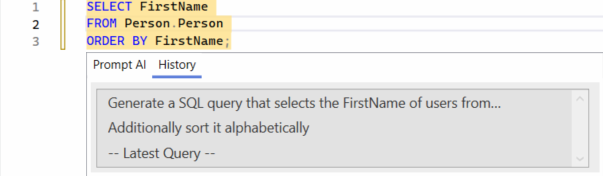
When you have generated some SQL using Prompt AI, the History tab becomes available.
The History tab can be accessed by pressing the button at the top of the Prompt AI window. On the new page, you will see a list of all the queries you have made while this window of Prompt AI has been open. Clicking on the options here will revert your query back to the state it was in before making this query. You can access the latest state of the query by pressing the -- Latest Query –- option.
Please note that the history in this page does not persist if you close the Prompt AI window.
Automatic AI prompt suggestions
Follow-up suggestions
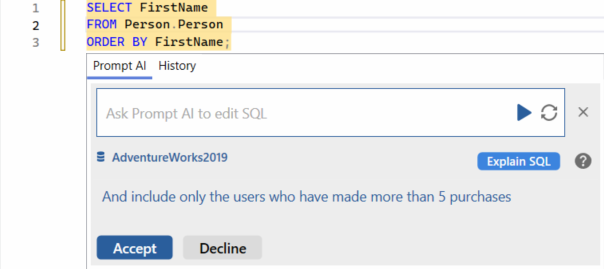
Another feature you can start using once you have generated your first SQL query is follow-up suggestions. Prompt AI's follow-up suggestions are automatically displayed by Prompt AI, and are designed to give you an idea of what else could be added. You are also able to click on the suggestions, which will automatically send the suggestion as a prompt to Prompt AI
Initial suggestions (from SQL History)
You can also have Prompt AI generate initial suggestions when you first open the window, with results based on your own work via integration with SQL History.
To do this, you must enable the Generate initial suggestions using SQL History setting in the Prompt AI options page and have SQL History enabled in the SQL Prompt options.
Enabling this will send Prompt AI your last queries that were saved using SQL History in the background, in order to generate a set of relevant suggestions to you when you open the Prompt AI window. As with the follow-up suggestions, you are able to click on these to have Prompt AI generate SQL based on them.
Find out more
Please feel free to check out other the Prompt AI features we have available:
This documentation contains proprietary information and is protected by copyright law.
Copyright © 2026 Red Gate Software Limited. All rights reserved


