Configure the TDM GUI
Published 20 January 2026
Overview
When you first launch Test Data Manager, the Setup Wizard guides you through initial configuration. The Setup Wizard is a one-time process and cannot be re-entered after completion.
If you prefer to configure Test Data Manager manually, or need to modify settings after completing the wizard, see Editing configuration.
Step 1: Redgate EULA
- Accept the EULA
- Click Continue
Step 2: Sign in
Create a Personal Access Token (PAT) and sign in with your Redgate account.
- Visit the Personal Access Token page link in the Redgate Customer Portal
- Sign in and click + New token
- Copy the token immediately and store it securely – for security reasons, it won't be displayed again
- Return to the Setup Wizard and enter the same email address you used to sign in to the Redgate portal when you created it, then paste your PAT
- Click Continue
Offline licensing: If you're working without internet access, see offline licensing documentation
Step 3: Licensing
You can start a free trial or allocate an existing license.
To allocate an existing license:
- Visit the Supported Products page in the Redgate Customer Portal
- Select the ‘Redgate Test Data Manager Standard’ product card you wish to assign users to
- To allocate a license:
- Click “Allocate” on the right side of the page
- When the drawer opens on the right side of the page, click the “License ID” dropdown and select the license you wish to allocate to
- In the “User email addresses” section, enter the same email address you used on the previous step to create your PAT.
- Click “Add 1 user” button located at the bottom to allocate the user to the license.
- Once allocated, return to the Setup Wizard and click Detect license
- Click Continue
Step 4: Set up access
Basic Authentication (recommended for proof of concept)
Select "Basic Authentication", then create a password for the Test Data Manager Web UI.
- Enter and confirm your password
- Click Complete
If you initially set up TDM using basic authentication, OIDC authentication can be set up later. See our documentation for guidance.
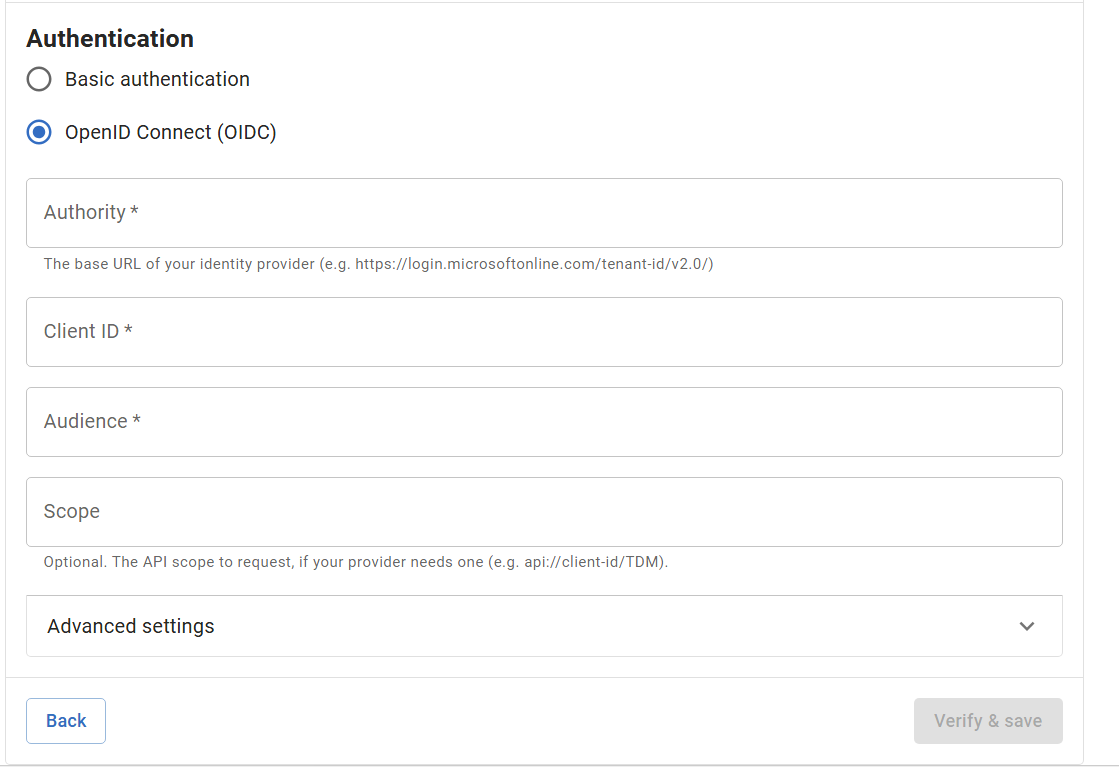
OIDC (recommended for actual use)
The option to configure OIDC from the start is also available in the setup wizard. OIDC is currently tested with Microsoft Entra ID and Okta.
Select "OpenID Connect (OIDC)", then enter your details such as Authority, Client ID, Audience, and Scope.

Step 5: Setup complete
You’re all set to start using Test Data Manager!
Click Create database model to get started with Test Data Manager. See Creating a database model for more information.
Please note that once you click Create database model or Close, the Setup Wizard cannot be reopened.
This documentation contains proprietary information and is protected by copyright law.
Copyright © 2026 Red Gate Software Limited. All rights reserved


